
Wishlists
Wishlists let shoppers save products they want, come back to them later, and share a list so friends and family can buy from it.
Shoppers can keep one list or several, say how many of something they want, leave a note on an item (a size or a color), and share a list with a link. Cascade can also email them when a saved item drops in price or comes back in stock.
Turn wishlists on
- Open Set up wishlists and answer the two questions: whether a shopper keeps one list or several, and whether lists can be shared (with or without prices). Everything you choose here can be changed later under Settings → Wishlists.
- Add the Add to wishlist button to your product pages and the Wishlists block to an account page. On Shopify, see Widgets in your theme. Elsewhere, see Storefront widgets.
 3. Save a product on your own store to check it works, then open
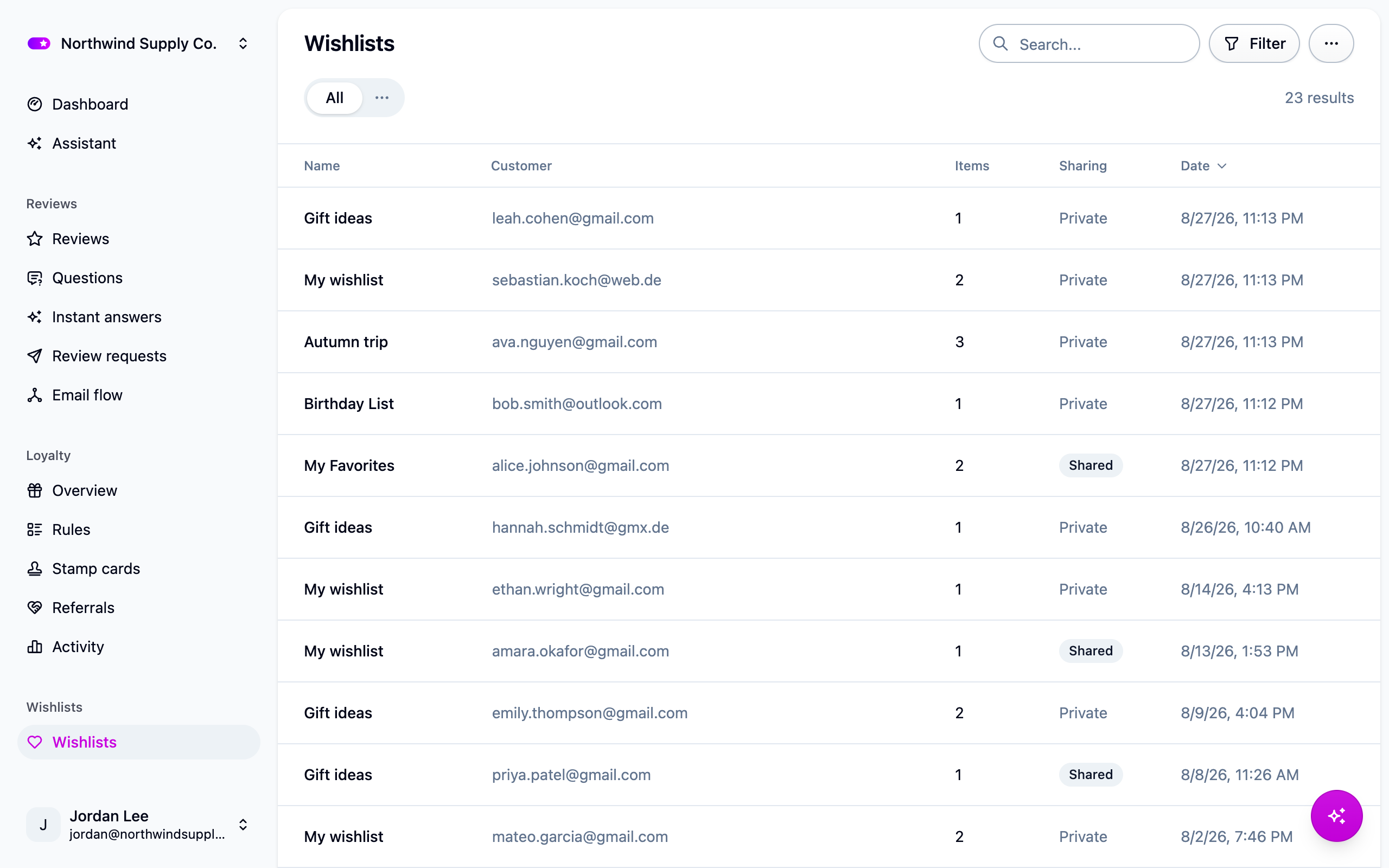
Wishlists to see it in the dashboard.
3. Save a product on your own store to check it works, then open
Wishlists to see it in the dashboard.
One-click saves
Clicking the save button puts the product on the shopper's main list. A first-time saver doesn't have to name anything: Cascade creates the list for them, using Name for a customer's first list under Settings → Wishlists ("My wishlist" out of the box). Changing that name only affects lists created afterward.
Clicking again removes the product. The arrow beside the button lets a shopper pick a different list, and Make default in their list manager changes where one-click saves go.
One list, or several
Several lists per customer under Settings → Wishlists decides whether shoppers can create more than one list. One list is simpler and right for most stores. Several is worth it when people shop for others, so a registry can sit beside a wish list.
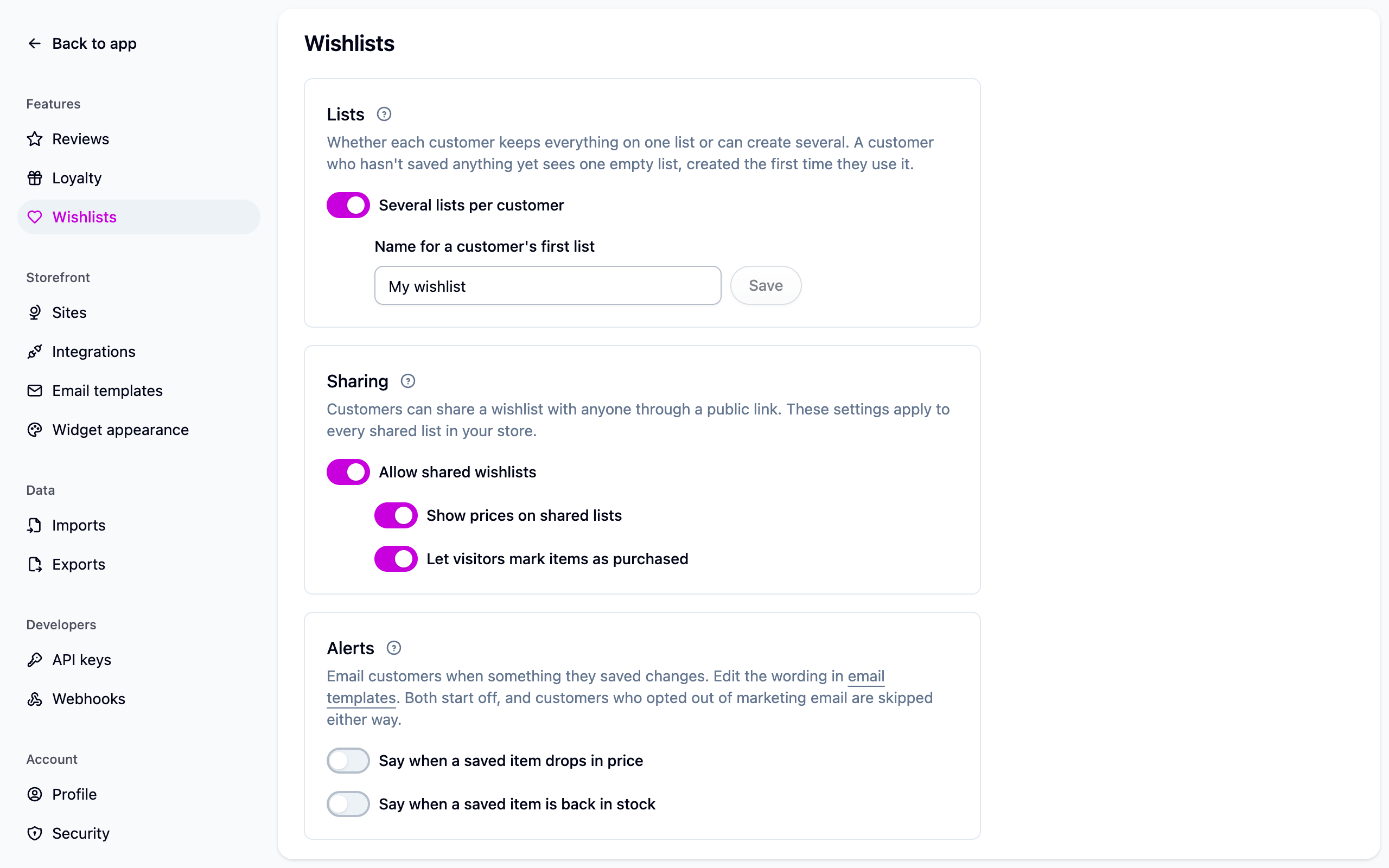
A shopper who hasn't saved anything yet sees one empty list, under the name from the same card, so their account page looks the same on their first visit as it does afterward. The list isn't really created until they save something, rename it or share it, and it doesn't show up in your dashboard until then.
Turning the setting off later doesn't take away lists shoppers already have. They can still see and use all of them; they just can't create another.
Before a shopper signs in
Shoppers who aren't signed in can still save. Their lists live in their browser until they sign in, and then move onto their account. If you allow one list per customer, Cascade asks before merging their saves into it. Sharing, alerts and purchase marking wait until they sign in.
Sharing
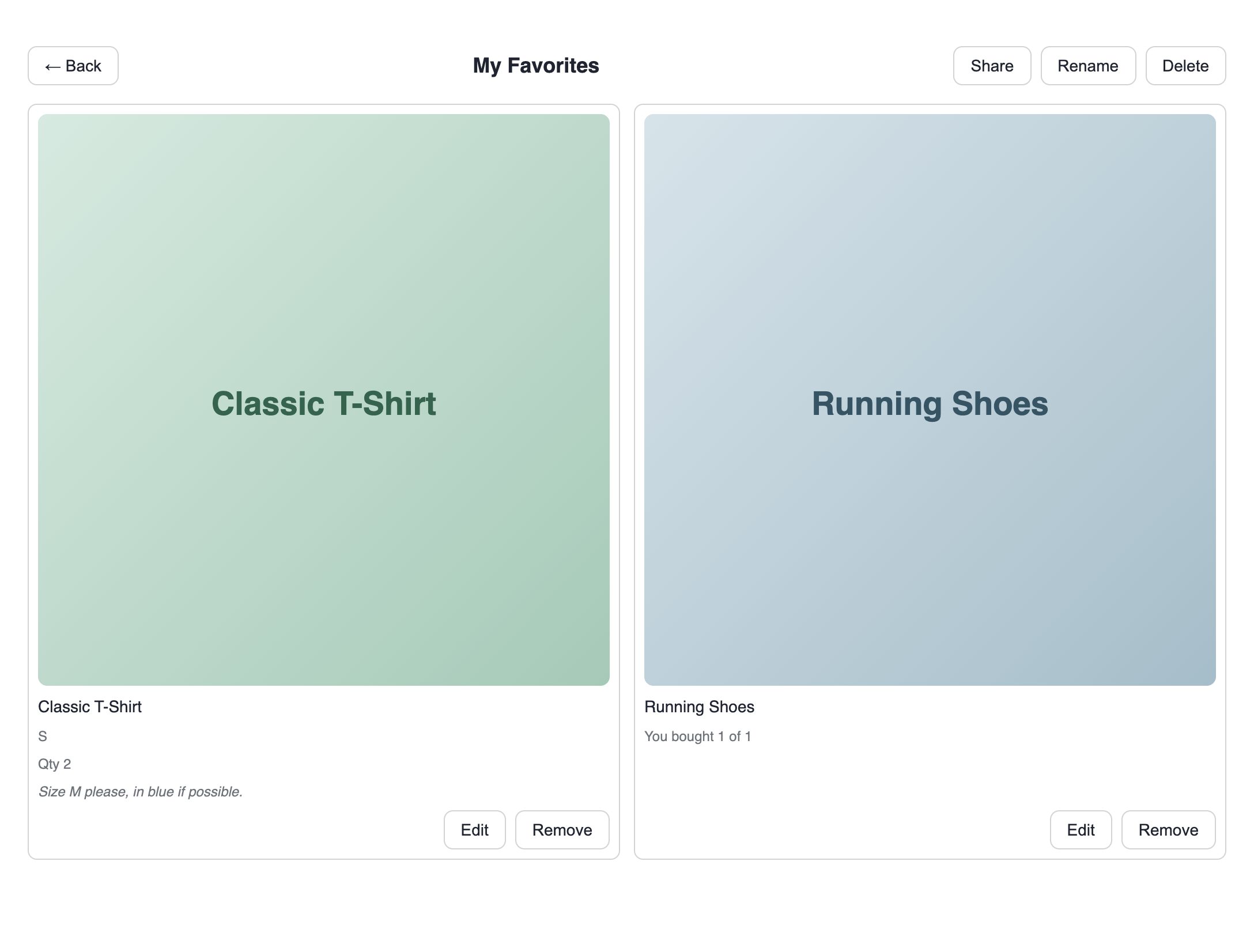
Every list is private until its owner shares it. Shoppers turn sharing on from their list manager and copy the link, and can replace the link at any time if they shared it with the wrong person.
The settings that matter, all under Settings → Wishlists:
- Allow shared wishlists is the store-wide switch. Turn it off and every share link stops working at once; turn it back on and they come back as shoppers left them.
- Show prices on shared lists decides whether gift buyers see prices on the shared page.
- Let visitors mark items as purchased lets anyone with the link mark an item as bought, so two people don't buy the same present.
- Let shoppers add a photo to a saved item lets a signed-in shopper put their own photo on something they saved, shown in place of the product image on their list and the shared page.
- Count shared lists as referrals credits a list's owner with a loyalty referral when a visitor from their list buys something from it. Off by default. See Referrals.
See Sharing and gift purchases for how the shared page works and who can see what.
Alerts
Cascade can email a shopper when a saved item drops in price or comes back in stock. Both are off until you turn them on under Settings → Wishlists. See Wishlist alerts.
In the dashboard
Wishlists lists every saved list. Filter it, sort it, and export what you're looking at. Open a list to see its items, who owns it, whether it's shared and what has been bought.
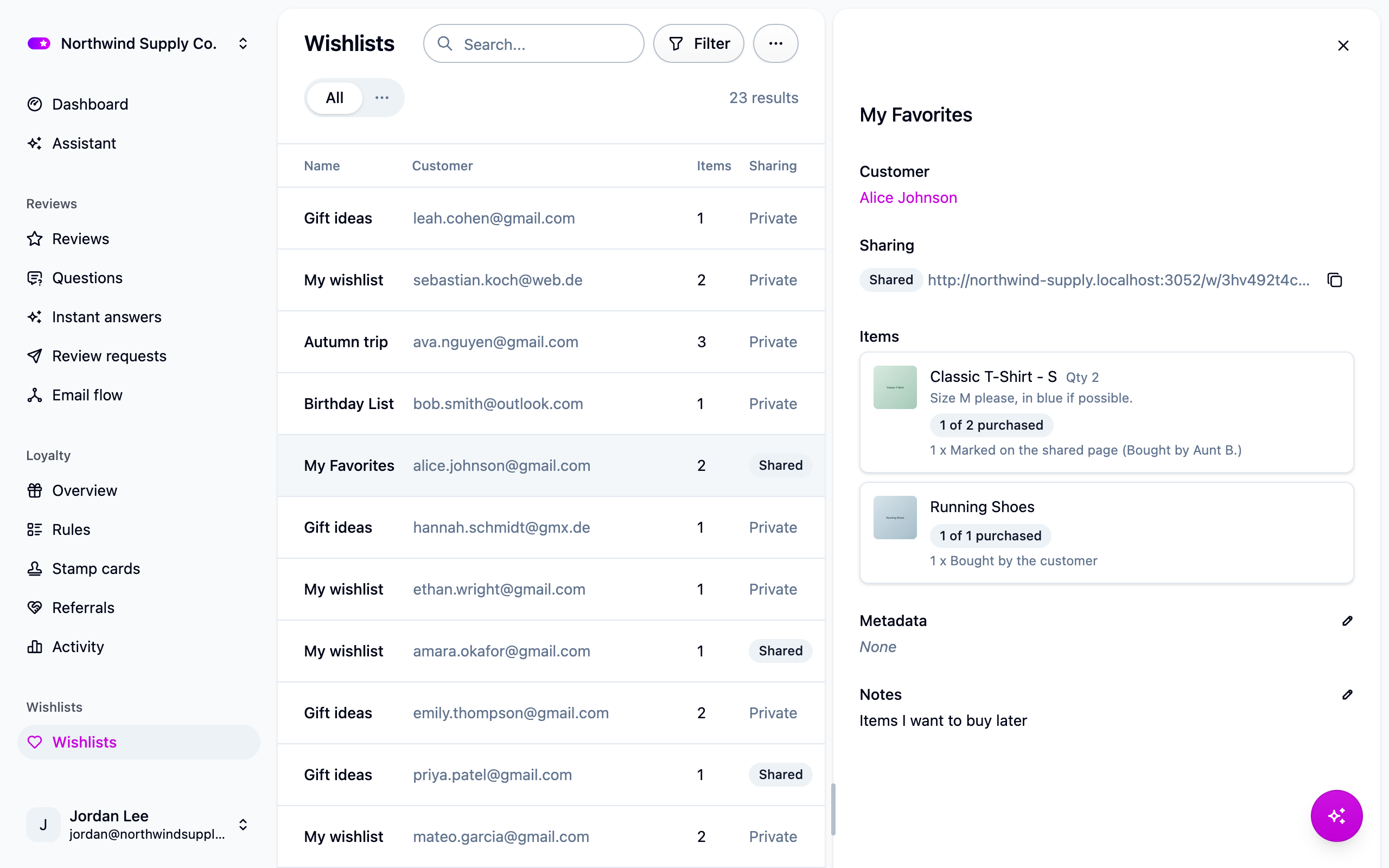
The list's name and items belong to the shopper, so you change them from the storefront or with an import, not by hand. You can change whether a list is shared, replace its link, and keep your own notes on it.
Next steps
- Bring lists across from your old app: Importing wishlists.
- Turn on price-drop and back-in-stock emails: Wishlist alerts.
- Change the wording of those emails: Email templates.
For developers
The three wishlist embeds (data-cascade-add-to-wishlist, data-cascade-wishlists,
data-cascade-wishlists-modal) and the customer attributes they need are documented in
Storefront widgets. Additional notes:
data-cascade-wishlists-modal-labelchanges the modal's button label.- The value of
data-cascade-add-to-wishlistis the product slug. On Shopify that is the product handle:<div data-cascade-add-to-wishlist="{{ product.handle }}"></div>. The widget works for guests, so don't wrap it in{% if customer %}. - Guest saves keep a display snapshot of the product in
localStorage. Supply it withdata-cascade-product-title,data-cascade-product-image,data-cascade-product-priceanddata-cascade-product-urlon the save button. The snapshot is captured at save time and not updated. - When the customer attributes appear, the widget claims browser lists through
POST /widgets/wishlists/claimand clears the browser copy. With several lists allowed, each browser list becomes a wishlist (a clashing name gets a numbered suffix); with one list, the shopper is asked first and items are merged into it. The claim is all-or-nothing: on any failure the browser copy is kept. - Widgets read
multipleWishlistson every widget API wishlist response. - Gift purchases from your own systems:
POST /wishlists/{id}/items/{itemId}/purchasesrecords one (hidden from the list's owner),GETreads the full picture,DELETEclears every purchase on the item. Changes are written to the audit trail. shareTokenandshareUrlare on the API wishlist response and are deliberately left out of exports.- Availability for back-in-stock alerts can be set on a product import with an
availablecolumn (true/false) on the variant row. An absent column or empty cell keeps the stored value.