
Getting started
Welcome to Cascade. This guide takes you from a new account to reviews being collected and a loyalty program running on your store, in about 15 minutes.
1. Create your account
Sign up with your store's name, its web address, your email address and your time zone. Cascade sets up your first store from those, so there's nothing more to fill in when you arrive. If you run several stores, enter one and add the rest later under Settings → Sites.
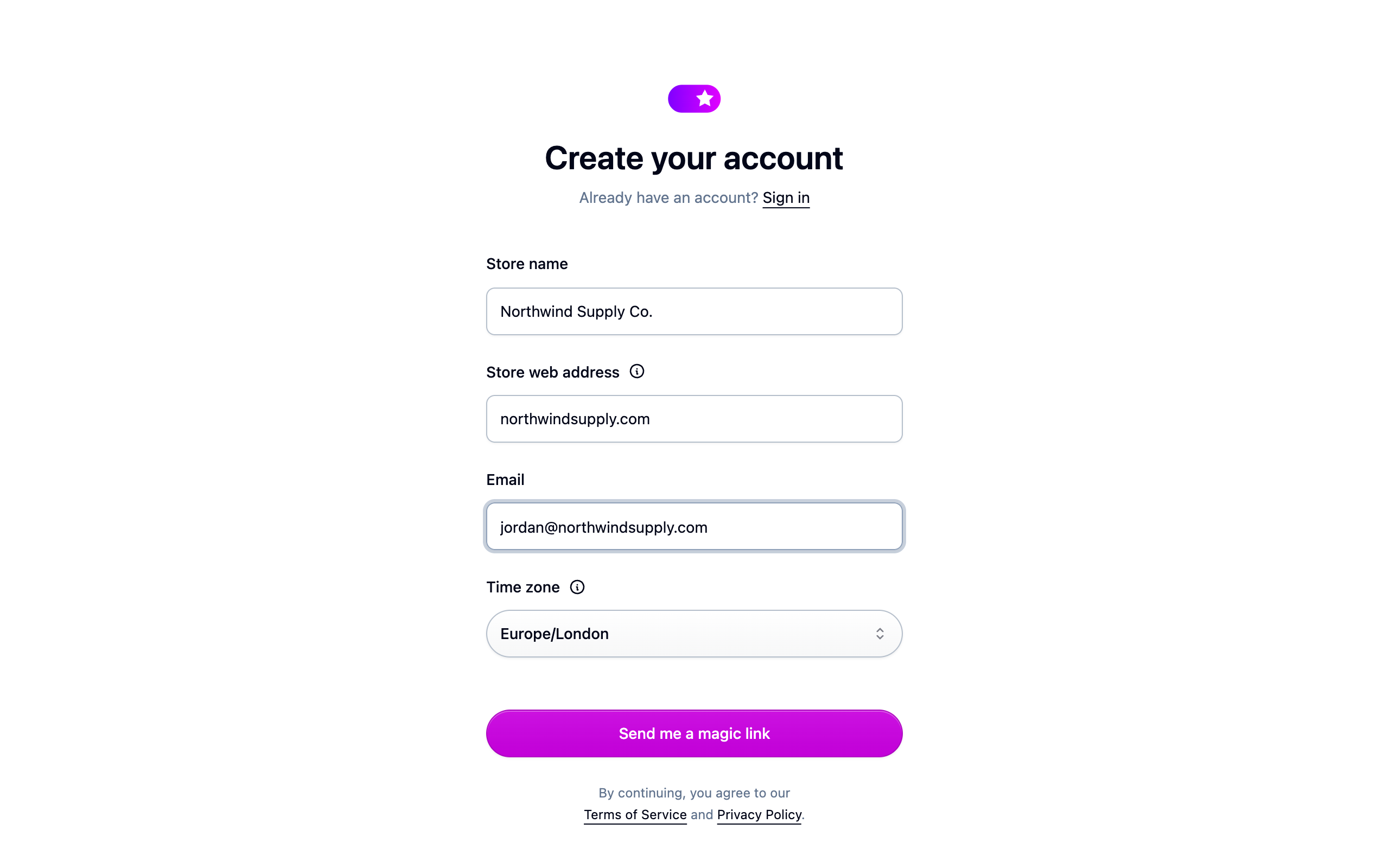
There's no password to choose: Cascade emails you a link to sign in with. You can also continue with Google, Microsoft or GitHub. See Signing in.
Your time zone decides which day an order counts on in your reports and when birthday rewards go out. You can change it any time under Settings → General.
2. Connect your store
Cascade needs your products and orders so it knows who to ask for a review and what a customer spent.
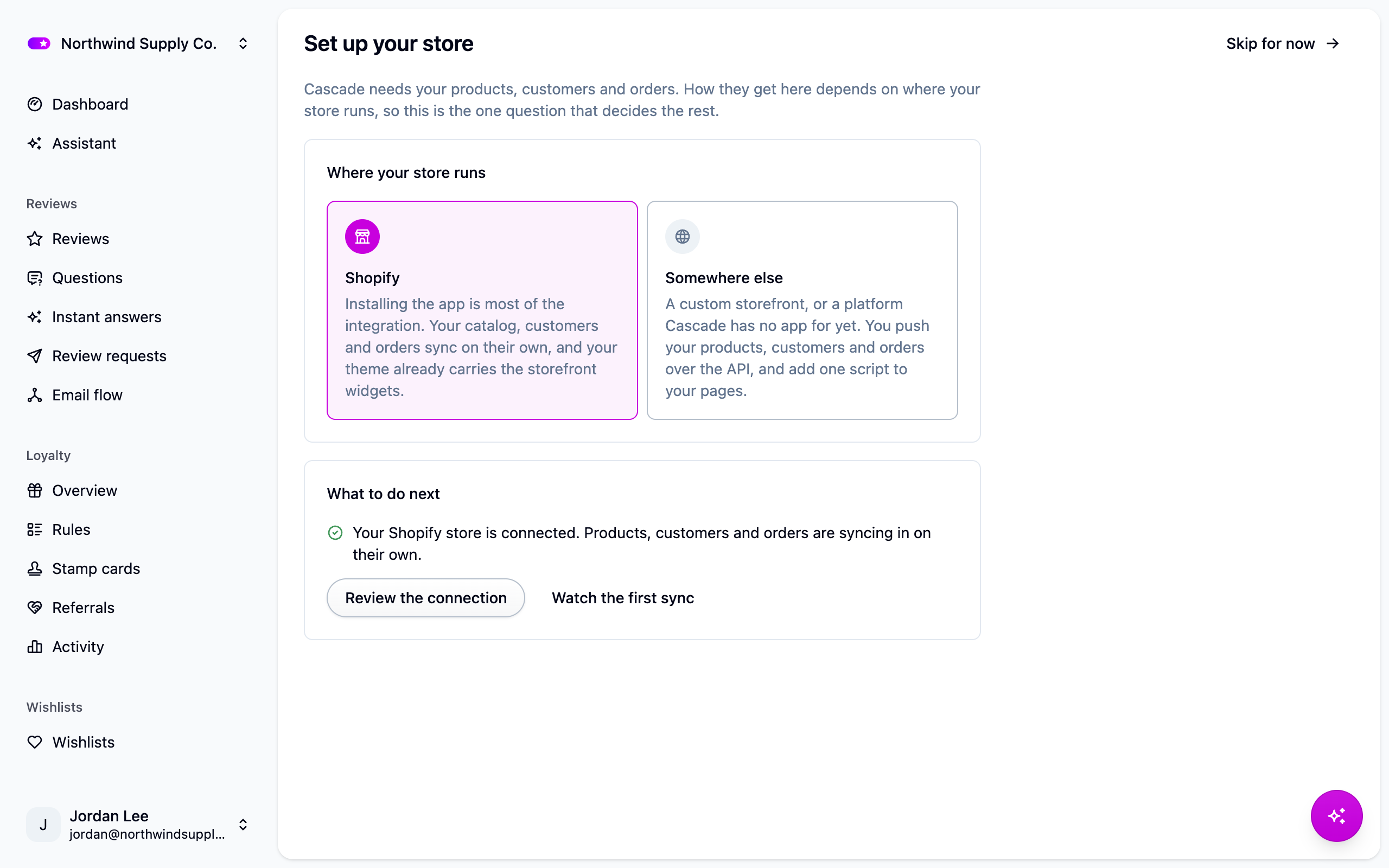
- On Shopify, install the Cascade app from your Shopify admin and approve the permissions. Your catalog and order history start syncing right away. See Connecting Shopify.
- On another platform, your developer connects it in about a day. See Custom integration.
- Not ready to connect? Upload a spreadsheet of products and orders instead. See Importing products and Importing orders.
3. Answer the setup questions
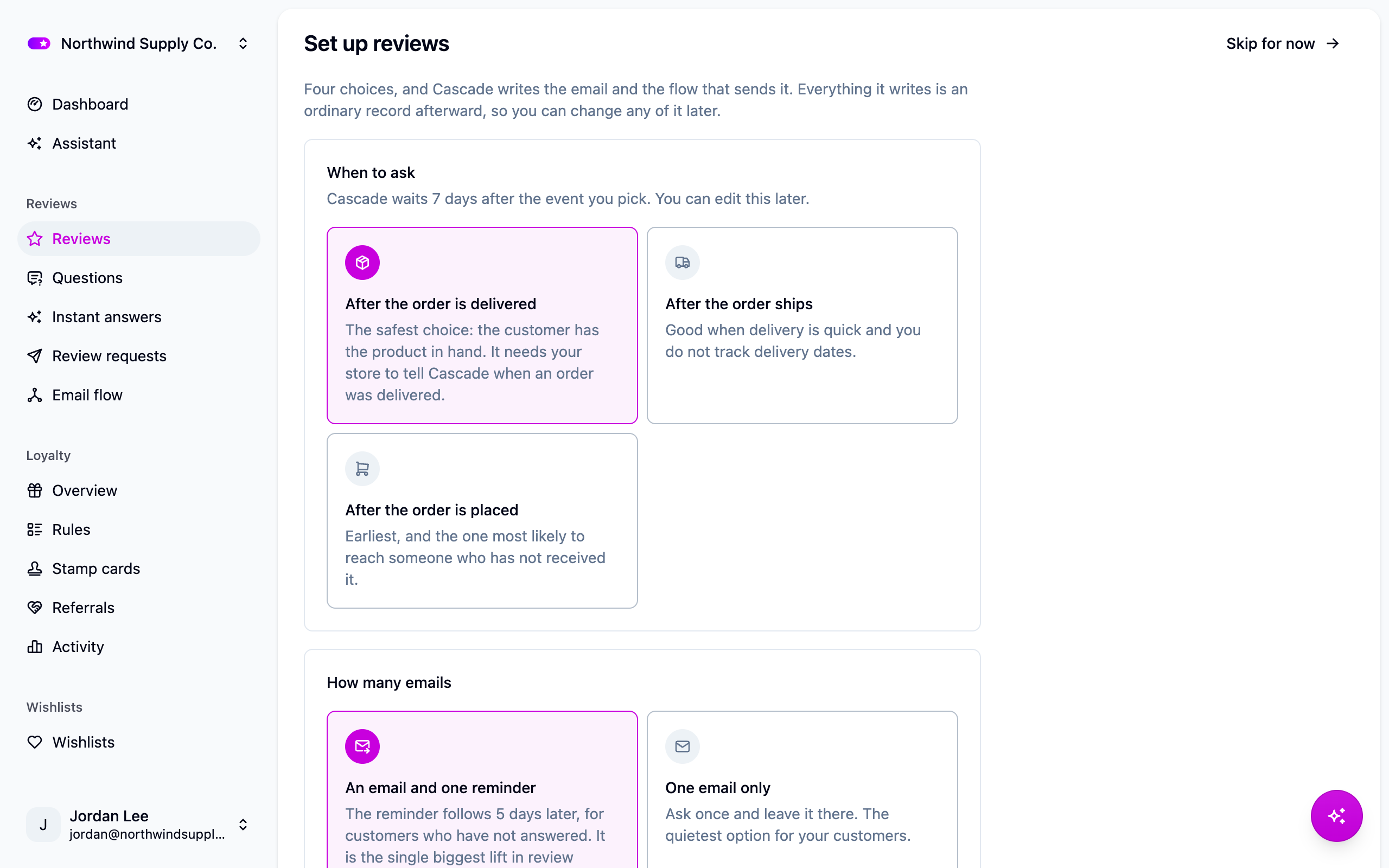
Cascade opens on Set up your store the first time you sign in, and moves on to reviews once your store is connected. Each area of the app has a short setup page:
Answer a few questions and Cascade builds a working starting point: a review request email that goes out after each order, or a loyalty program with points, a welcome bonus and a first reward. Everything it sets up is a starting point, not a commitment. You can change any of it later, and go as deep as you like.
Not running loyalty or wishlists? Choose Skip for now and the area stays out of your way.
4. Add the widgets to your storefront
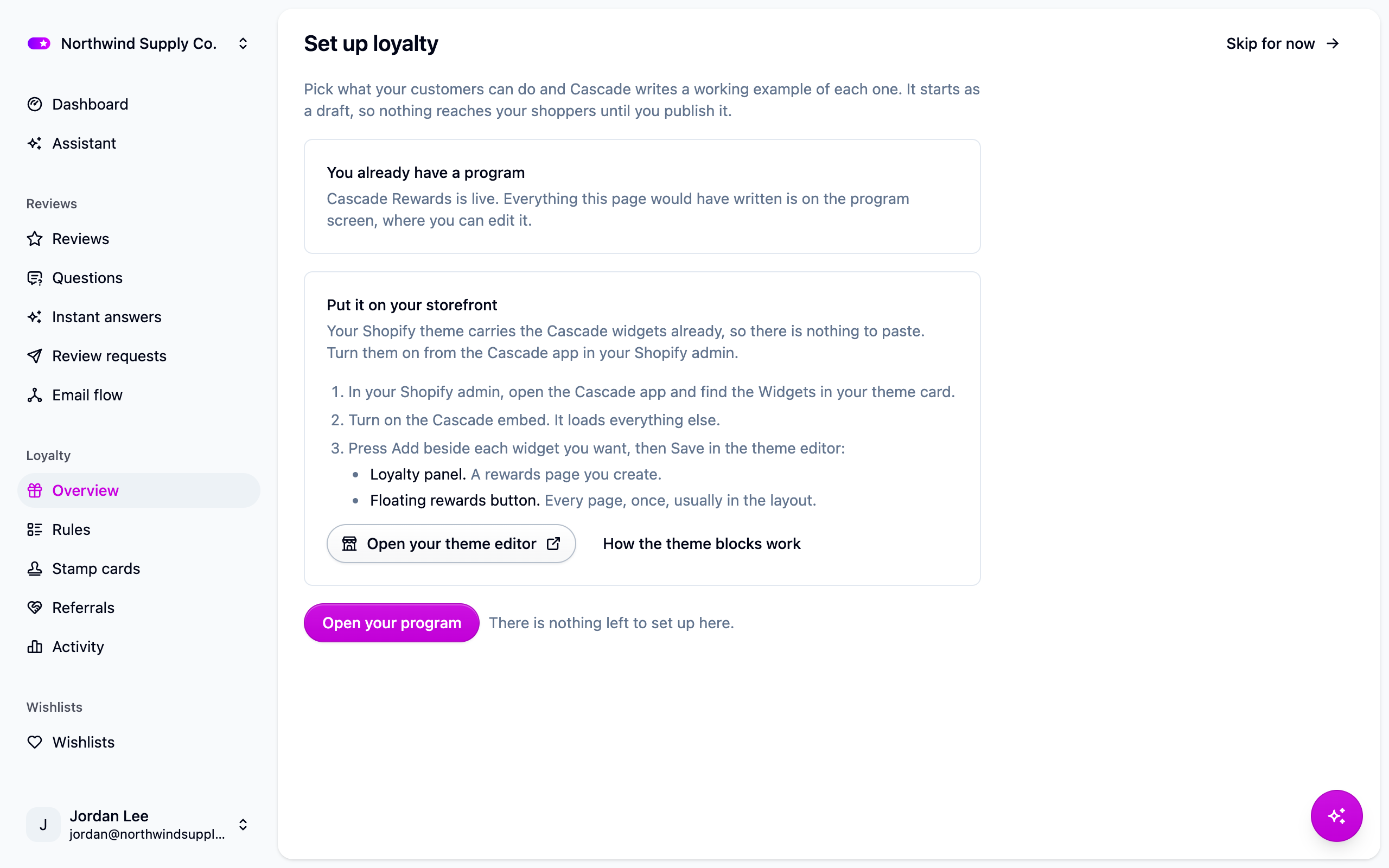
Widgets are what your shoppers see: star ratings, the reviews list, the loyalty page and the wishlist button. As soon as an area is set up, a card at the top of its screens shows you how to add its widgets.
- On Shopify, the card points you to the Cascade app in your Shopify admin, where you turn on the blocks you want. See Widgets in your theme.
- Anywhere else, copy the snippets from the card into your site: the script once, then each widget where you want it. Pick HTML or React to match your storefront, or press Copy a prompt for an AI agent and hand the whole job to a coding assistant. See Storefront widgets.
Close the card when you're done. Everything on it stays under Settings → Widget installation, so you can come back to it whenever you add a page or change your theme.
Next steps
- Bring your existing reviews across so your products don't start at zero stars: Importing reviews.
- Shape your loyalty program with tiers, stamp cards and offers: Loyalty.
- Invite your team: Members and roles.
- See how it's going: Analytics.