
Imports and exports
Move your store's data into Cascade from a spreadsheet, or take it out again. This page covers how every import and export behaves; the format for each kind of file is on its own page.
Start an import
- Open the list you want to fill (products, customers, orders, reviews, wishlists, loyalty members or loyalty activity) and choose Import from its actions menu.
- Pick your file. If you're uploading another app's export unchanged, pick that app under Format and Cascade reads it as is.
- Start the import and leave the page if you like. It runs in the background.
- Watch it under Settings → Imports. The list updates itself while a job runs.
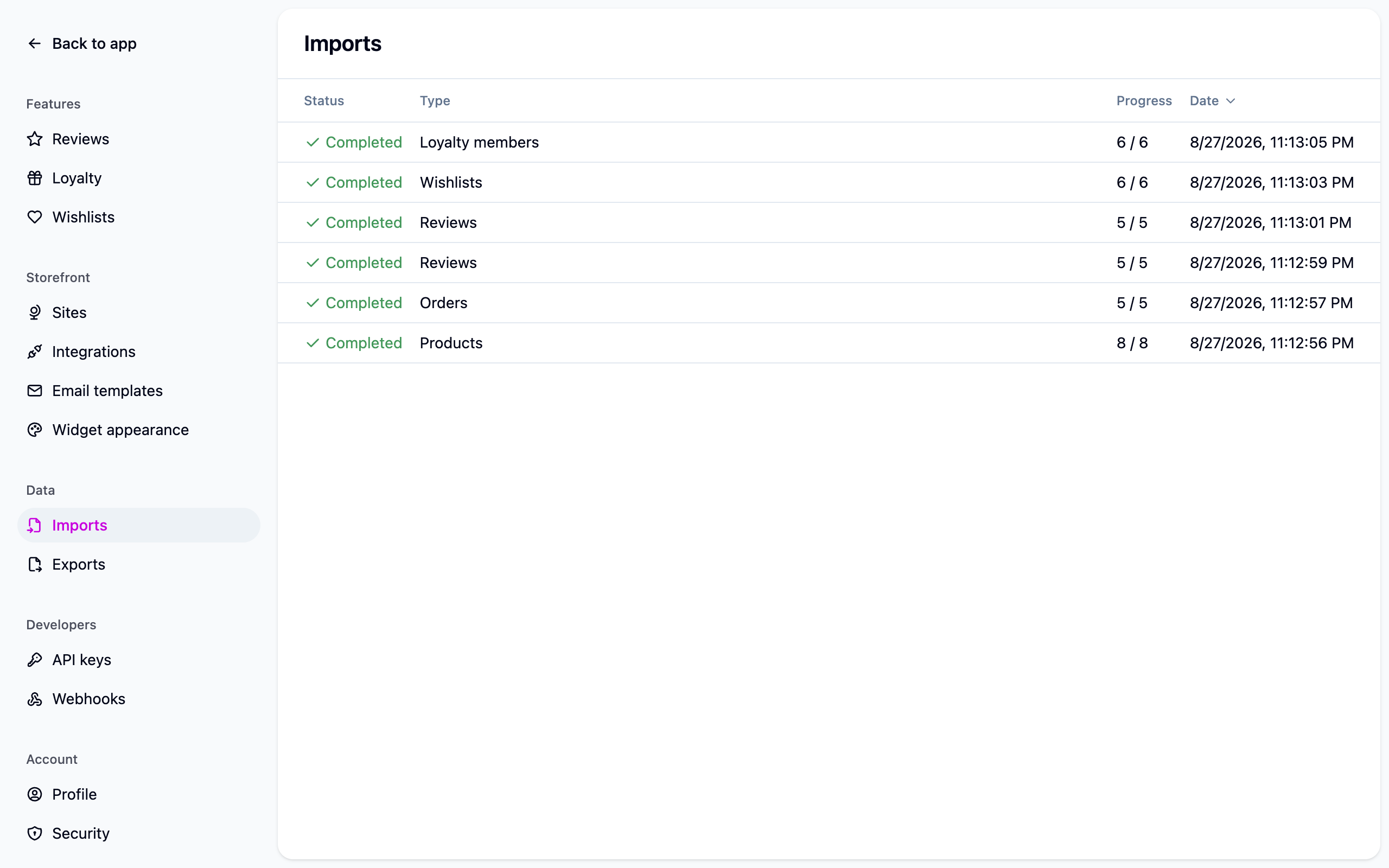
Import in this order
Orders point at products and customers, and reviews and wishlists point at both, so import in this order or the later files will be full of skipped rows:
- Products
- Customers
- Orders
- Everything else: reviews, wishlists, loyalty
Read the results
Open a finished job under Settings → Imports to see two lists:
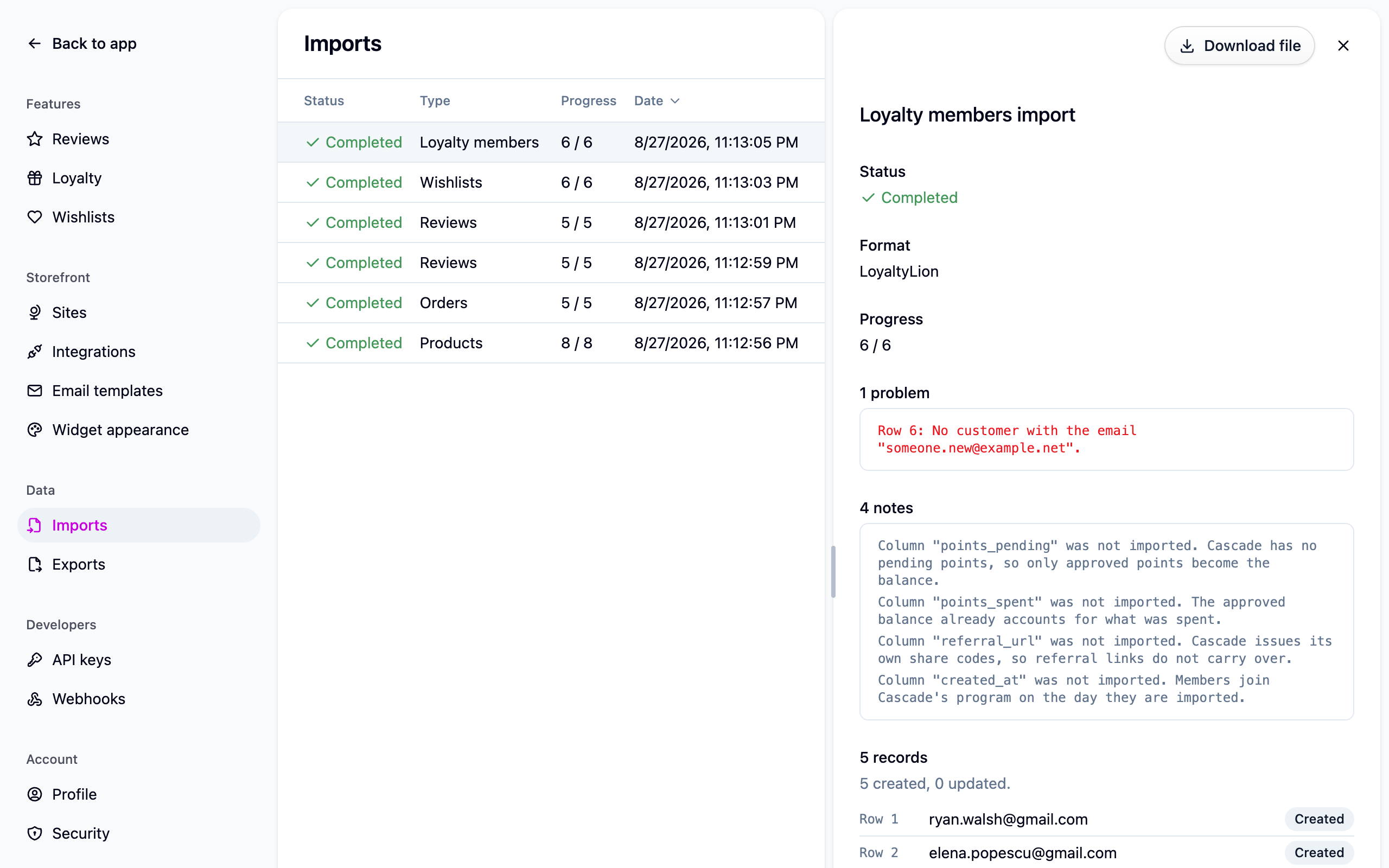
- Problems: every row that was skipped, with its row number and the reason.
- Records: what the import created or updated, each linking through to the item.
A row Cascade can't read, or that names something Cascade doesn't have, is skipped rather than failing the whole file. So a completed job with 300 problems isn't a failure: 300 rows need looking at and the rest are in. Failed means the whole file couldn't be read: it isn't a CSV, its header row wasn't recognized, or it's bigger than your plan allows.
Finished jobs and their files are cleared out after a while, set by your plan. The data they imported stays. See Plans and limits.
Run an import again
Importing the same file twice updates the same items rather than doubling them: a product is recognized by its URL handle, a customer by email, an order by your old platform's order ID, a review by its ID in the app it came from. Fix the rows that were reported, upload the same file again, and only those rows change.
One caution: every column you send overwrites what's stored. Import a file with an empty notes column and you've cleared the notes. Export first, edit that file, then import it back.
Export
- Open the list and narrow it with search and filters to just what you want. The export honors the filter that's on.
- Choose Export from the actions menu.
- Download the file from Settings → Exports when the job completes. Each job records the search and filter it used.
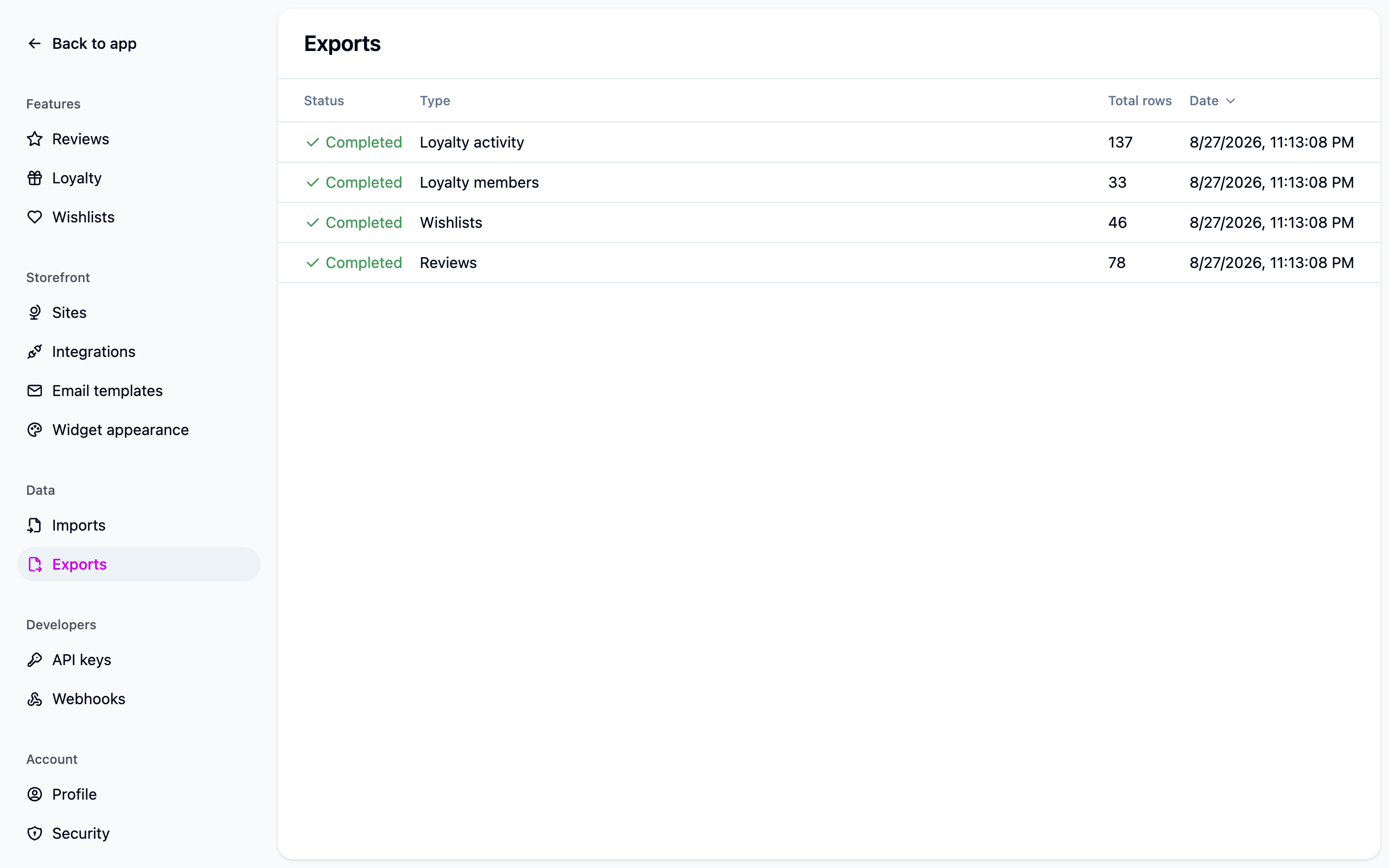
Exports and imports round-trip, so "export, edit in a spreadsheet, import back" is a safe way to bulk-edit.
If something isn't working
- Hundreds of skipped rows. Usually an ordering problem: the products or customers the rows point at aren't in yet. Import those first, then run the file again.
- The job says Failed. Check the file is a CSV with a recognized header row and is under your plan's row limit. Split a large file rather than trimming it.
- An export sits on Processing. It won't forever: an export that can't finish is marked Failed so you can start it again. An export that matched nothing still completes, with an empty file.
Next steps
- Importing products, the first file to send.
- Importing reviews.
- Plans and limits for jobs per day and rows per file.
For developers
Imports and exports are the Import jobs and
Export jobs endpoints, so a nightly import or a recurring export can be
automated. GET /import-jobs/{id}/records lists what a job wrote, paginated and filterable
on action or resource; include=importJob on a customer, product, order, review, wishlist
or loyalty membership returns the import that last wrote it, with its file row. A record
deleted since the import keeps its place in the list as "Deleted record".
For continuous syncing rather than a one-off migration, use the import endpoints on each resource instead: they take JSON, upsert on the same natural keys, and need no file. See Custom integration.