
Dashboards
Build the dashboards your team opens every day: add charts, arrange them, and choose which one opens first.
Choose which dashboard opens first
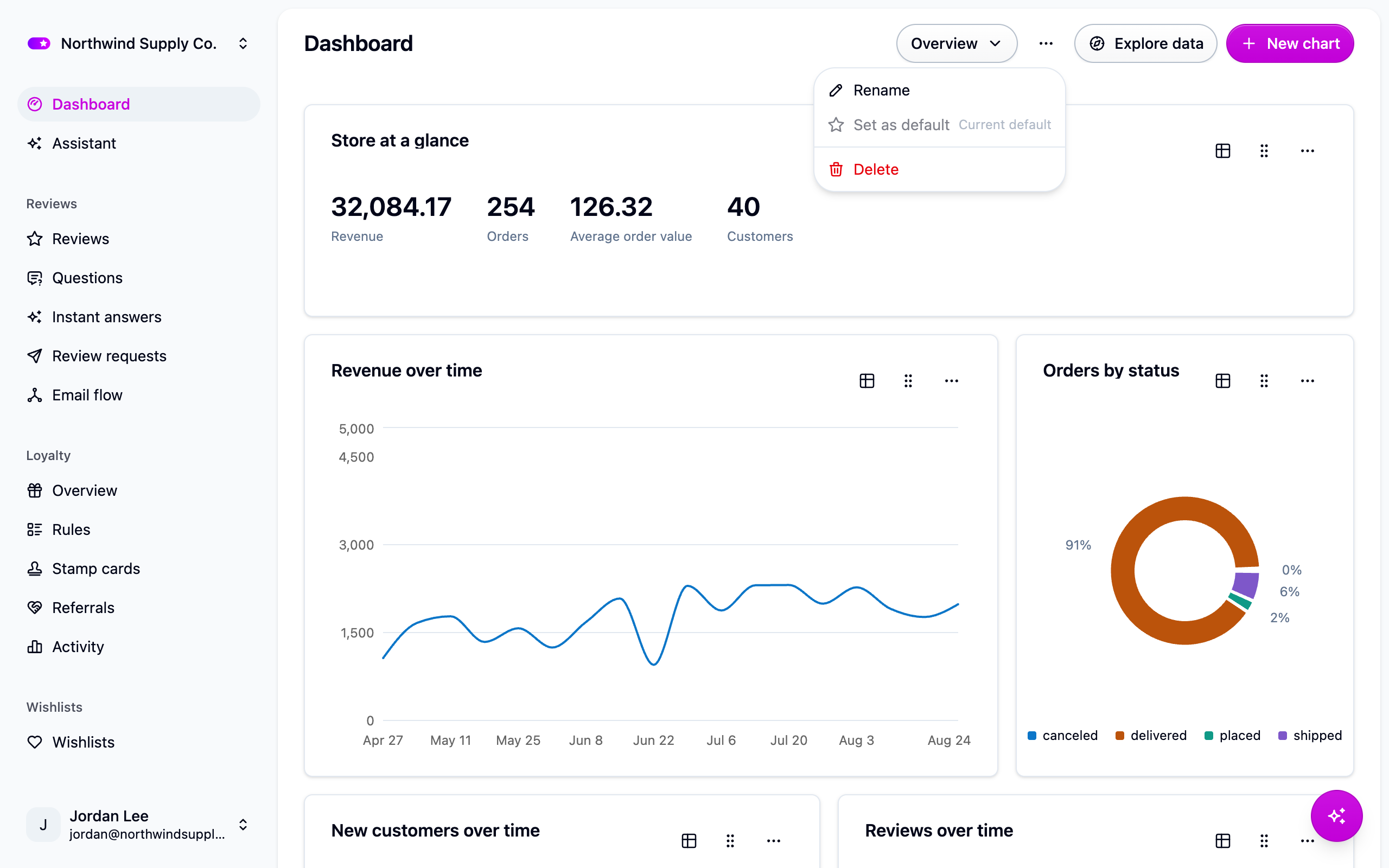
- Open Analytics → Dashboards and switch to the dashboard you'd rather start on, using the menu that names the current dashboard in the header.
- Pick Set as default from the
...menu in the header.
Only one dashboard is the default at a time. If none is marked, the oldest one opens.
Add a chart
-
Open the dashboard and click New chart. The chart editor opens with a live preview drawn from your real data.
-
Pick what to look at, what to measure and what to group by. Only the chart types that can draw your question are offered:
A table is always available, and every chart has a table view of the same numbers.
-
Narrow it with a filter if you need to. It's the same filter bar as the list screens. See Filtering.
-
Save. The chart lands at the bottom of the dashboard. Use the card's menu later to edit or delete it.
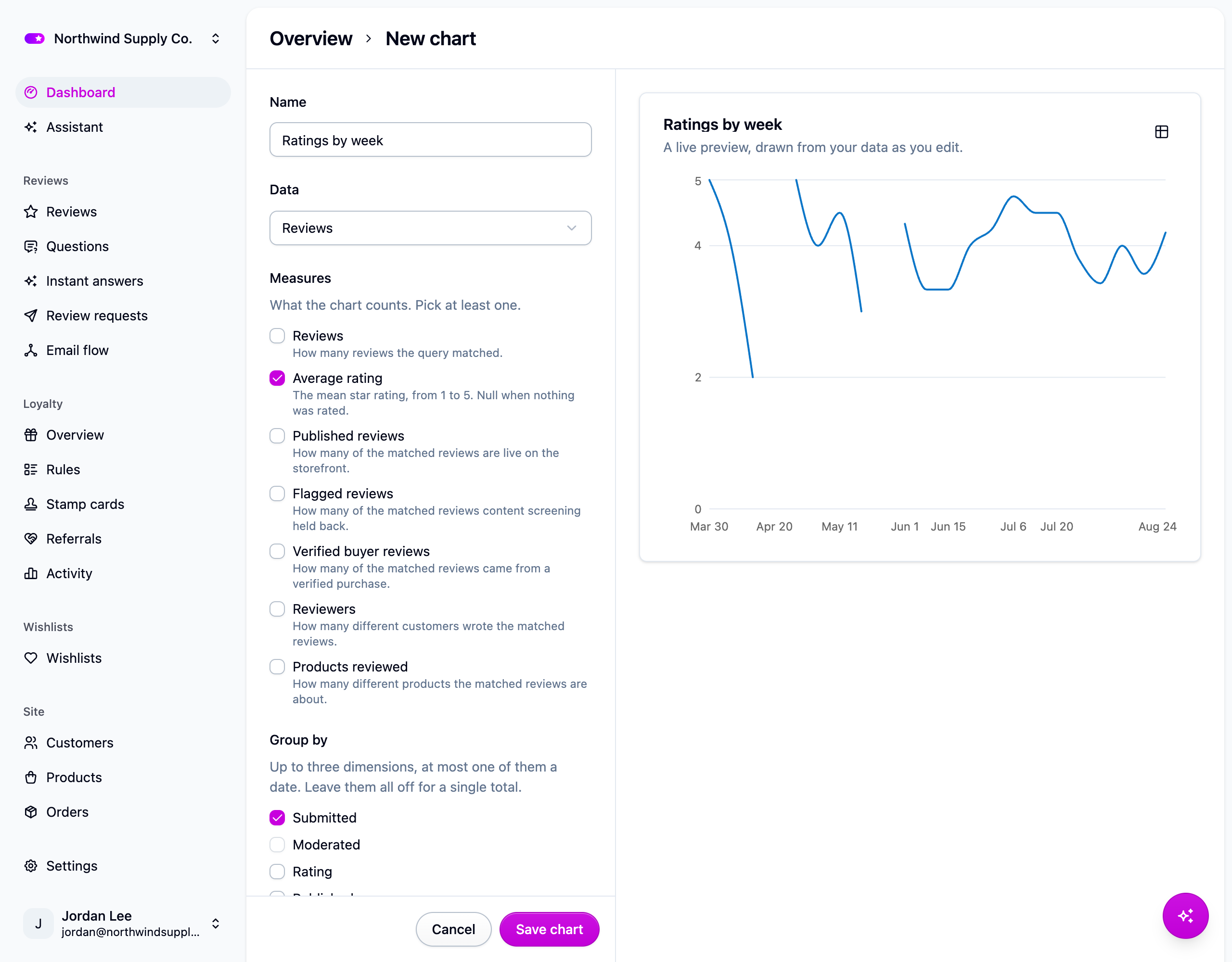
Group by a date and a category together to get one line per category, which is how you see whether one product's ratings are moving differently from the rest.
You can also save a chart from Explore, or ask the assistant to build one. See Analytics.
Arrange a dashboard
- Move a chart by dragging the grip in its header. The other charts make room.
- Resize a chart from its right edge, bottom edge or bottom-right corner.
- Without a mouse, focus the grip and use the arrow keys to move, or Shift with the arrow keys to resize.
Each change saves as you go, so what you see is what your whole team sees next time. On a phone or a narrow window the charts stack in one column and arranging is off until you're back on a wider screen.
Create, rename or delete a dashboard
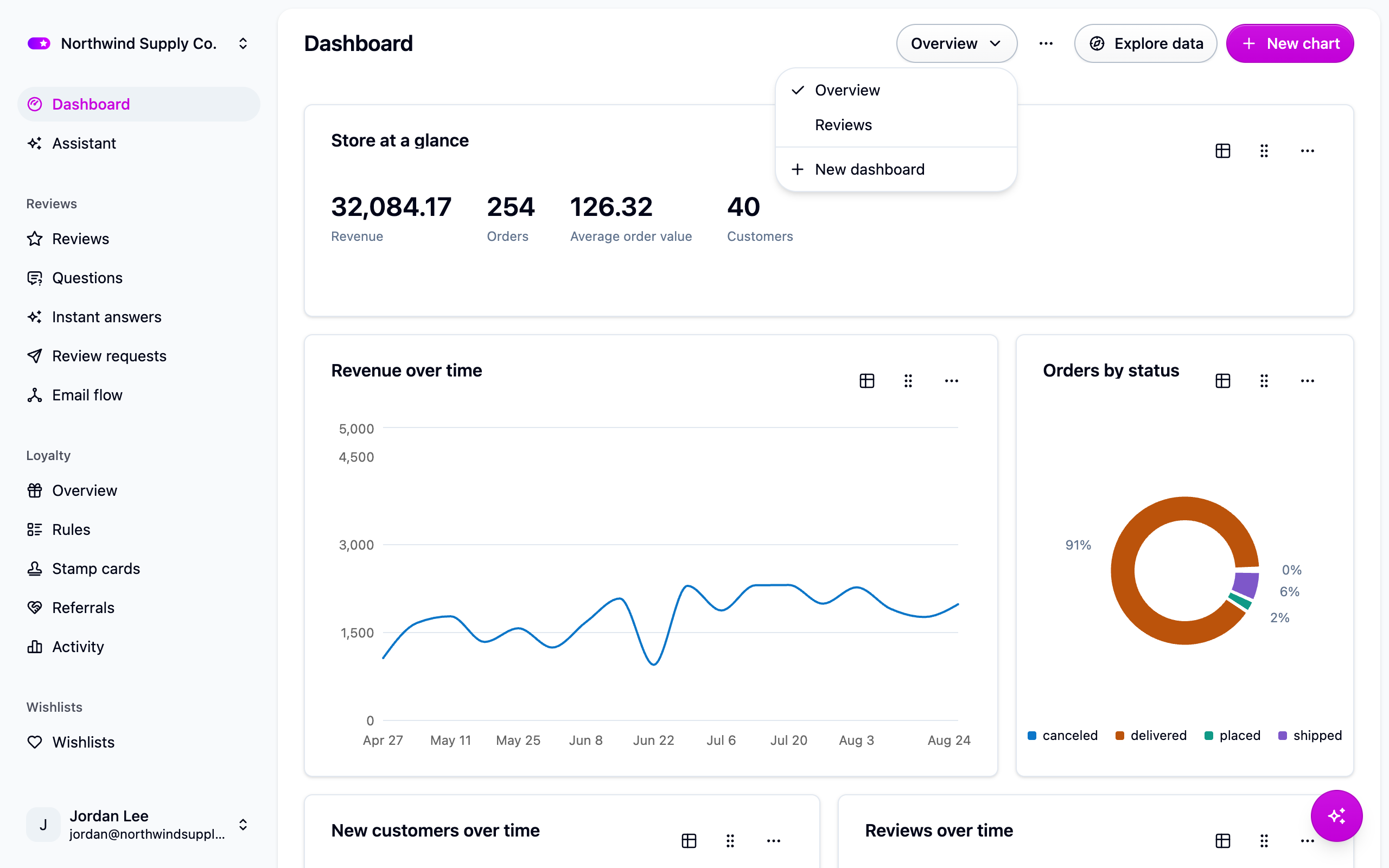
- New dashboard is at the bottom of the dashboard menu in the header. It creates one and takes you straight to it.
- Rename and Delete are in the
...menu. Deleting a dashboard deletes the charts on it, so rebuild any you want back from Explore.
If something isn't working
- A chart says something broke. What it measured has changed since it was saved. Open the chart's menu and edit it, or delete it and build it again.
- A chart changed type on its own. You changed its question to one the old type can't draw, so it fell back to one that can. Pick the type again if you want a different one.
- The layout snapped back after a drag. The change couldn't be saved and a message says so. Try again.
Next steps
- Analytics for what the numbers mean.
- Filtering.
- The assistant.