
Loyalty emails
Cascade sends up to six emails to your loyalty members. This guide covers which to turn on, when they go out, and how to change the wording.
Choose which emails go out
Each email has its own switch in the Member emails section of
Settings → Loyalty.
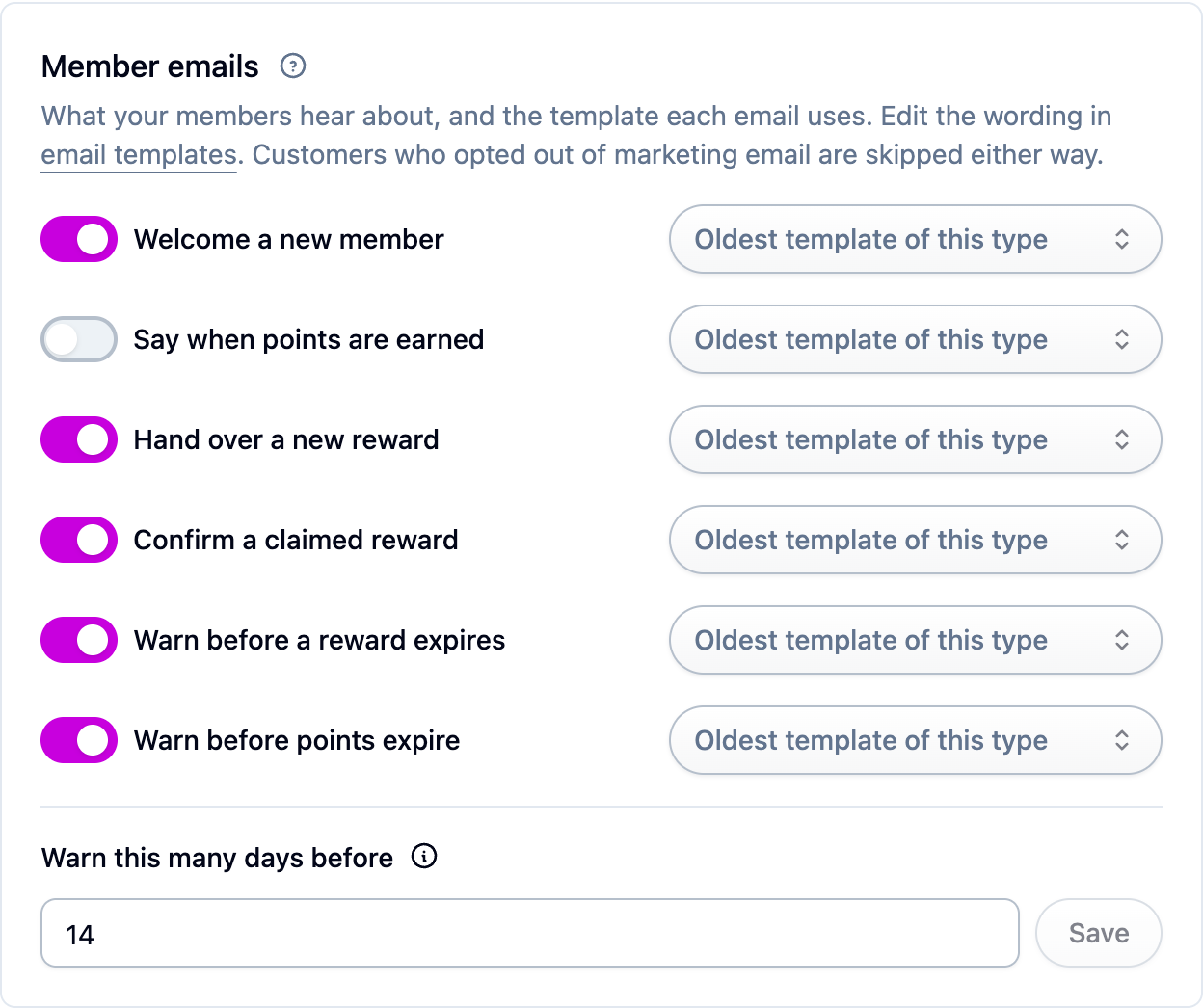
Warn members before something expires
With either warning email on, Warn this many days before appears beneath them. It sets one window for the whole program, covering both rewards about to lapse and points about to age out. Leave it empty and no warning goes out. Two weeks is a sensible starting point.
Change the wording
- Open Settings → Email templates and edit the template, or create a new one of the same type.
- Back in Settings → Loyalty, use the template picker next to the email's switch to choose it. Leave the picker on Oldest template of this type and Cascade uses your oldest template of that type, or its own built-in copy if you have none.
Amounts arrive already written in your program's words, so a points balance renders as "1,200 beans" and you don't need to add a unit after it. See Email templates.
Who receives them
A customer who opted out of marketing email still gets the code for a reward they just claimed, because they paid for it. They don't get any of the others, including the welcome.
If something isn't working
- A member didn't get the welcome email. Check whether they opted out of marketing email, or whether they had joined the program before.
- No expiry warnings are going out. Set Warn this many days before under Settings → Loyalty; an empty window means no warnings.
- A template can't be deleted. A program is still using it. Point the email at another template first.
Next steps
- Send members somewhere useful from the email: The loyalty page.
- Set when rewards and points expire: Loyalty rewards and Points.