
Loyalty
This guide gets a loyalty program running on your store: points your customers earn and spend, tiers they climb, stamp cards, offers and referrals.
Set up a program in a minute
-
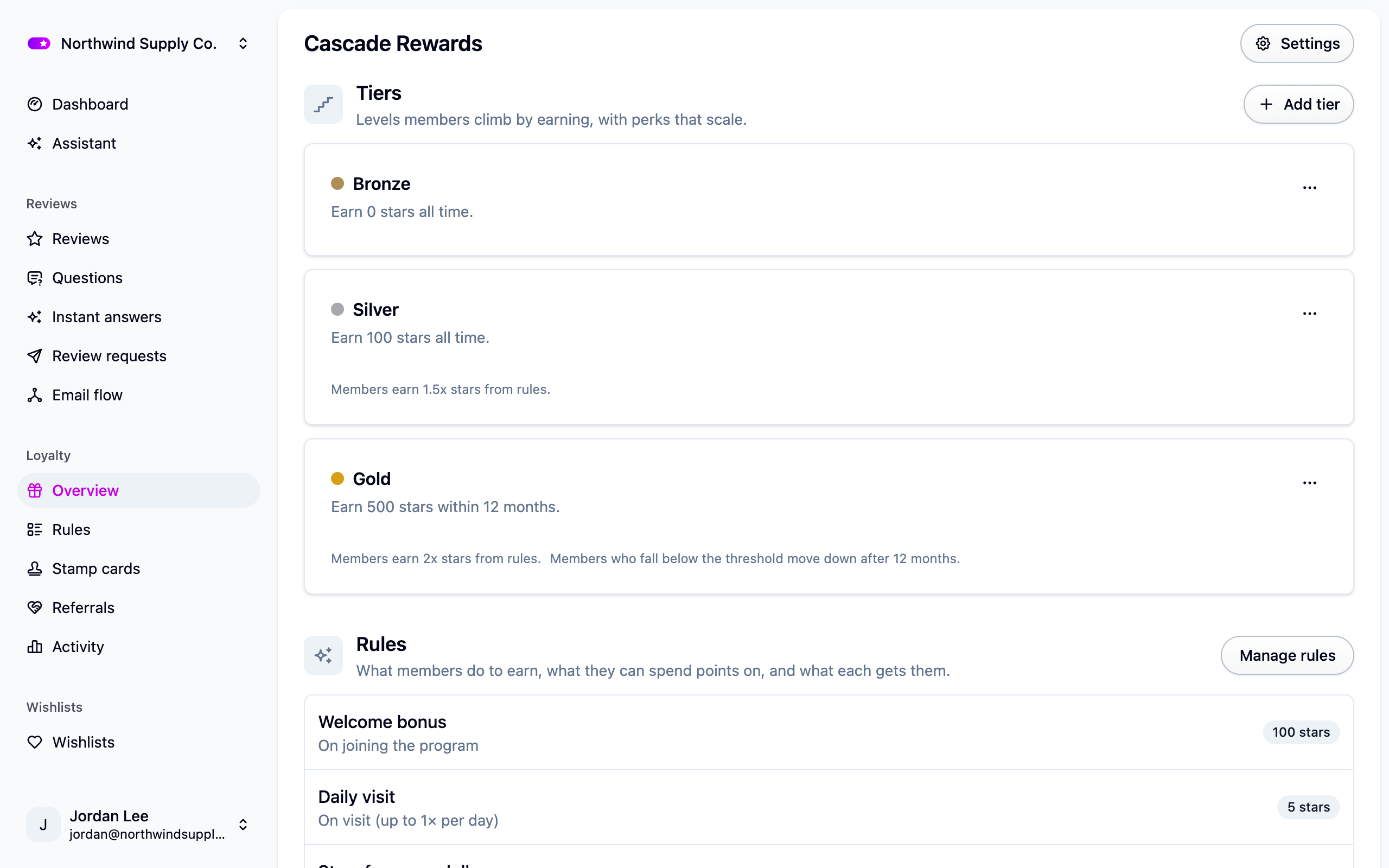
Open Set up loyalty and pick what your customers can do: earn points, refer a friend, claim offers, collect stamps. Each choice writes a working example, like a point per dollar, a 100 point welcome bonus and $5 off for 500 points.
-
Change anything you like under Loyalty → Rules. Every number is a starting point, not a recommendation.
-
Press Preview in Settings → Loyalty to see the program on your storefront. The link works for a day and you can send it to a colleague.
-
Press Publish when you're happy. Until then the program is a draft and no shopper can see it.
-
Add the loyalty widget to your storefront. See Storefront widgets.
Draft, live and paused
- Draft: nobody can see it. Every new program starts here.
- Live: members can see it, join it and earn in it.
- Paused: frozen. Members keep their balances, rewards and history, but nothing earns, spends or joins. Warnings about expiring rewards still go out.
Publishing can't be undone. To take a live program down, pause it from Settings → Loyalty; Republish starts it again. Rules, tiers, offers and stamp cards on a live program take effect the moment you save them.
Program
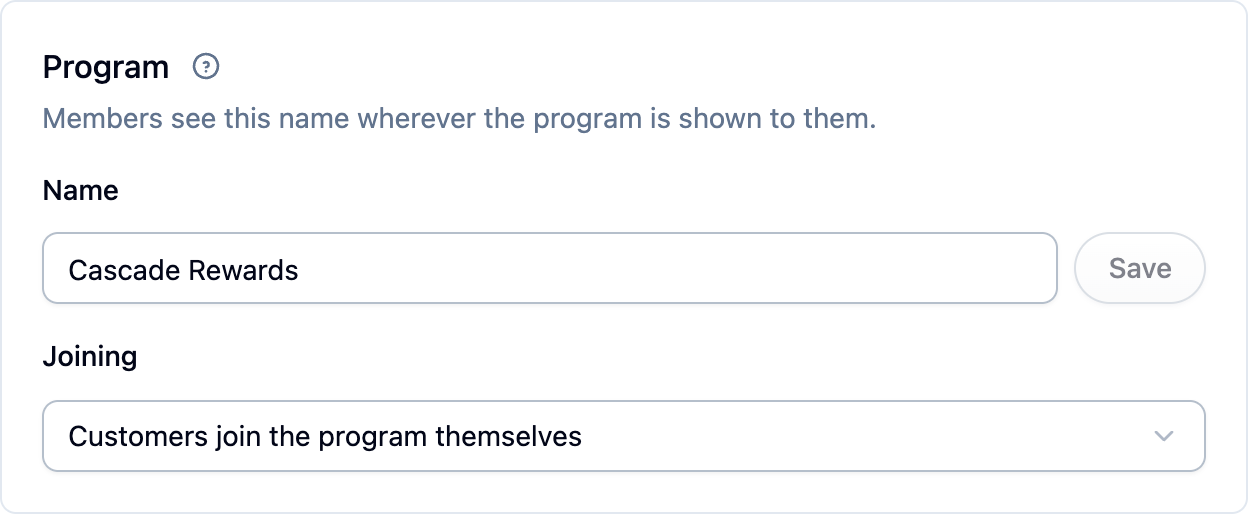
Under Settings → Loyalty, the Program section holds the two things every program has:
- Name, which members see in the widget and in emails.
- Joining: either customers join themselves from the widget, or Cascade enrolls them the
first time they do something the program rewards. The second option fills a program much
faster.
Points
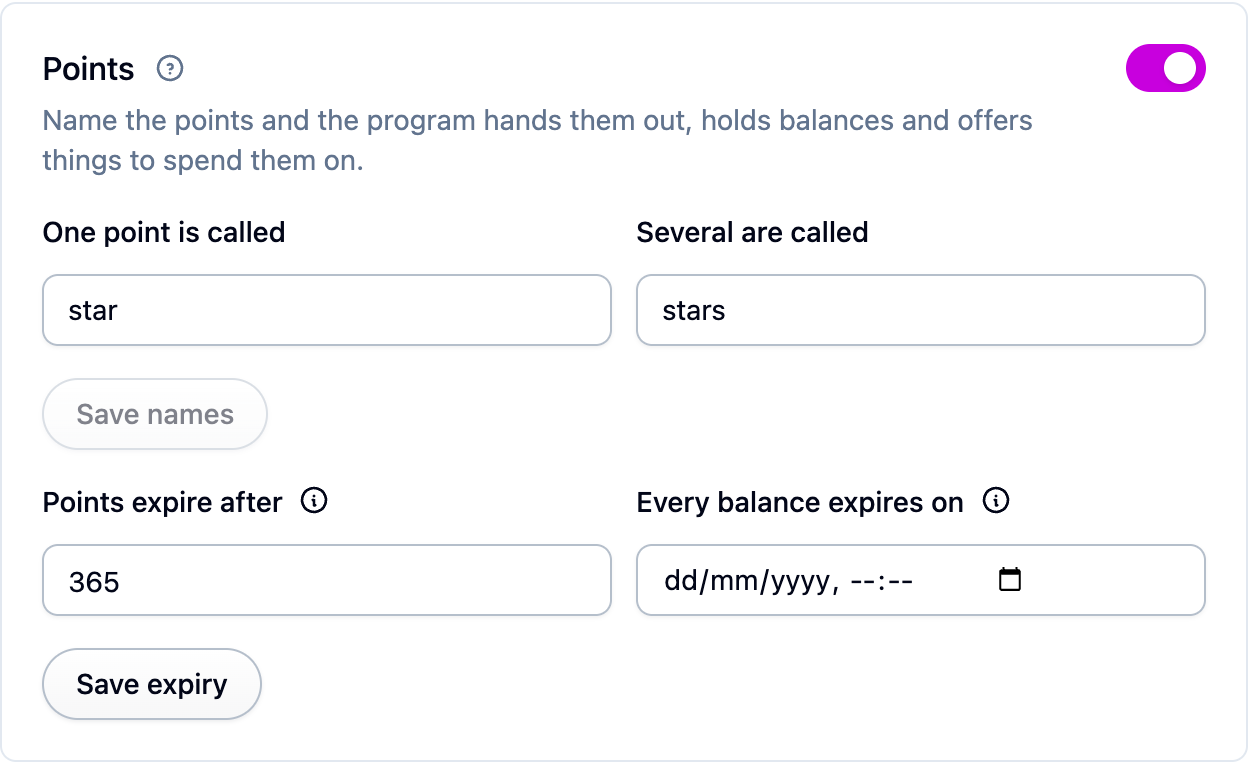
Turn points on in the Points section and give them a name, like "bean" and "beans", so every balance reads "1,200 beans". A program can also run on stamp cards and coupons with no points at all.
Points never expire unless you say so. Points expire after ages each batch out a set
number of days after it was earned; Every balance expires on ends everyone's balance on
one date, which suits a seasonal program. Set both and the earlier one applies.
Rewards and when they lapse
A reward is what a rule hands out: points, a coupon, free shipping or a gift card. Coupons and other non-point rewards can expire. Rewards expire after in the Rewards section sets the program-wide default, counted in days from when each reward is issued; leave it empty and rewards stay usable until they're used. Any rule can override this. See Loyalty rewards.
What members see
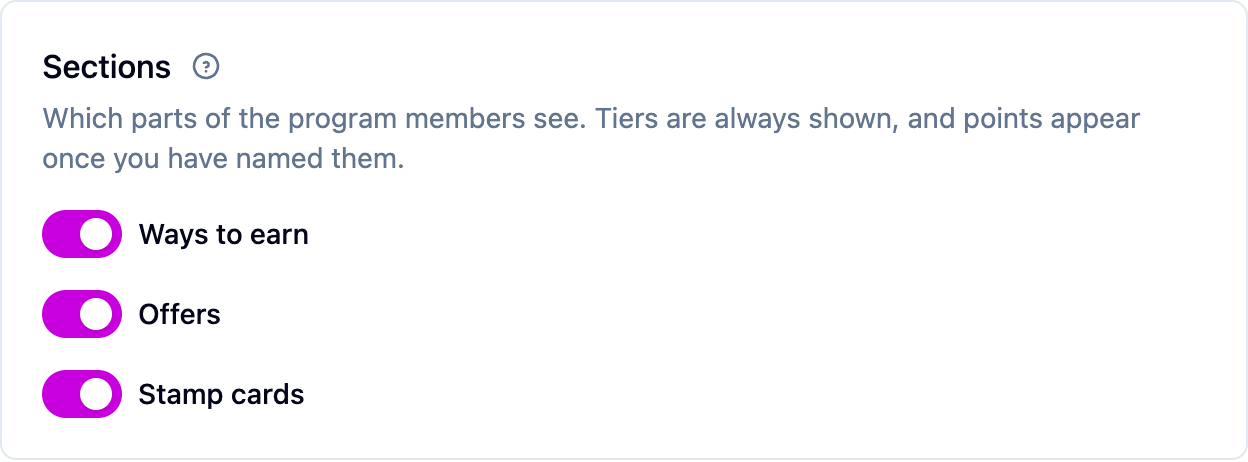
Members find the program through the loyalty widget on your storefront. The Sections card in
Settings → Loyalty switches each part
on or off: Ways to earn, Offers and Stamp cards. Tiers appear whenever the
program has any, and Redeem points appears once points are named.
The loyalty page
The Loyalty page section lists each of your stores with one web address field. Leave it empty and the links in your loyalty emails go to your store's home page, where the launcher opens on arrival. Point it at a dedicated rewards page and they go there instead.
Emails
Cascade sends up to six emails to members: a welcome, points earned, a new reward, a claimed reward, and two expiry warnings. Each has its own switch in the Member emails section of Settings → Loyalty. See Loyalty emails.
Time zone
Birthdays, visit allowances and expiry all run on the time zone under Settings → General. Set it before you launch.
Next steps
- Write the rules for earning, spending and offers: Loyalty rules.
- Add levels your best customers climb to: Loyalty tiers.
- Build a habit with punch cards: Stamp cards.
- Bring an existing program across: Moving a loyalty program to Cascade.
For developers
A program applies to every site in the organization. The API can create more than one; when
it has, a program picker appears on the Overview and Loyalty settings pages. Deleting a
program is API-only (DELETE /loyalty-programs/{id}, which records a reason in the audit
trail) because it removes members, balances and issued rewards permanently. See
Loyalty programs API and
Loyalty events API.