
Settings
A short map of what lives under each Settings page, so you can find the switch you're looking for.
Organization
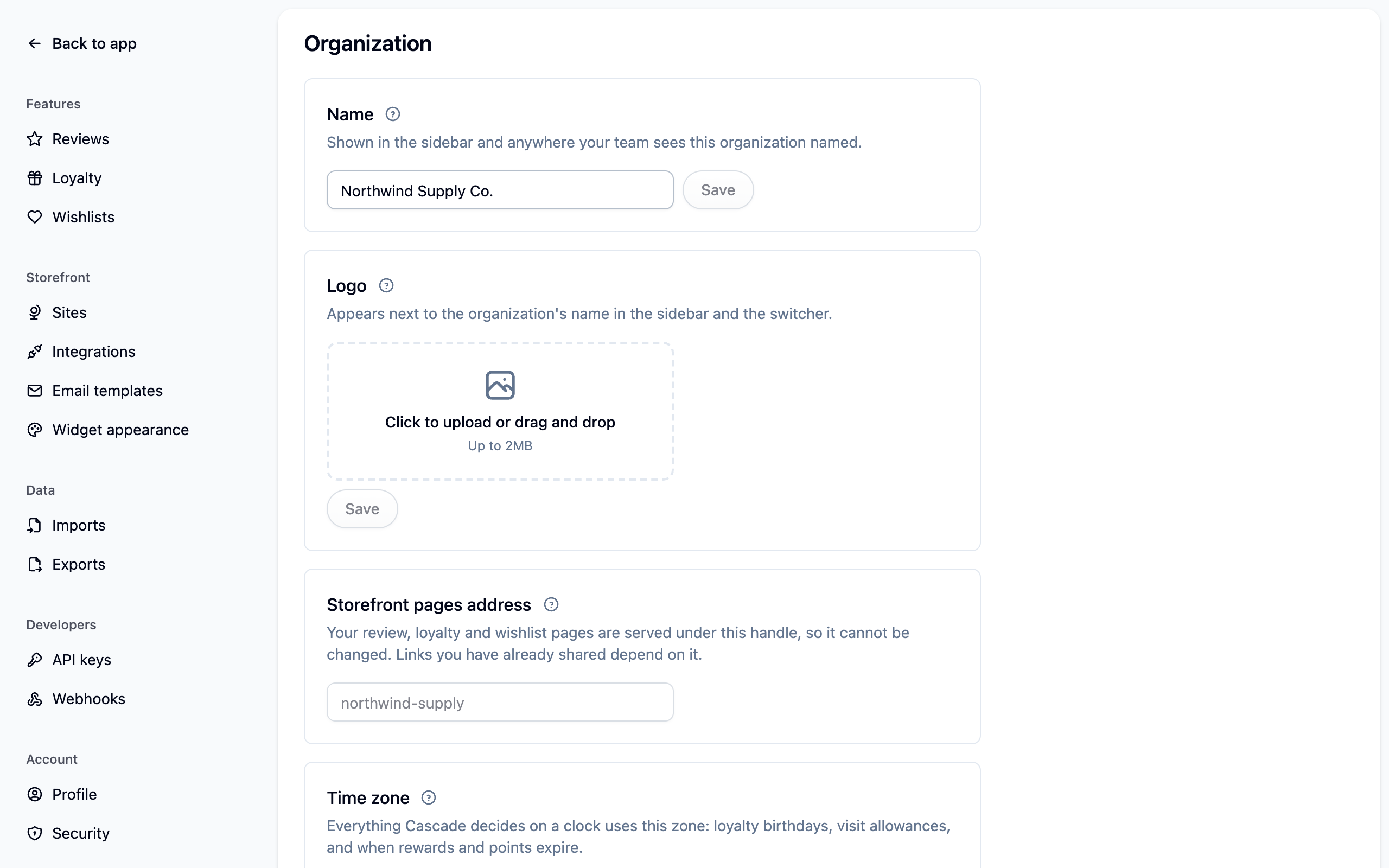
Settings → General holds your store's name and logo, which your team sees in the sidebar, and its time zone. The time zone decides which day an order counts on in your reports, when birthday rewards go out, when monthly allowances reset and when points expire. Set it when you start and leave it alone: changing it moves every future birthday, allowance and expiry onto the new clock.
The storefront pages address shown here can't be changed. Your review, loyalty and wishlist pages live under it, and links you've already shared depend on it.
The switcher at the top of the sidebar is the quickest way to your account: it links to Organization settings, Members and Billing. If you belong to more than one account it moves between them, and Create organization starts a fresh one.
Members and billing
- Settings → Members: invite your team and set who can manage the account. See Members and roles.
- Settings → Billing: your plan and what you've used this period. See Billing and Plans and limits.
Profile
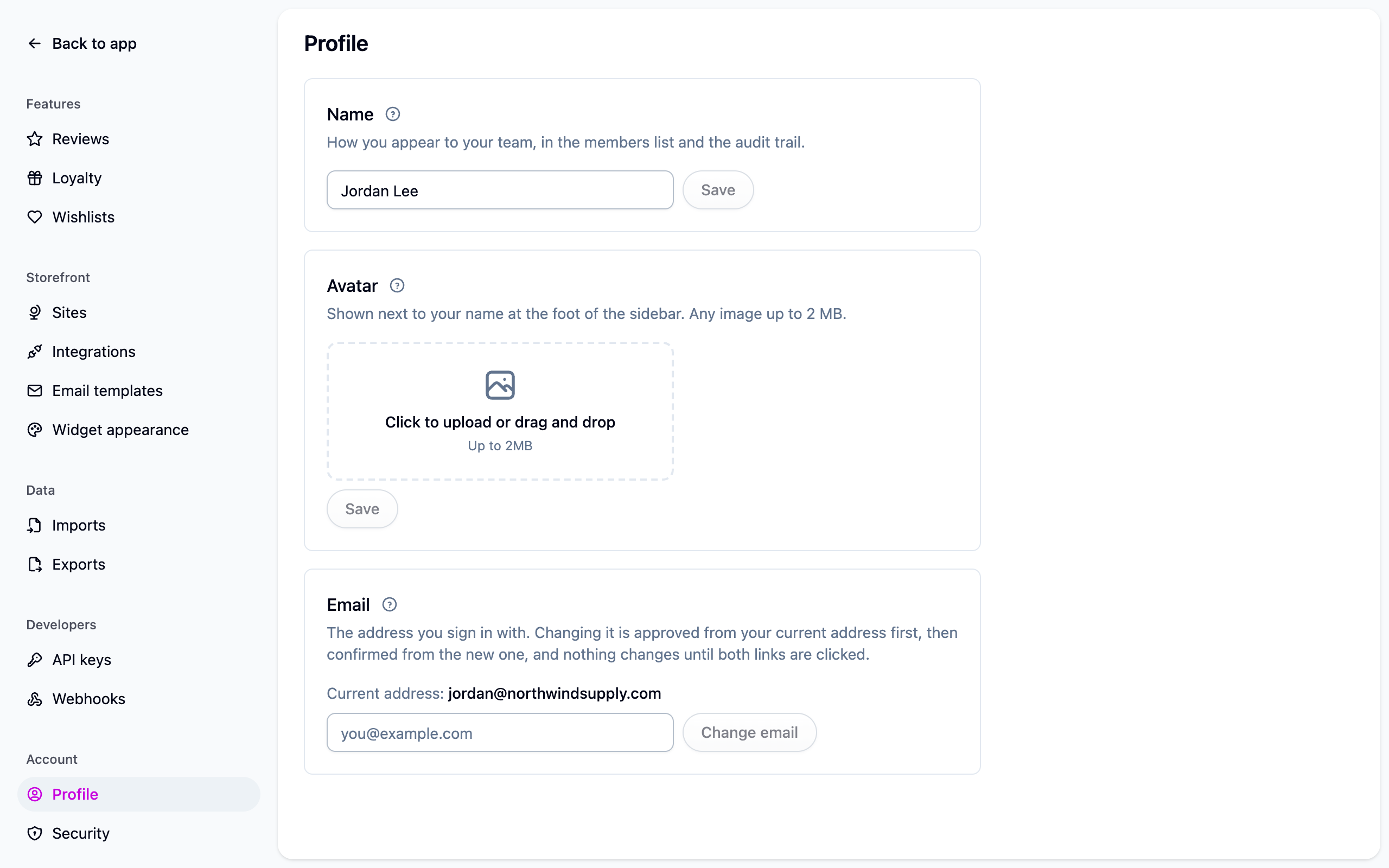
Settings → Profile is about you, not your store: your name and picture as your team sees them, and the email you sign in with. Changing your email takes two confirmations: an approval link goes to your current address first, then a confirmation link to the new one. Nothing changes until both are clicked, so if you didn't ask for a change, ignore the email.
Theme is in the user menu at the foot of the sidebar. System follows your computer's light or dark setting; Light and Dark hold Cascade to one. The choice is saved in that browser, not on your account.
Security
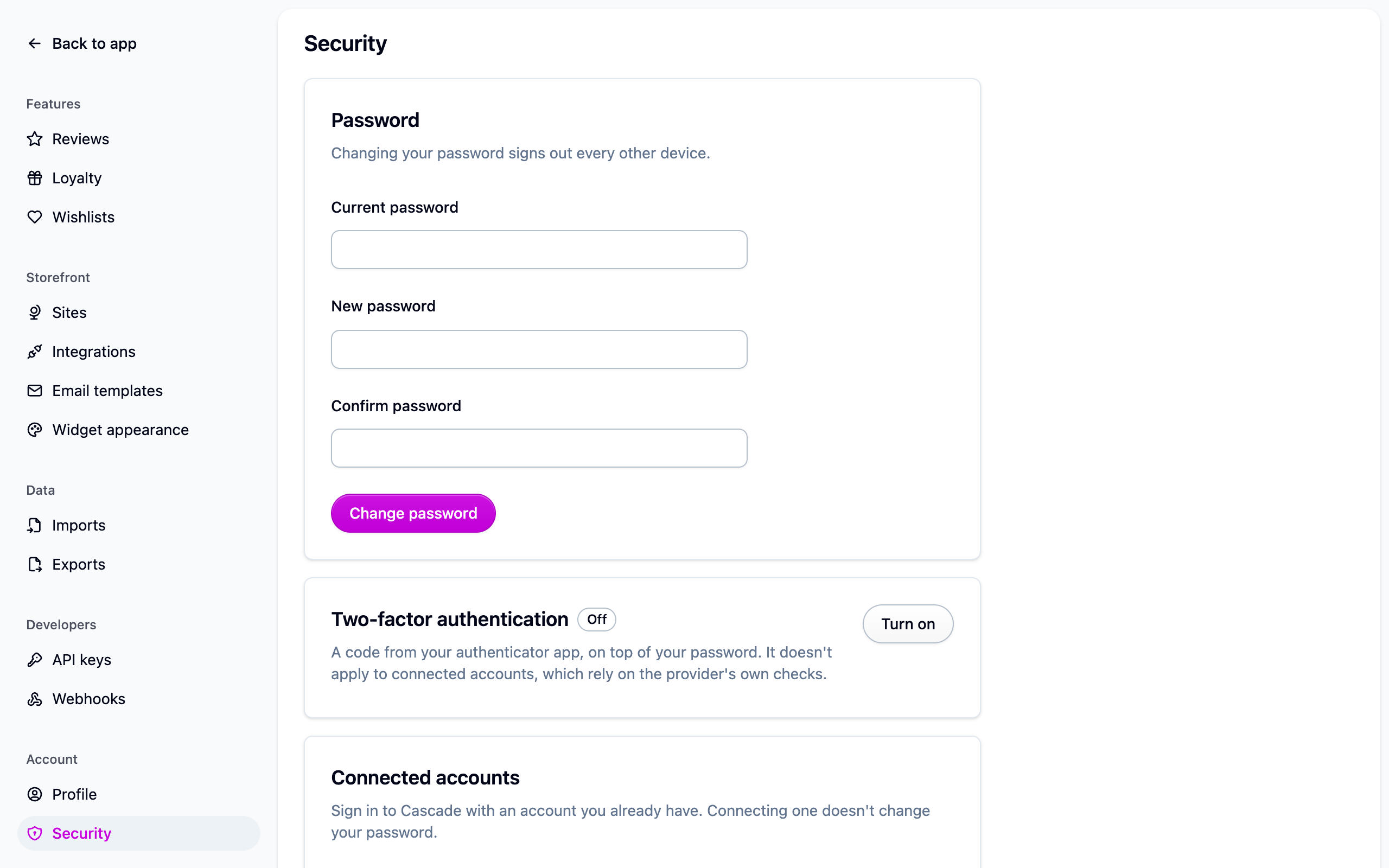
Settings → Security is your own login.
- Change password, which signs out every other device.
- Two-factor authentication, with an authenticator app and backup codes. Keep the codes somewhere other than the device you authenticate on.
- Connected accounts, for signing in with Google, Microsoft or GitHub.
See Signing in. Single sign-on is available on the Enterprise plan.
Your storefront
- Settings → Sites: each storefront's name, address, logo and colors. See Running more than one store.
- Settings → Integrations: your connected stores, and what happens in Cascade when a product, customer or order is deleted in the store. See Connecting Shopify.
- Settings → Email templates: edit and preview every email Cascade sends. See Email templates.
- Settings → Widget installation: the script and each widget's snippet, or the Shopify theme steps, for whenever you add a page or change your theme. See Storefront widgets.
- Settings → Widget appearance: colors, corners and custom CSS for the widgets, with a history of past versions. See Storefront widgets.
Features
- Settings → Reviews: automatic publishing, the questions asked beside the star rating, content screening, questions and answers, AI features, notifications, and whether reviews go when their product or customer does. See Reviews.
- Settings → Loyalty: a switch for each member email (welcome, points earned, rewards, expiry warnings). Customers who opted out of marketing email are skipped either way. See Loyalty.
- Settings → Wishlists: one list or several, public sharing and whether shared lists show prices, one-click saves, and the back-in-stock and price-drop alerts. See Wishlists.
Data
Settings → Imports and Settings → Exports show each job's progress, problem rows and download links. See Imports and exports.
For developers
Settings → API keys creates and revokes secret and publishable keys, sets their permissions, expiry and IP allowlist, and rotates one that has leaked. The widget signing secret is in a card below the keys with its own rotate button. Settings → Webhooks registers an endpoint, chooses its events and shows delivery history. See Authentication, Storefront widgets and Webhooks.