
Loyalty tiers
Tiers are levels members climb by earning, like Bronze, Silver and Gold, so your best customers get something nobody else does.
Add a tier
-
Open Loyalty → Overview and find the Tiers section.
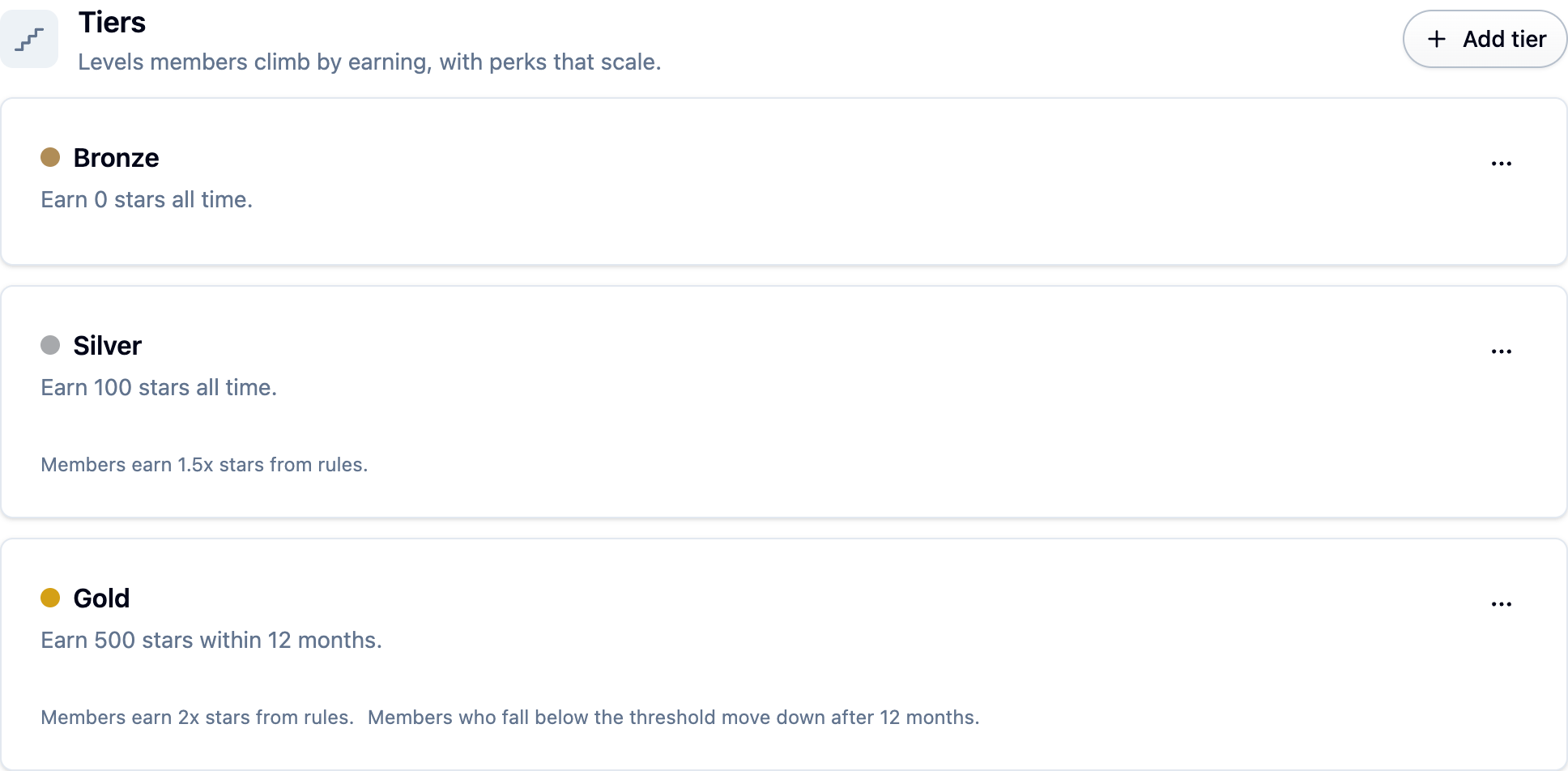
-
Name the tier and pick a Color. Members' rule rows are tinted with it, so choose something that reads as your brand.
-
Choose How the tier is reached: By points earned or Assigned by hand only.
-
For a points tier, set Points to earn and Counted over: All time or Last 12 months.
-
Optionally set a Points multiplier. 1.5 means fifty percent more points from every rule. It never applies to manual adjustments, imports, or rewards that aren't points.
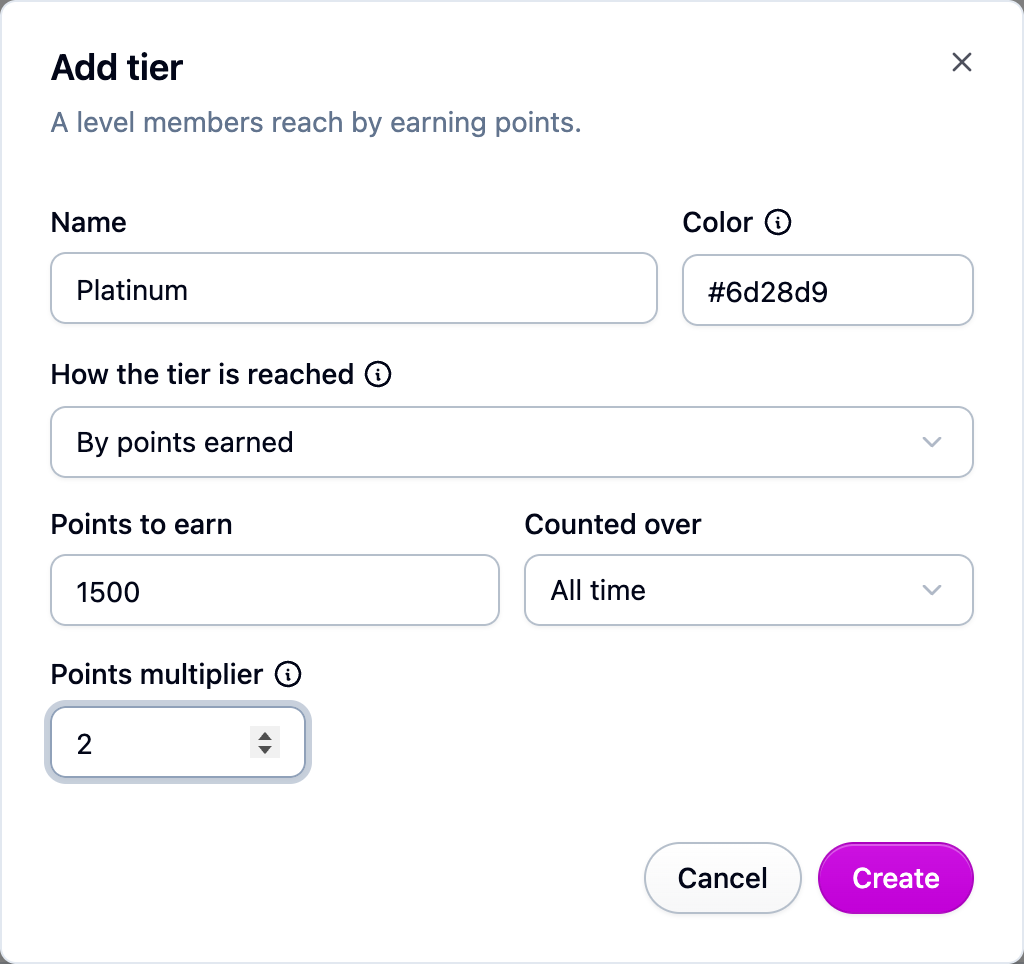
Members are promoted as soon as they qualify. Demotion only happens on a rolling 12-month window, and only when a member's review date passes, so nobody drops a tier the week after a big order.
Give a tier something exclusive
Every rule has a Who it applies to section. Add a Tier condition set to Gold and only Gold members see the rule; everyone else never sees it at all. This works on any reward, so a launch-week 15% coupon for your top tier is one rule under Loyalty → Rules with the group set to Offers, the tier condition set to Gold, and Starts and Ends covering the week. See Loyalty rules.
Move a member by hand
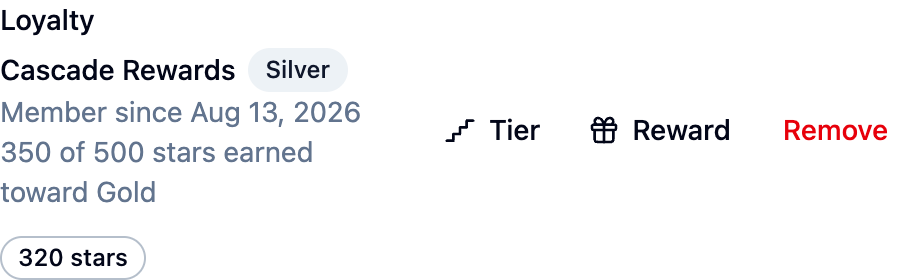
Open the customer under Customers and pin
them to a tier from the Loyalty block on their page. Resume automatic placement
hands them back to the calculation. Every move, automatic or by hand, appears in
Loyalty → Activity as a tier change.
Retire a tier
Archiving a tier stops it taking new members and leaves the ones it has where they are.
Next steps
- Bring tiers across from another app: Moving a loyalty program to Cascade.
- Write the rules members earn from: Loyalty rules.