
Review questions
Ask reviewers a few extra questions beside the star rating, such as how a product fits or what they bought it for, and show the answers on your product pages.
The two kinds of question
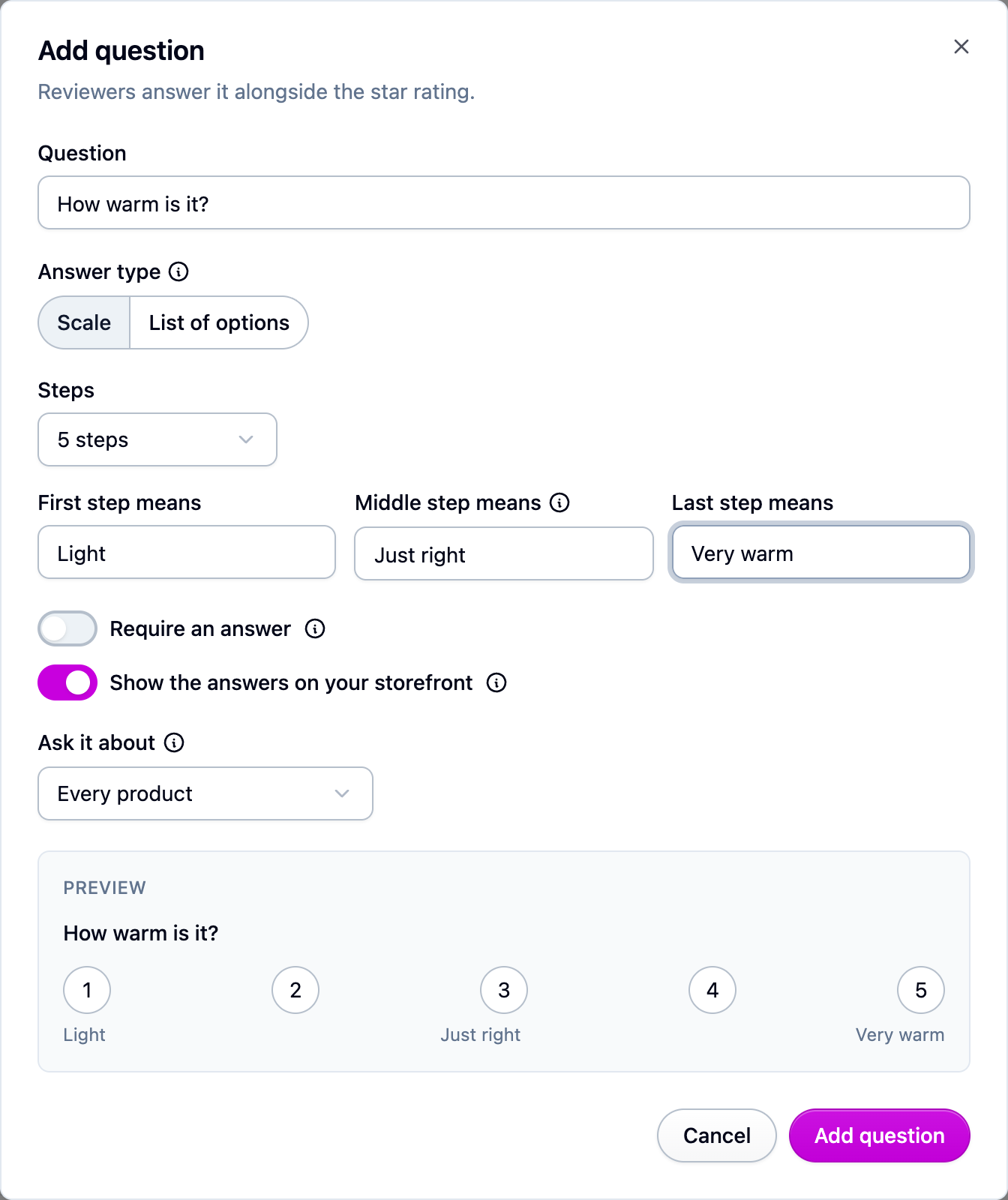
- A scale of 3 to 7 steps with your own words at each end, such as "Runs small" to "Runs large". You can label the middle step too. Answers average out to a marker on a slider in the reviews widget.
- A list of options, picked one at a time or several at once. Answers show as the percentage of reviewers who picked each option. You can hide any option from your storefront while still offering it, so a yes/no question can show only its "Yes" share.
Both the emailed review form and the storefront form ask the questions that apply to the product being reviewed.
Add a question
- Open Settings → Reviews and find Review questions. Questions are listed in the order reviewers see them.
- Choose Add question and type the question.
- Pick Scale or List of options. A scale takes the number of steps and what the first, middle and last steps mean (only an odd number of steps has a middle). A list takes the options themselves; turn on Let reviewers pick more than one if they can choose several.
- Decide the three switches below it: Require an answer before the review can be sent, Show the answers on your storefront, and Ask it about, which limits the question to part of your catalog.
- Check the preview at the bottom of the form and save.
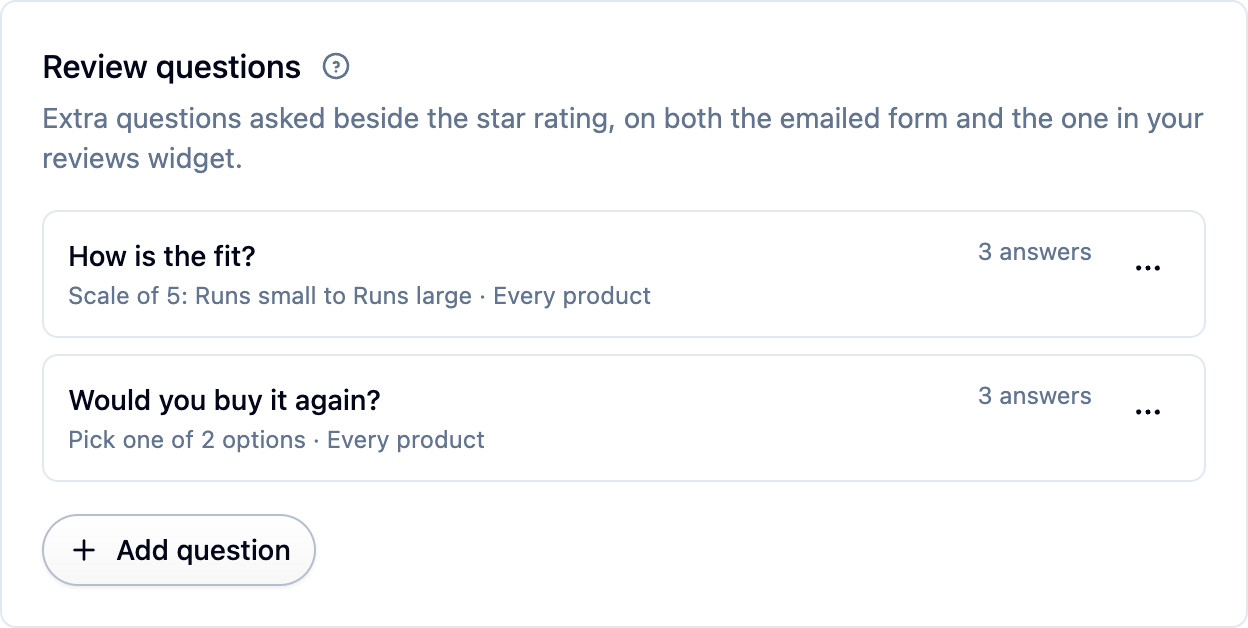
Use the row's ... menu to edit, reorder, archive or delete a question.
Changing a question people have answered
Once a question has answers, its type, number of steps and existing options are fixed, so the answers already given still make sense. You can still add options, relabel them, or archive them. If you need a different shape, archive the question and add a new one.
An answered question is archived rather than deleted. It stops being asked, and the answers already given keep showing on your storefront and in Moderating reviews.
Where the answers show up
- On your storefront, summarized in the reviews widget for questions you've chosen to show. See Storefront widgets.
- On each review in Reviews, under the review text.
- In imports and exports, one column per question. See Importing reviews.
Next steps
- See what reviewers are sent: Collecting reviews.
- Show the answers on your product pages: Storefront widgets.
For developers
Questions are managed at /review-questions. A review submission carries its answers as
answers, and GET /reviews?include=answers returns them on each review. See the
API reference.