
Connecting Shopify
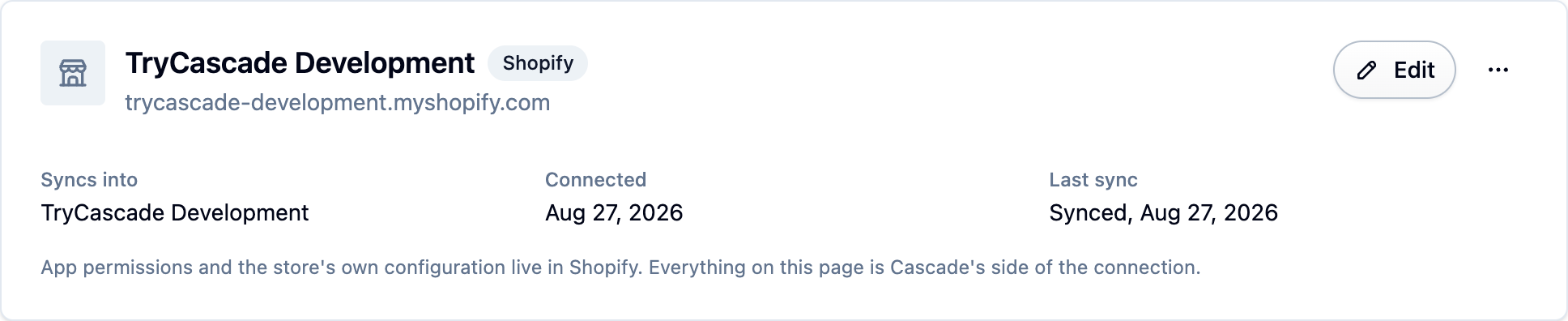
Install the Cascade app on your Shopify store and your products, customers and orders sync on their own, loyalty rewards work as real discount codes, and the widgets go into your theme with a click.
Install the app
- Install the Cascade app from your Shopify admin.
- Sign in to Cascade when asked, and choose which Cascade account to connect the store to.
- Approve the permissions Shopify shows you.
When you land back in Cascade the store is connected and your existing products, customers and orders start importing. Watch the progress under Settings → Imports. A big catalog takes a while, and reviews and loyalty have nothing to attach to until the products land, so let it finish before you set up flows.
If you run several shops, connect each to the same account. They arrive as separate stores; see Running more than one store.
What stays in sync
After the first import, changes in Shopify arrive on their own: product and variant edits, customer changes, and orders as they're placed, paid and fulfilled.
Two things worth knowing:
- Cascade recognizes a product by its handle. Renaming a handle in Shopify makes a new product in Cascade, and reviews stay with the old one. Rename handles rarely.
- A customer who unsubscribes in Shopify is opted out in Cascade. Cascade never writes its own opt-outs back to Shopify.
Reading Shopify metafields into Cascade
If your store keeps useful details in metafields (a product's material, a customer's lifecycle stage, an order's gift message), you can bring them across.
-
Open Settings → Integrations and open your store's sync settings.
-
Under Metafields synced in, add a mapping: choose products, customers or orders, enter the metafield's namespace and key, and choose the name it's saved under in Cascade.
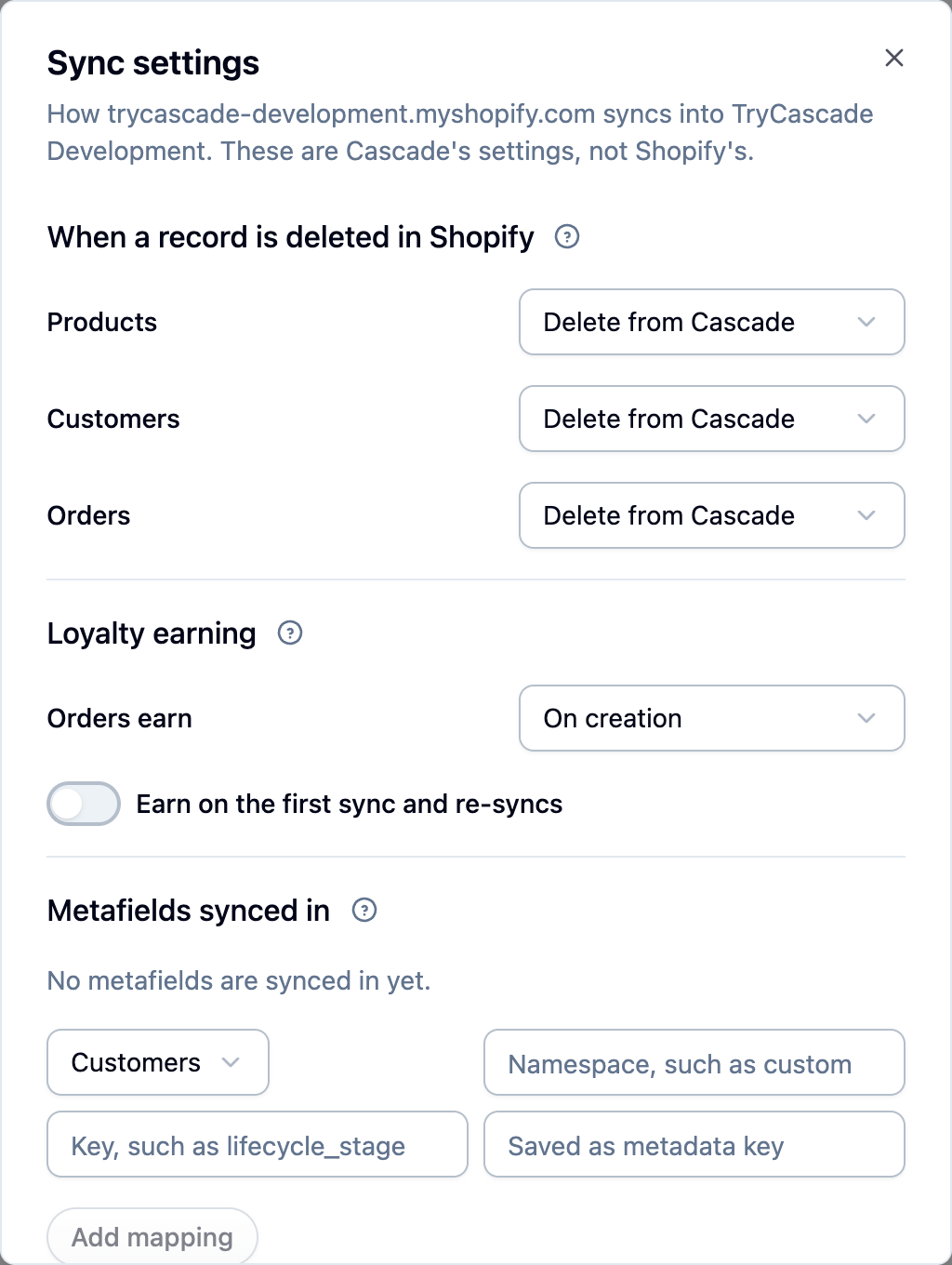
From then on the values come across with every sync and show up on the product, customer or order, in filters and in exports. Removing a mapping stops future updates but leaves the last synced value in place.
Deletion settings
When a product, customer or order is deleted in Shopify, you decide what happens in Cascade. Each has its own setting under Settings → Integrations:
- Delete removes it from Cascade. This is the default.
- Keep keeps it in Cascade and stops it syncing from this store.
Reviews outlive the product or customer they're about: deleting either unpublishes the review rather than deleting it. To delete reviews along with them, turn on Delete reviews with their product or customer under Settings → Reviews. Shopify's customer redaction requests are always honored in full.
Loyalty earning from synced orders
Two settings in your store's sync settings under Settings → Integrations decide when a synced order earns points and stamps:
- Orders earn chooses whether an order earns as soon as it arrives or only once Shopify reports it paid.
- Earn on the first sync and re-syncs is off by default, so importing years of order history doesn't hand out years of points.
On a connected store, a reward a member claims becomes a real Shopify discount code that works at checkout. Members can also see their balance and redeem at checkout; see Loyalty at Shopify checkout.
Widgets in your theme
- Open the Cascade app inside your Shopify admin and find the Widgets in your theme card. It reads your live theme and shows which widgets you already have, which are switched off, and which are missing.
- Turn on the Cascade embed first. It loads everything else and carries the settings that apply everywhere, including the floating rewards button.
- Press Add beside each widget you want. Your theme editor opens with the block already placed; drag it where you want it and press Save. Nothing edits your theme until you save.
Signed-in shoppers see their own wishlists, points and rewards without any extra setup. Shoppers who aren't signed in see ratings, reviews and the program, plus your store's usual sign-in prompt.
If Cascade asks for theme access, grant it: it's a read-only permission that stores connected before this feature need, and it takes one click. If your theme is older than Online Store 2.0, the card offers Add by hand instead with the code to paste into your theme. See Storefront widgets for what each widget does.
Paying and disconnecting
If you installed from the Shopify app store, Shopify bills you and the plan appears on your Shopify invoice. See Billing.
Disconnecting, or uninstalling the app, stops the sync but keeps everything in Cascade. Reconnecting the same shop picks up where it left off.
If something isn't syncing
- The first import hasn't finished or shows errors. Check Settings → Imports.
- The store shows as disconnected. Check Settings → Integrations.
- One product or order is missing. A product with no handle, or an order for a product Cascade has never seen, is skipped and reported rather than guessed at.
- You can't connect another store. You may be at your plan's store limit. See Plans and limits.
Next steps
- Collecting reviews once your orders are in.
- Loyalty to set up points and rewards.
- Loyalty at Shopify checkout.
For developers
Sync order and matching. The backfill runs products, customers, orders in that order
through the same pipeline as a CSV import. Products match on handle, customers on email.
Metafield mappings store values as text (structured values are serialized), merge into
metadata rather than replacing it, can't target connector keys such as shopifyCustomerId,
and read up to 50 metafields per record. Mapped metadata is filterable, e.g.
metadata.lifecycleStage.
Shopper identity. Wishlists and a member's own balance need a signature. On Shopify the app answers for the signed-in shopper through the app proxy on the store's own domain, so the theme never sees the signing secret. A shopper Cascade hasn't synced yet is looked up in Shopify once and remembered. Product slugs are Shopify handles.
Ratings as product metafields. Filled on the first sync and updated whenever a review is published, edited or removed. A product with no published reviews has no metafield.
Loyalty as customer metafields. Updated within moments of a change. A member with no
tier has no loyalty_tier metafield. Liquid only exposes the signed-in customer's record.