
Sharing and gift purchases
A shopper can share a wishlist with a link, and the people they share it with can mark items as bought so nobody buys the same present twice.
How a shopper shares a list
-
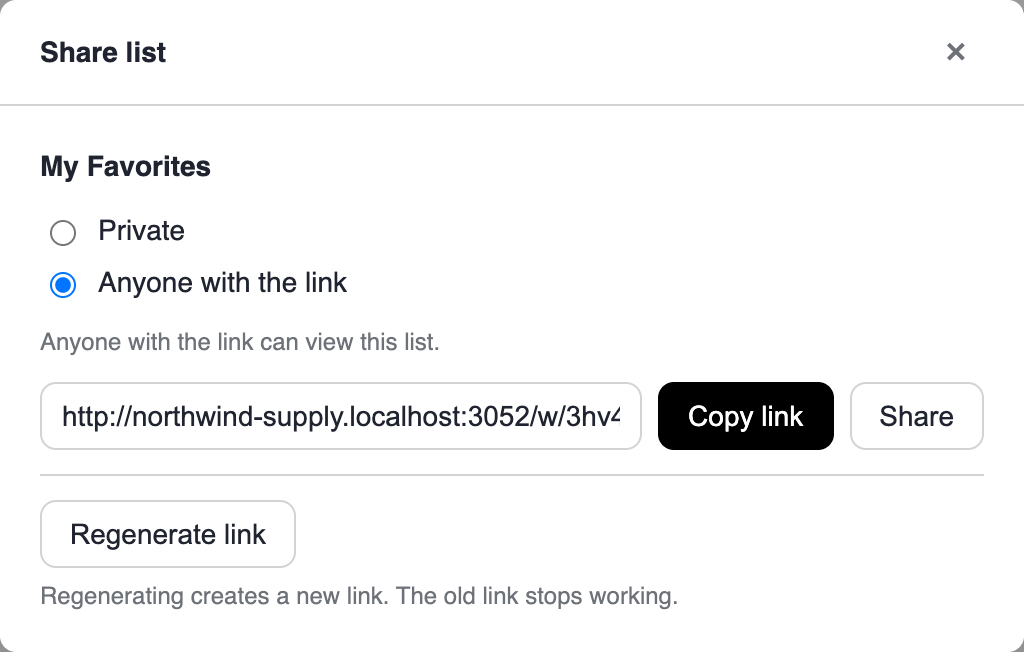
In their list manager on your storefront, they open Share on a list and choose Anyone with the link. The link is ready to copy straight away.
-
They send the link. Anyone holding it can see the list's name, the owner's first name and the items. Nothing else about the shopper is shown: no email address, no order history.
-
To take a list back, they choose Regenerate link. The old link stops working immediately, or they switch the list back to Private.
A private list looks exactly like a list that never existed, so old links can't be used to peek at it.
Your settings
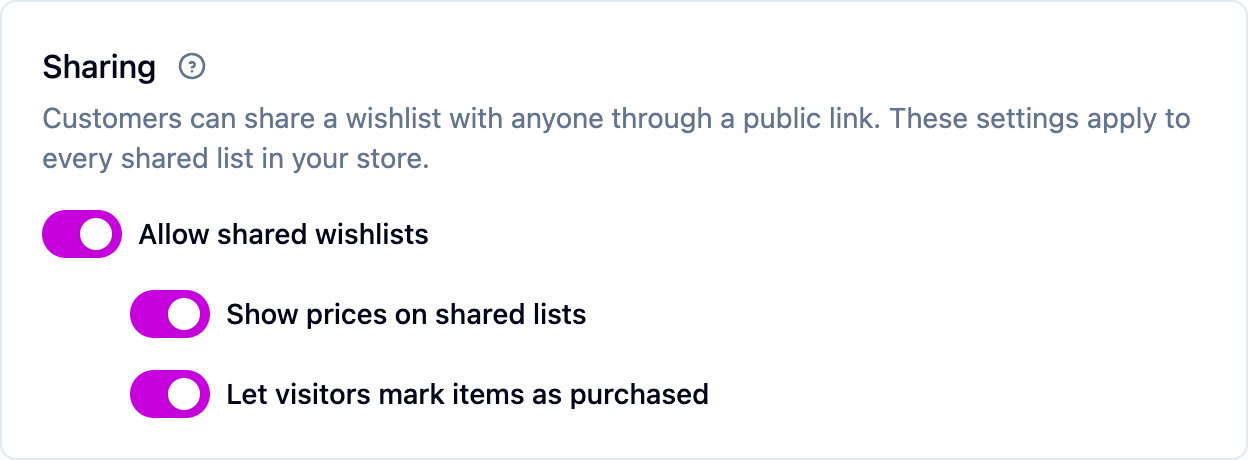
All five live under Settings → Wishlists.
- Allow shared wishlists is the store-wide switch. Turn it off and every share link in your store stops working at once and shoppers can't share from the storefront. Each list's own choice is remembered, so turning it back on restores the links as shoppers left them.
- Show prices on shared lists is on by default. Turn it off if you'd rather gift budgets stayed private and buyers went to the product page for the price.
- Let visitors mark items as purchased turns gift marking on or off. Turning it off keeps shared pages working without the mark-as-purchased controls, and purchases already recorded are kept.
- Let shoppers add a photo to a saved item is on by default. Turn it off and the photo picker disappears from the storefront and photos already added stop showing on the list, the shared page and product pages. They are kept, and you can still see them in the dashboard.
- Count shared lists as referrals is off by default. Turn it on and a visitor who arrives from a shared list and buys something from it is credited to the list's owner as a referral, as long as the owner is a loyalty member. See Referrals.
The last four only apply while sharing is on.
A shopper's own photo and note
A signed-in shopper can put their own photo and a short note on anything they saved, so a shared list reads as "here's mine, styled" rather than a catalog page. In their list manager they press Edit on an item, choose Add photo, and pick a picture. Large photos are shrunk in their browser before they upload, and a photo can be at most 5 MB.
The photo takes the place of the product image on their own list and on the shared page. Removing it puts the product image back.
Product links. In the Share dialog of a shared list, each item has a Copy product link. It opens your product page with a small card at the top showing the shopper's photo and note, whose list it is, and a link to the whole list, so an influencer can send followers straight to one product. The same card appears when somebody follows a product link from the shared page. For it to show, add the wishlist banner widget to your product page: on Shopify, the Wishlist banner block under Widgets in your theme; elsewhere, see Storefront widgets. On an ordinary visit the widget shows nothing.
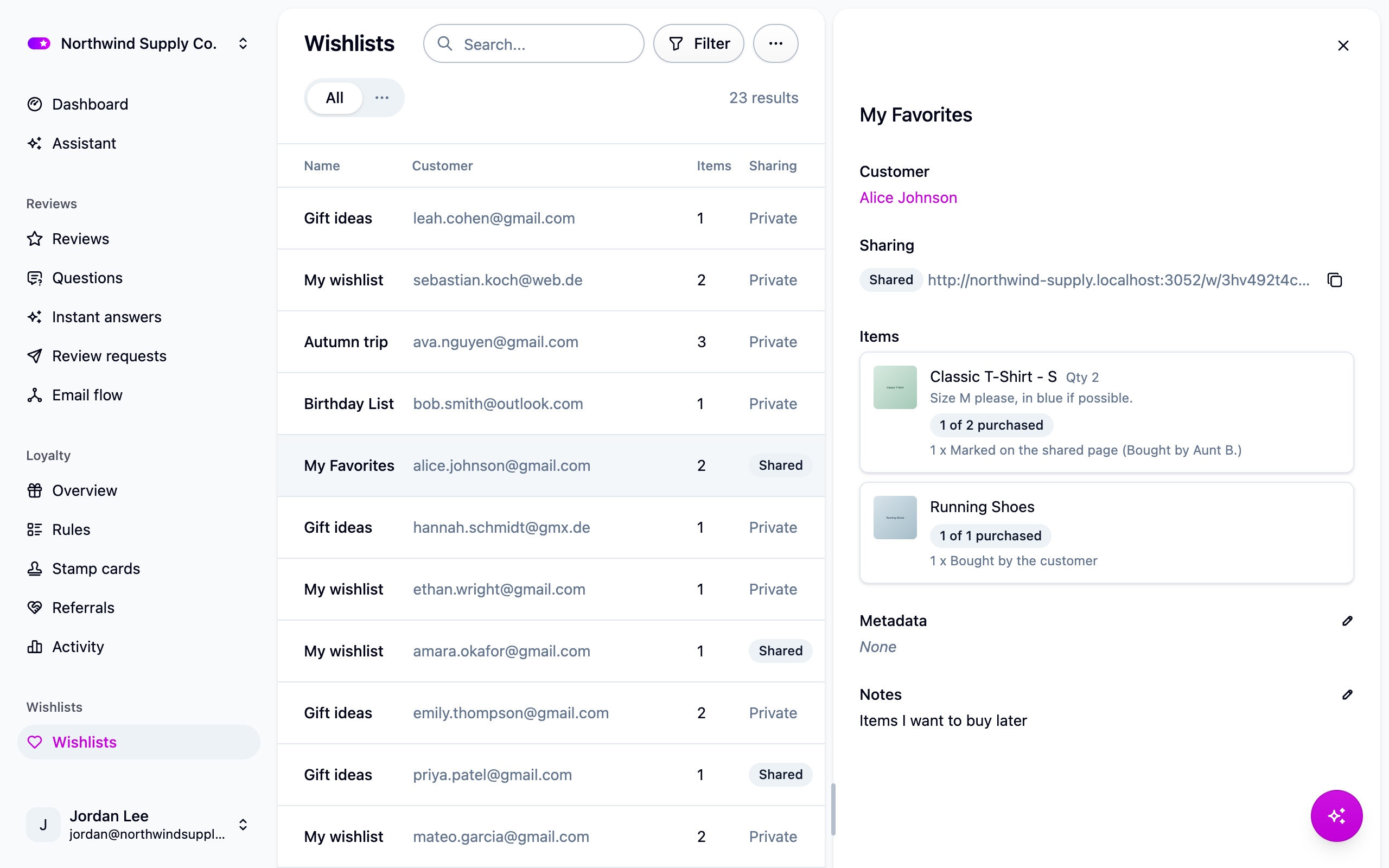
Removing a photo. Open the list under Wishlists. Each item shows the product image and, beside it, the shopper's photo with a Remove photo button. Removing it leaves the item and the note in place, and the shopper is not told.
Marking a gift as bought
Anyone viewing a shared list can mark an item as purchased, say how many they bought, and leave a note for other visitors ("Bought by Aunt B."). The item moves to an "Already purchased" section of the page. They can undo their own marking for 30 minutes, from the same browser, in case they marked the wrong item.
Things the shopper buys themselves count too. When one of their orders comes in, Cascade matches it against their own lists and records what it finds. The match is careful: same customer, same product, a matching variant, never more than they asked for, and canceled orders never count.
Who sees what
Gifts are hidden from the person the list belongs to, so their surprises aren't spoiled.
If something isn't working
- A share link shows nothing. Check that Allow shared wishlists is on, and that the shopper hasn't switched the list back to private or regenerated the link.
- Nobody can mark items as bought. Check that Let visitors mark items as purchased is on. It's ignored while sharing is off.
- The product page shows no card from a shared link. Check that the wishlist banner widget is on your product page, that the list is still shared, and that the item still has a photo or a note. With Let shoppers add a photo to a saved item off, only the note shows.
- A shopper says a purchase disappeared. Purchases by other people are never shown to the list's owner. You can see the full picture by opening the list under Wishlists.
Next steps
- Wishlist alerts for price-drop and back-in-stock emails.
- Wishlists for the rest of the settings.