
Storefront widgets
Widgets are the parts of Cascade your shoppers see on your store. This page helps you choose them, install them and make them match your theme.
What each widget shows
- Star rating: a product's average and review count, for product cards and the top of a product page.
- Product reviews: the full list for a product, with the rating breakdown, a "Write a review" form, your replies, the "What reviewers say" summary and your review questions. Shoppers can sort by newest, highest, lowest or most helpful, click a bar in the breakdown to filter, and vote reviews helpful.
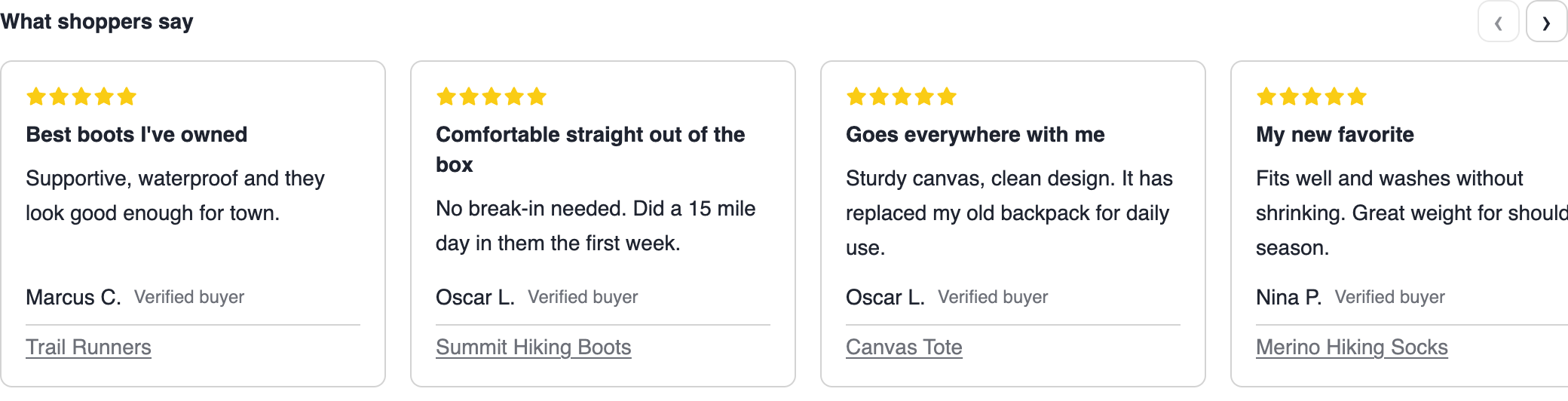
- Reviews carousel: a sliding row of your best reviews, for a home page or landing page.
- Review photos and videos: a wall of the photos and videos shoppers attached to reviews. Clicking one opens it full size with the review behind it.
- Wishlist button and wishlists: a save button for a product page, and the customer's lists on their account page. See Wishlists.
- Wishlist banner: a small card at the top of a product page that only appears when somebody arrives from a shared wishlist link, showing the shopper's own photo and note for that product. See Sharing and gift purchases.
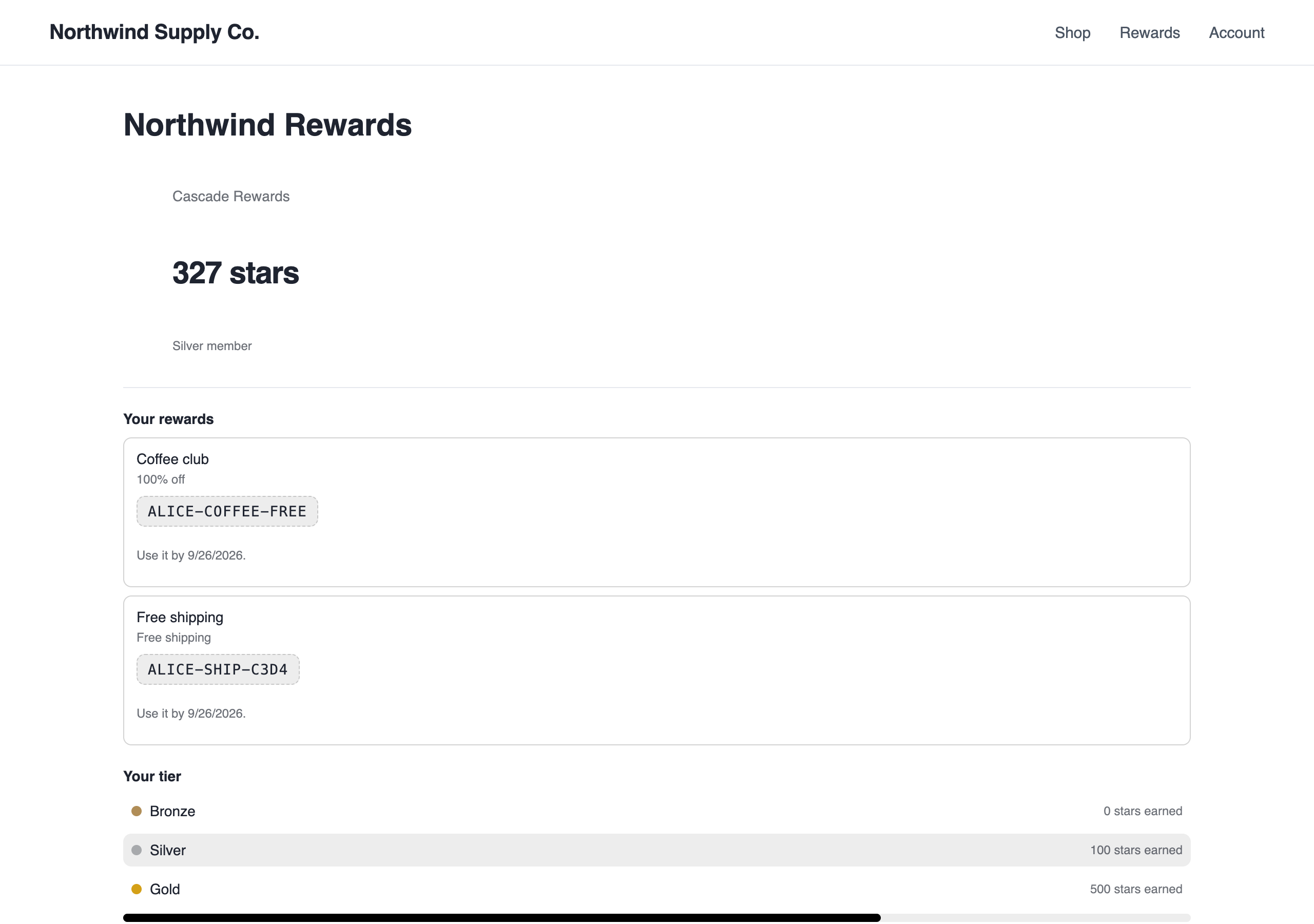
- Loyalty: the program panel, either on a rewards page or behind a floating button in the corner of every page, plus a "Earn 250 points with this purchase" badge for product pages. See Loyalty.
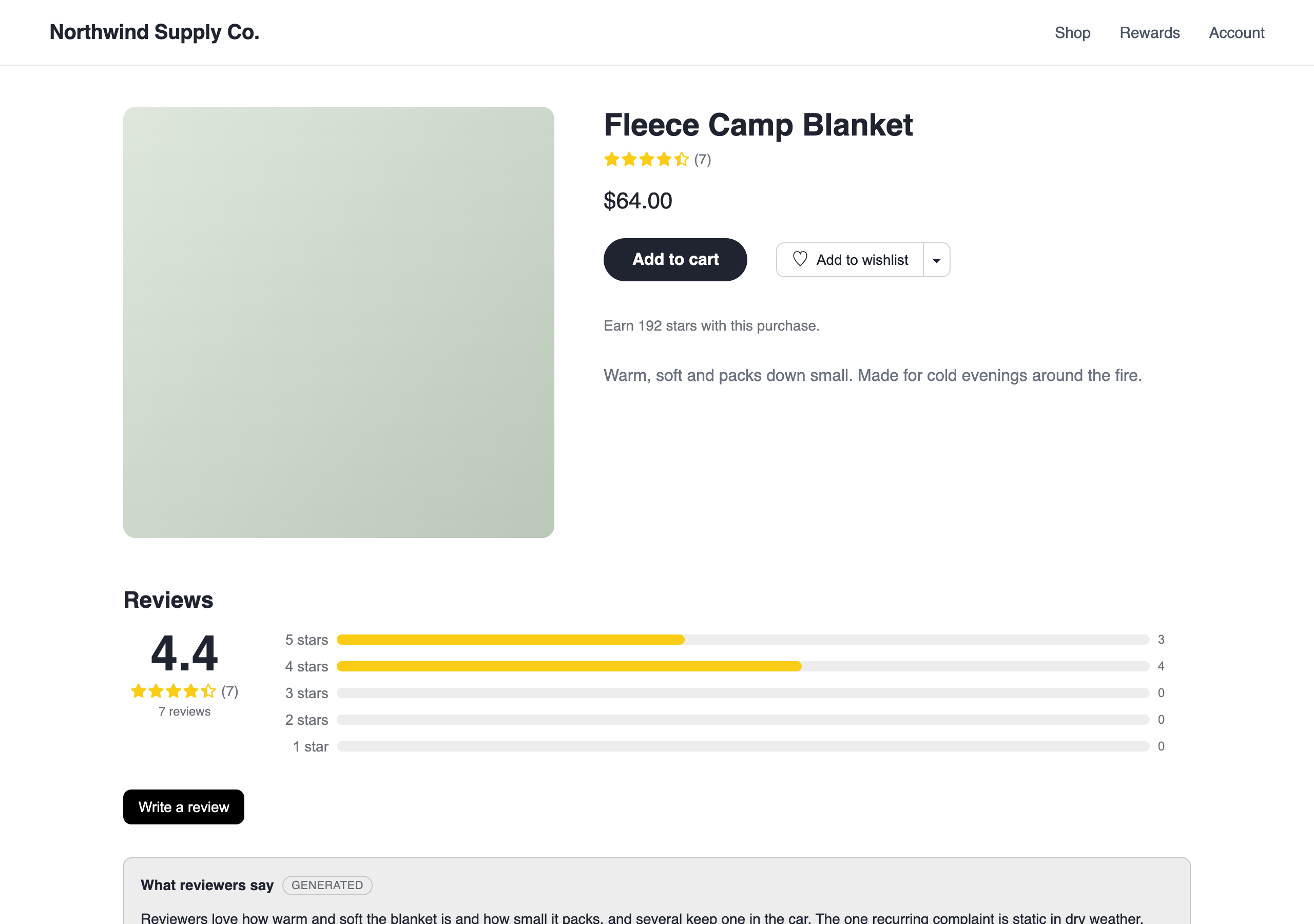
Reviews written on your storefront wait in Reviews unless auto-publishing is on and the rating clears your threshold. They are never marked as verified buyers.
Install the widgets
- On Shopify, open the Cascade app in your Shopify admin and turn on the Cascade blocks you want. The card that appears once an area is set up points you there, and each block has its own settings, such as "Only this product". See Widgets in your theme.
- Anywhere else, your developer adds one script tag and a line per widget. Settings → Widget installation has the snippets ready with your key filled in, as HTML or React, one copy button per piece, and a Copy a prompt for an AI agent button that hands the whole job to a coding assistant. The same card appears at the top of an area's screens right after its setup. Or send them the For developers section below.
Appearance
Out of the box the widgets take their font and text color from your page and have a transparent background, so on most stores there is nothing to do. When there is:
-
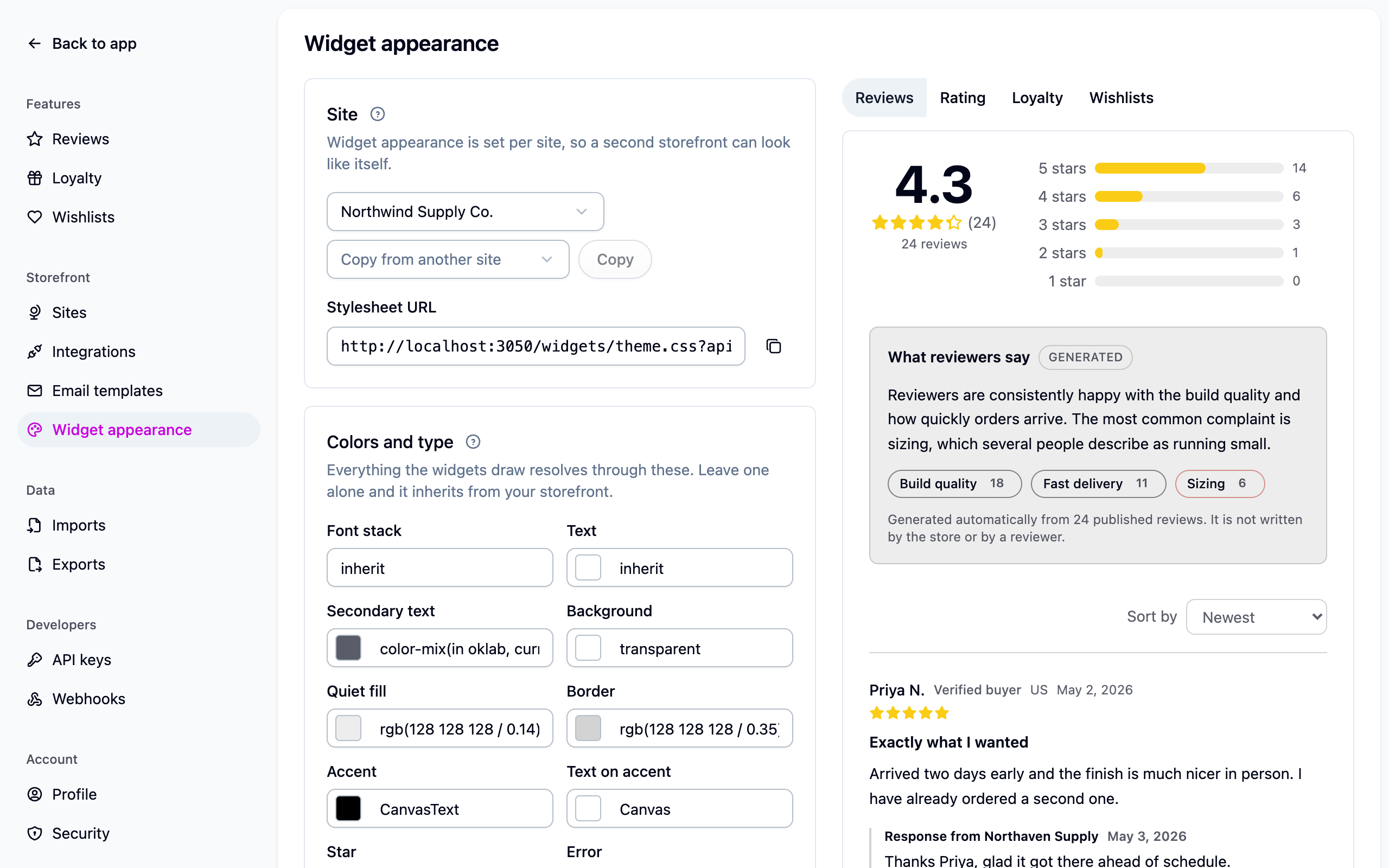
Change the colors, font, corner radius and star color in the form. The live preview beside it shows the real widgets with sample data.
-
Save. Your storefront picks the change up within five minutes.
Check the accent color against the text on it: a light accent with light text is unreadable.
Per site
Appearance is set per store, so a second storefront can look like itself. Pick the store at the top of the page. Copy from another site copies the colors and custom CSS across in one go; it is a copy, not a link, so the two drift apart the moment you edit either again. See Running more than one store.
Custom CSS
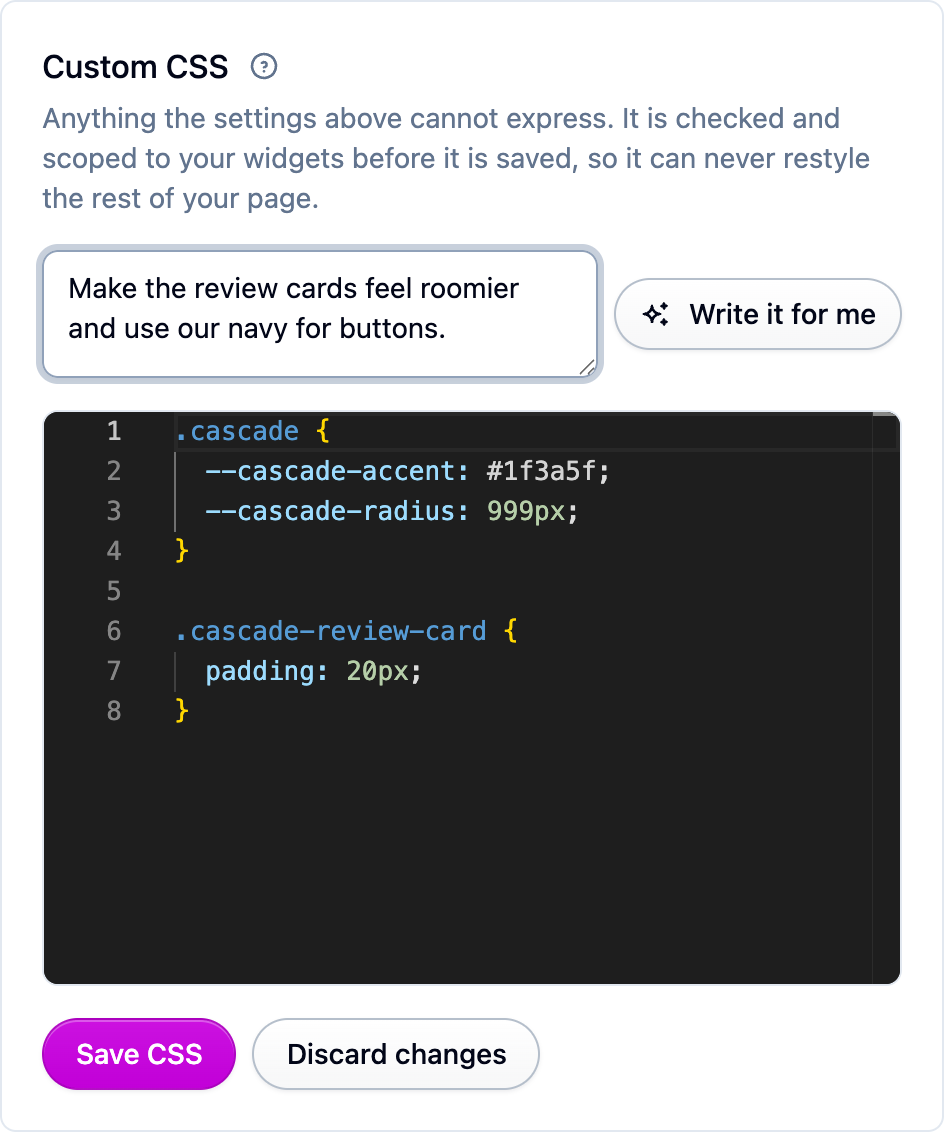
Anything the form cannot express goes in the custom CSS box. If you would rather not write it, describe what you want in the box above the editor and choose Write it for me: you get the CSS, a sentence on what it changes and the preview showing it, and nothing is saved until you choose Accept. Ask for a look (colors, spacing, type, borders, corners), not a layout: it cannot reorder sections, hide the rating breakdown or remove the verified-buyer badge. There is a limit of 20 requests, refilling at one a minute.
Your CSS can only restyle the widgets, never the rest of your page. Anything Cascade has to remove is reported back to you when you save. The details are under Custom CSS rules below.
Putting an earlier version back
Every save of the custom CSS is kept. The last 50 are listed under Earlier versions with who saved them and what they asked for, and Restore puts one back. Colors are not versioned: use Reset beside a color to go back to the default.
Reply to a review
Open a review in Reviews and use the reply composer. A published reply appears under the review on your storefront, headed "Response from" the name you replied as. A draft reply is never shown to shoppers.
If something isn't working
- A widget shows the default colors for a few minutes after a change: the stylesheet is cached for five minutes. Wait, then reload.
- A rule in your custom CSS did nothing: check the message shown when you saved. Rules for the page outside the widgets, imports, fonts and outside URLs are removed.
- Wishlists or the loyalty balance show the signed-out view on a custom store: the storefront isn't identifying the customer. Your developer needs Identifying the customer.
- Stars are not showing in Google: see Structured data below, and give Google time to recrawl.
Next steps
- Widgets in your theme for Shopify stores.
- Collecting reviews to set up review questions.
- Wishlists and Loyalty for what those widgets do.
For developers
The widgets in @cascade-commerce/widgets render ratings, reviews, wishlists and the loyalty
program on any storefront. If your storefront is a React app, the same widgets are React
components you can import and compose: see React widgets. Every
endpoint they call is in the Widget API reference.
The script tag
Drop one script tag on the page and mark up the elements you want filled in:
The value of each product attribute is the product slug. On Shopify that is the product
handle: data-cascade-reviews="{{ product.handle }}".
Optional script tag attributes:
The review and rating widgets read public data, so the publishable key is all they need. The wishlist widgets need a signed-in shopper for their real work and keep a guest's saves in the browser until then. The loyalty widget renders for everybody and gains the member's own state once signed in.
The properties you can set
Everything the widgets draw resolves through these CSS custom properties. The appearance editor sets them, and you can set any of them from your own stylesheet.
Two more are derived rather than chosen, and are set from custom CSS only:
--cascade-control-radius rounds buttons and inputs on their own (follows
--cascade-radius), and --cascade-floating-surface is the opaque ground under the loyalty
panel and the wishlist dialog.
How the theme reaches your storefront
The embed script requests the stylesheet before it renders anything, so the page never flashes default colors:
The URL is cached for five minutes. The appearance page also shows a versioned URL, which is
immutable until you next change something: put the version on the script tag as
data-cascade-theme-version, or link the versioned URL from your own <head> if you load
the embed script late.
Custom CSS rules
The class names below are a supported API and will not be renamed without notice. Anything
else in the markup is internal. A modifier is always a -- suffix on its block
(.cascade-button--primary, .cascade-loyalty-tier--current).
Custom CSS is sanitized on save, and the sanitized version is what is stored:
- Every rule is scoped under
.cascade. A rule forbodyor:rootis kept but can never match. - Only
@media,@supportsand@containersurvive.@import,@font-faceand the rest are removed. Load a webfont from your own theme and point--cascade-fontat it. url()may only carry adata:URI. A declaration with any otherurl()is dropped.- Nested rules are dropped. Write each selector out in full.
- 20,000 characters is the limit. Past that the save is refused.
CSS written by Write it for me goes through the same sanitizer and replaces the custom CSS in full rather than appending to it.
Reviews widget options
The write form asks for a rating, title, review, name and email, up to five photos or videos, and any review questions. A signed-in shopper's email is filled in and locked. Turn the form off to collect reviews only from the requests you send:
Helpful votes need no sign-in: the widget keeps a random token in local storage so a visitor can change their vote rather than vote twice. Votes are anonymous and only published reviews accept them.
Review questions
Questions set up on Settings → Reviews appear in three places: in the write form (scales as a row of steps, multiple choice as radios or checkboxes, required ones block sending until answered), above the list as a summary of published answers (a scale as a track with a marker at the average, a multiple choice as one bar per option; shares can exceed 100% where several options are allowed), and on each review card as that reviewer's answers. A question nobody has answered is left out. Archiving keeps existing answers; hiding a question or option removes it from the storefront while the answers stay in reports.
To keep the answers on the cards but drop the summary above the list:
Review summaries
Once a product has at least five published reviews, the reviews widget shows a generated "What reviewers say" summary with up to five themes, refreshed at most once a day per product. It is kept out of the structured data. Regenerate, hide or revert it from the product page in the dashboard, or turn the feature off with "Summarize what reviewers say" on Settings → Reviews. See Review summaries.
Reviews carousel
Store-wide is the default; each card then names and links to its product when Cascade knows the URL. A product slug narrows it to one product.
Cards are ordered by rating, highest first, and slide with the arrow buttons, by dragging, or with the arrow keys once focused. Nothing advances on its own. The carousel emits no structured data. On Shopify it is the Reviews carousel block, with the same settings plus an "Only this product" checkbox.
Media grid
Tiles are ordered newest review first and a review's own photos stay together, so a page can come back a little over the number asked for. "Load more photos" appends the next page. Store-wide, the lightbox carries a "View product" link. Arrow keys walk the grid and Escape closes it. The grid emits no structured data. On Shopify it is the Review photos and videos block.
Structured data
Both review widgets can emit schema.org JSON-LD, which produces the star
snippets in Google results: a Product node with an AggregateRating, and from the reviews
widget the individual Review records too.
When the product has published questions and answers, the reviews widget
also emits a QAPage node: one Question per published question, your answer as
acceptedAnswer and shopper answers as suggestedAnswer. Questions with no published answer
are left out. The generated instant answer is absent from both
nodes.
Override either with data-cascade-structured-data (or ="false"). In React the same
controls are the structuredData and productUrl props on <ProductRatingWidget> and
<ProductReviewsWidget>.
Placement rules:
- Put the marked-up widget on the product's own page. Markup on a home page or blog post is ignored or flagged in Search Console.
- One marked-up widget per page. With both widgets on a product page, let the reviews widget emit it.
- Leave it off in collection and search grids.
- If your theme already publishes an
aggregateRatingfrom another review app, turn Cascade's off rather than shipping two contradictory ratings.
The product URL comes from <link rel="canonical">, falling back to the current path without
query or fragment; set data-cascade-product-url when neither is right (a quick-view drawer,
for example). Nothing is emitted until the product has one published review. Only published
reviews are included, reviewers appear as first name and last initial ("Anonymous" if
unnamed), and reviews loaded through "Load more" are added as they appear.
Verify with Google's Rich Results Test using the URL tab: the markup only exists after the page's JavaScript runs.
Identifying the customer
Anything that belongs to one shopper (wishlists, loyalty balance) needs the storefront to prove who is signed in with a signature made on your server. Add three attributes to the script tag:
All three go together. For a signed-out shopper leave all three off: the wishlist widgets keep guest lists in the browser that are claimed on sign-in (see Before signing in), and the loyalty widget shows the signed-out catalog. A page with some but not all of them is refused by the wishlist widgets and treated as signed out by the loyalty widget.
The signing recipe
- Take the email exactly as sent in
data-cascade-customer-email, including its case. - Take the current Unix time in seconds, as a string.
- Concatenate the two, in that order, with nothing between them.
- HMAC-SHA256 the result, keyed with your widget signing secret, as lowercase hex.
A signature is good for 24 hours; sign on every page render anyway. The secret is under Settings → API keys in the widget signing secret card. There is one per organization, shared by every site. Keep it on your server and out of theme files, JavaScript bundles and version control: anyone holding it can sign as any of your customers.
Rotate secret on the same card takes effect immediately with no grace period: every storefront still signing with the old value fails until the new one is deployed. Rotations are recorded in the audit trail.
Test vector: secret wsk_demo_signing_secret, email test@example.com, timestamp
1735689600 gives 48eb876e883be4490d05d06ea8b9fe870b481c1098cc7ef88553998690a1dd31.
On Shopify there is nothing to do. The Cascade embed asks Cascade for the signature of whoever is signed in, on your store's own domain, and the secret never leaves Cascade. Do not sign in Liquid: the secret would have to live in a theme setting or metafield, both readable by anyone who can edit your theme. See Widgets in your theme.
Every widget call carrying a customer answers 401 with one of:
Wishlists
A save button for a product page, the list manager for an account page, and the same manager behind a button. All three need the customer attributes above. See Wishlists for sharing, purchase tracking and the Shopify markup.
The last one is the banner a product page opens with when somebody arrives from a shared
wishlist link (?cascadeWishlist=...&cascadeItem=...). It needs no customer attributes,
reads the link's parameters itself, and renders nothing at all on an ordinary visit, so it
is safe to place on every product page. In React it is <WishlistBannerWidget productSlug="..." />.
Loyalty
Without a customer the panel shows the catalog: tiers, ways to earn, offers, stamp cards and what points buy. With the customer attributes it adds the member's balance, tier progress, stamp cards and held rewards with their codes. Joining, claiming and canceling a reward need a signed-in shopper.
Which sections appear is decided in the dashboard, always in the order tiers, ways to earn, offers, stamp cards, rewards. Ways to earn, offers and stamp cards follow the Sections switches on Loyalty programs → Settings; tiers appears whenever the program has any; rewards appears once the program's points are named. A switched-off section's rules are never sent to the browser.
Visits. The widget reports a visit when it loads for a signed-in shopper, which is what
the "Visits the store" trigger uses. Visits are deduplicated per browser session and the
rule's allowance is enforced by Cascade in your organization's time zone. Set
data-cascade-loyalty-visits="false" on the script tag to report them yourself or not at all.
Points on the product page.
The price is read once when the badge mounts, so re-render it on a variant change (or use the
React component's price prop). A member reads "Earn 250 points with this purchase." with
their tier multiplier applied; everyone else reads "Join to earn 250 points with this
purchase." The badge renders nothing when there is no program, no live purchase rule, a paused
program, no named points, or a price too small to earn; product-restricted rules are left out.
On a page with the inline embed, the badge links to it. On Shopify it is the Points on
product page block.
Referral links. A member's share link is your site's base URL with ?ref= and their
code. The widget reads ref from the landing URL, remembers it, and sends it the first time
it loads for a signed-in shopper, which attributes the referral and enrolls the friend with the
"referred" join source. The code is forgotten once Cascade has answered. Nothing to wire up
beyond having the widget on the landing page.
Links from loyalty emails go to your storefront: the Sites card on
Settings → Loyalty takes a loyalty page
URL per site, defaulting to the site's base URL. Every link carries #cascade-rewards; the
launcher opens its panel on arrival and the inline embed scrolls into view.
Every endpoint behind these embeds is in the Widget API reference.