
Signing in
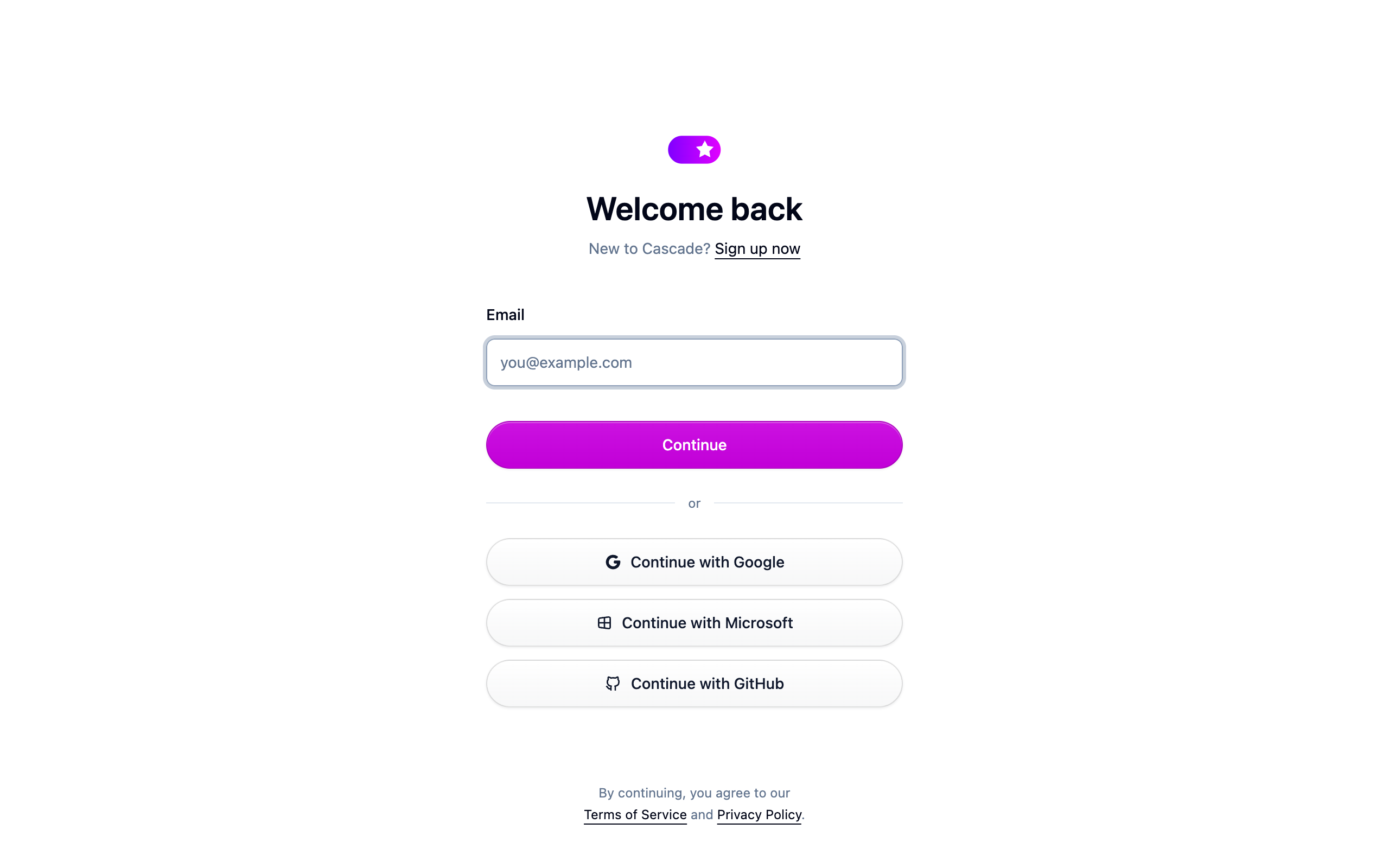
Cascade signs you in with your email address. There is no method to pick first: type your address, choose Continue, and Cascade shows you the right next step for your account.
Sign in with an emailed link
This is the normal way in, and it is how a brand new account starts too.
- Open the sign-in page, type your email address and choose Continue.
- Check your inbox for a message from Cascade and follow the link. It works once and expires after a few minutes.
- If you're new, following the link creates your account and takes you to setup. See Getting started.
Following a link that has already been used, or one that sat too long, brings you back to the sign-in page with a note saying so. Ask for a fresh one from there.
Sign in with a password
If you have set a password, the password field appears under your address after Continue. Below it you can choose Email me a sign-in link instead if you'd rather not type it, or Back to return to the first step and use Google, Microsoft or GitHub.
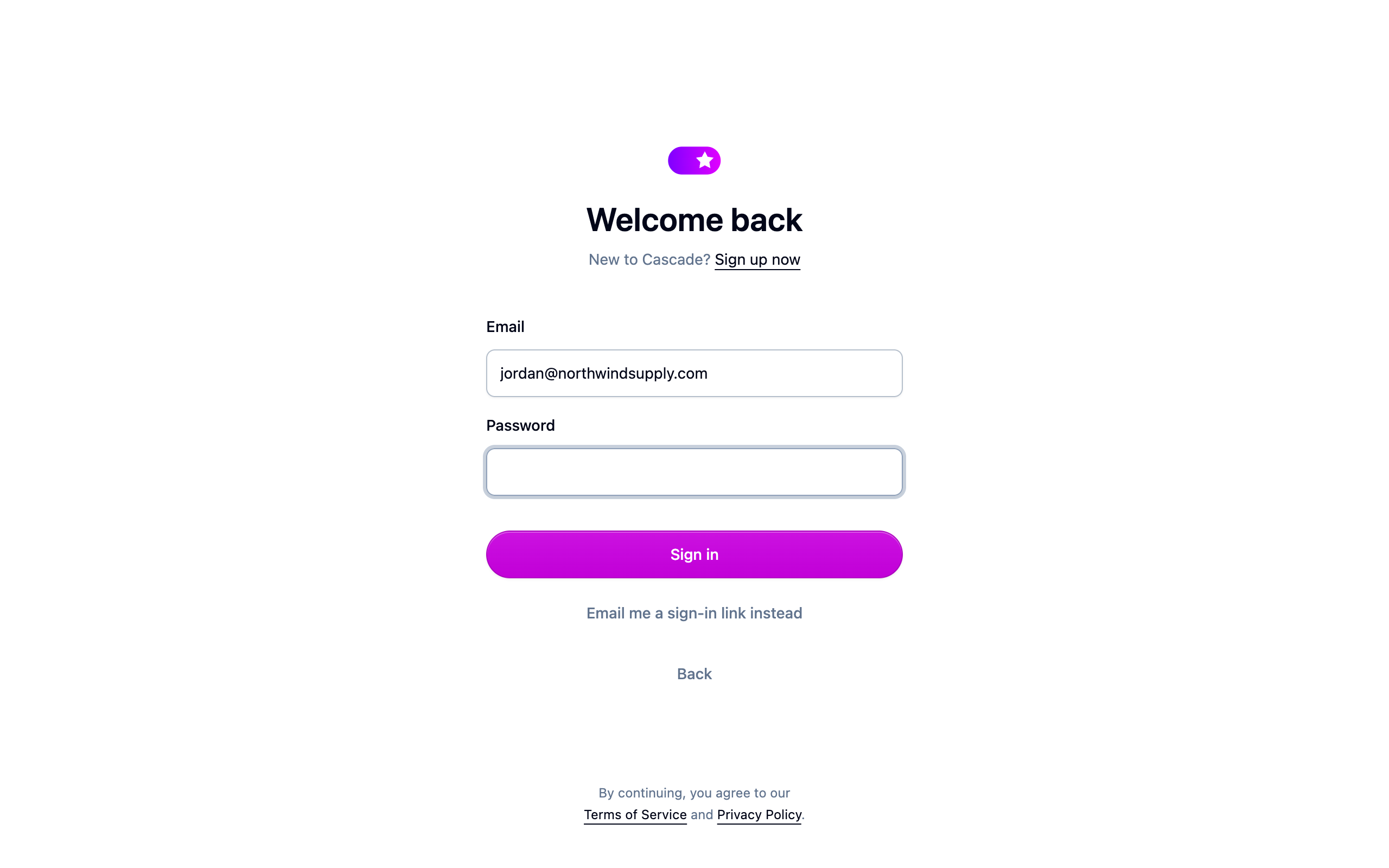
You don't need a password. If you want one, sign in with a link and set it under Settings → Security.
Sign in with Google, Microsoft or GitHub
The provider buttons sit under the email field on the first step. Which ones appear depends on how Cascade is set up for you. If you've turned on two-factor authentication, Cascade asks for your code after the provider sends you back.
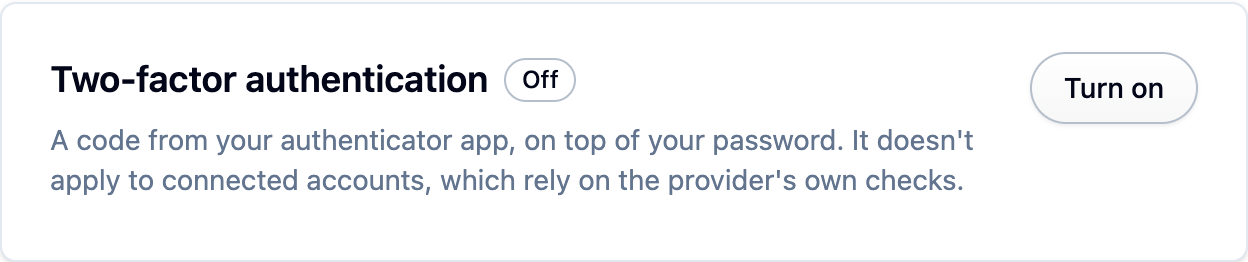
Two-factor authentication
Turn it on under Settings → Security. After that, Cascade asks for a code from your authenticator app however you sign in: after your password, your sign-in link or a connected account. You don't need a password to turn it on. You can use a backup code instead of the app, and you can trust a device for 30 days so it stops asking after your password on that browser. A sign-in link or a connected account always asks for the code, even on a trusted device.
The "Last used" label
The method you used last on this browser is marked Last used. It's a reminder, not a restriction: any method your account has still works. The label is saved in your browser, so it never shows up on someone else's machine.
If something isn't working
- The link never arrived. Choose Resend the link on the confirmation screen and check your spam folder. Delivery can take a minute.
- You typed the wrong address. Choose Start over on the confirmation screen.
- "We could not confirm this request came from a person." Cascade runs a quiet bot
check when you continue. Reload the page and try again. If it keeps failing, check that
nothing in your browser is blocking
challenges.cloudflare.com. Occasionally the check asks for a single click above the button before the form goes through. - "Too many sign-in attempts from this address." Wait a minute and try again.
- You lost your authenticator. Use one of the backup codes you saved when you turned on two-factor authentication.
Next steps
- Getting started, if this is a new account.
- Members and roles, to invite your team.
- Settings, to set a password, two-factor authentication or your profile.