
Moderating reviews
Decide which reviews go on your storefront, reply to them, and deal with the ones that shouldn't be public.
Work the queue
- Open Reviews and filter to Needs review. Narrow by rating, product or date if the list is long, and save a filter you use every day as a quick filter. See Filtering.
- Open a review and choose Publish or Reject. Publishing puts it on your storefront and counts it in the product's rating. Rejecting keeps it off and keeps it in Cascade. Both can be undone later.
- After an import or a busy weekend, select several rows and publish or reject them together.
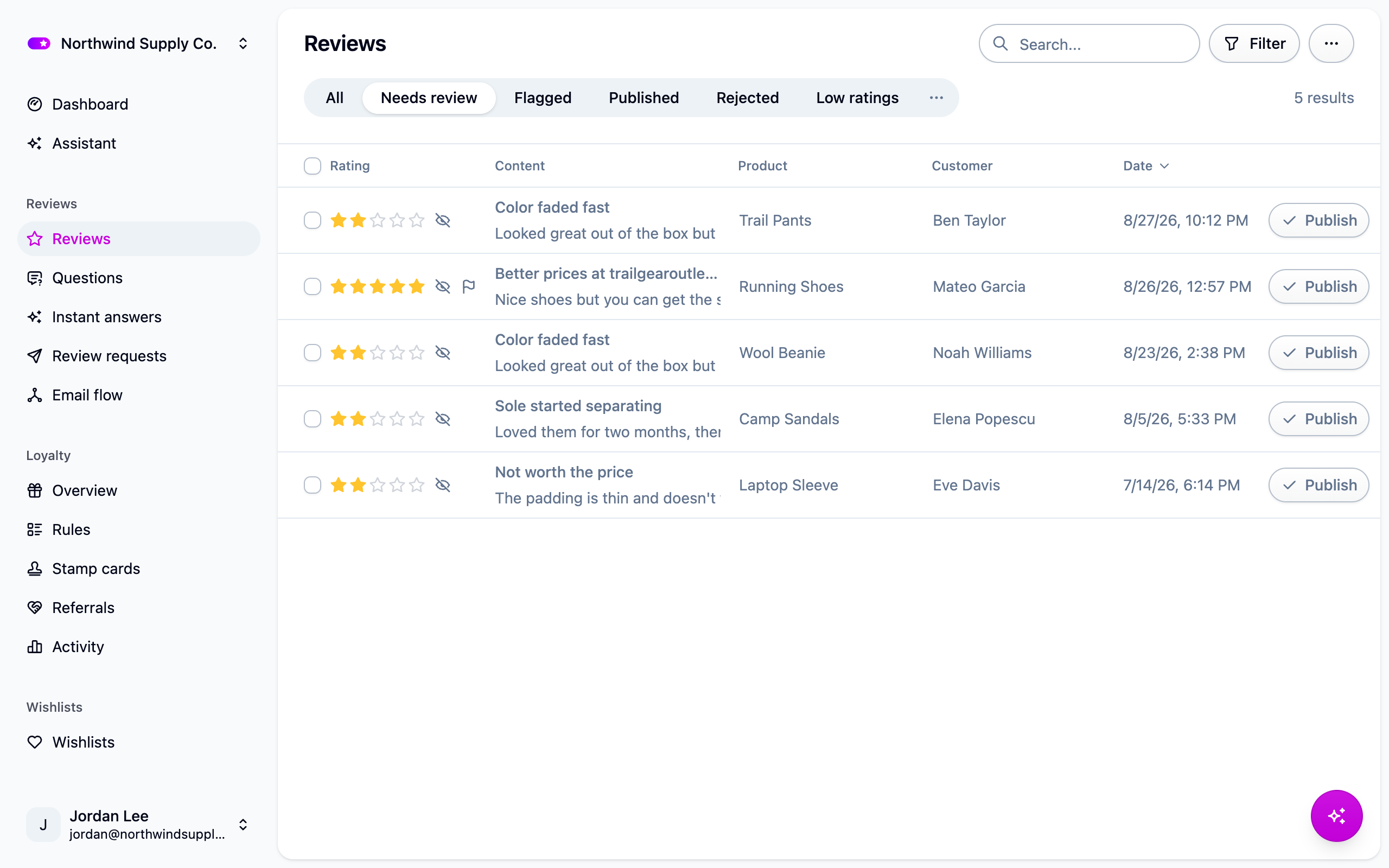
A review is in one of four states: waiting for moderation, published, rejected, or flagged because content screening caught something.
If most of what you get is fine, turn on Automatically publish new reviews under Settings → Reviews and set a rating threshold. Screening still holds anything it flags. See Reviews.
Read before you decide
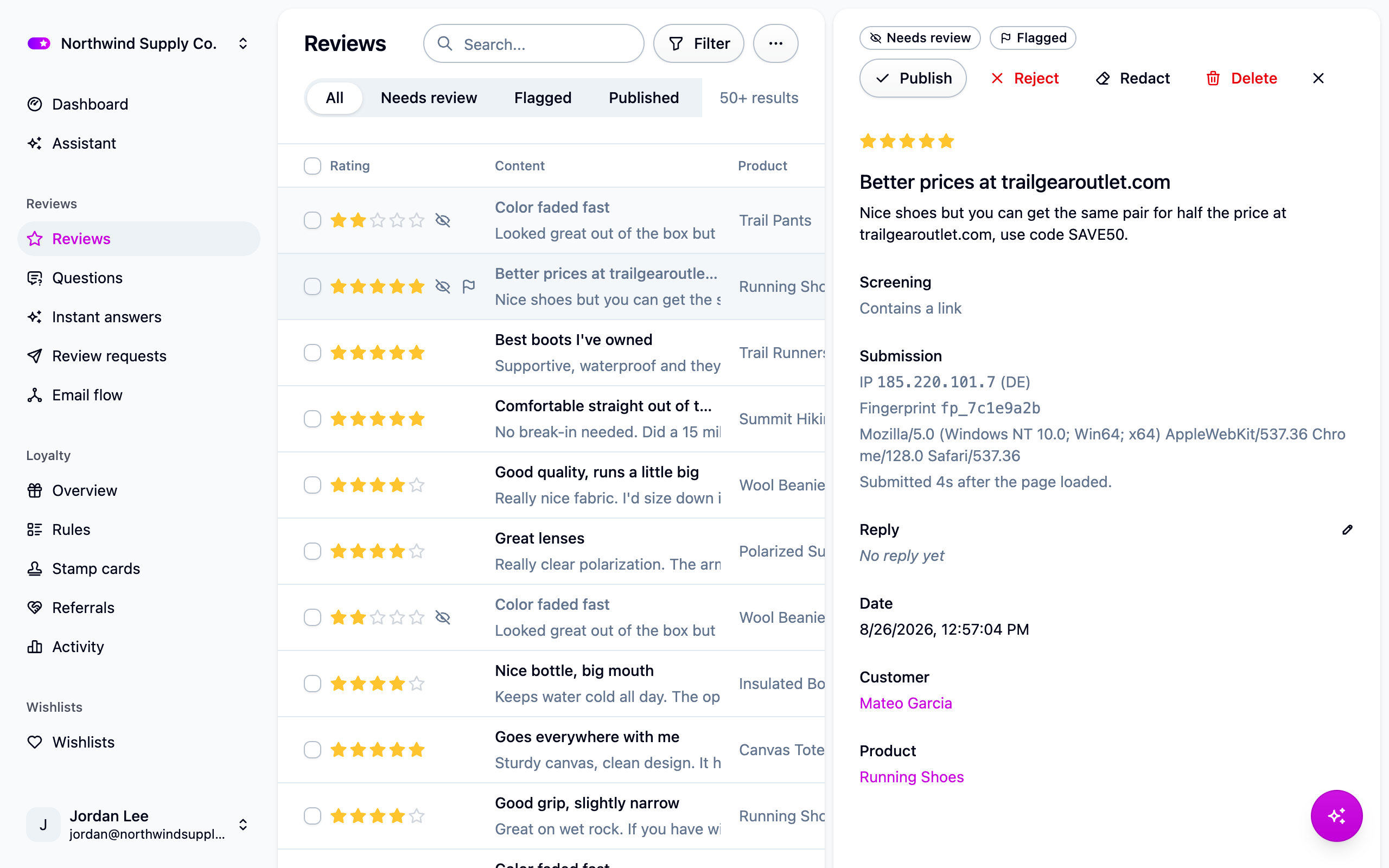
Each review shows, beyond the text and rating:
- The customer and the order, and whether they're a verified buyer.
- Their answers to your review questions, including questions you've since archived.
- Photos and videos. These publish with the review, so look at them before you publish, especially on a review whose text is unremarkable.
- Why it was flagged, when screening caught something.
- How long the review took to write. Four seconds was probably not a person.
- A link to other reviews from the same browser or connection. One browser reviewing as several customers is the clearest sign of a fake review.
Nothing here decides for you. It's there so the calls you make by hand are quick.
Reply to a review
Open the review and write your reply. It appears under the review on your storefront, headed "Response from" the name you replied as. Save it as a draft now and publish it later; a draft never reaches your storefront. Each review holds one reply, which you can edit or delete afterward.
Remove part of a review
Redacting removes a phone number, an order number, a staff member's name, or anything else that shouldn't be public, and keeps the rest of the review. Select the text and save the redaction. The original is kept privately so you can reverse it; your storefront only ever sees the redacted version.
Delete a review
Deleting is permanent, so Cascade asks for a reason (spam, duplicate, test data, the customer asked, and so on) and an optional note. The reason and who deleted it are kept, so you can answer "why did that review disappear?" months later.
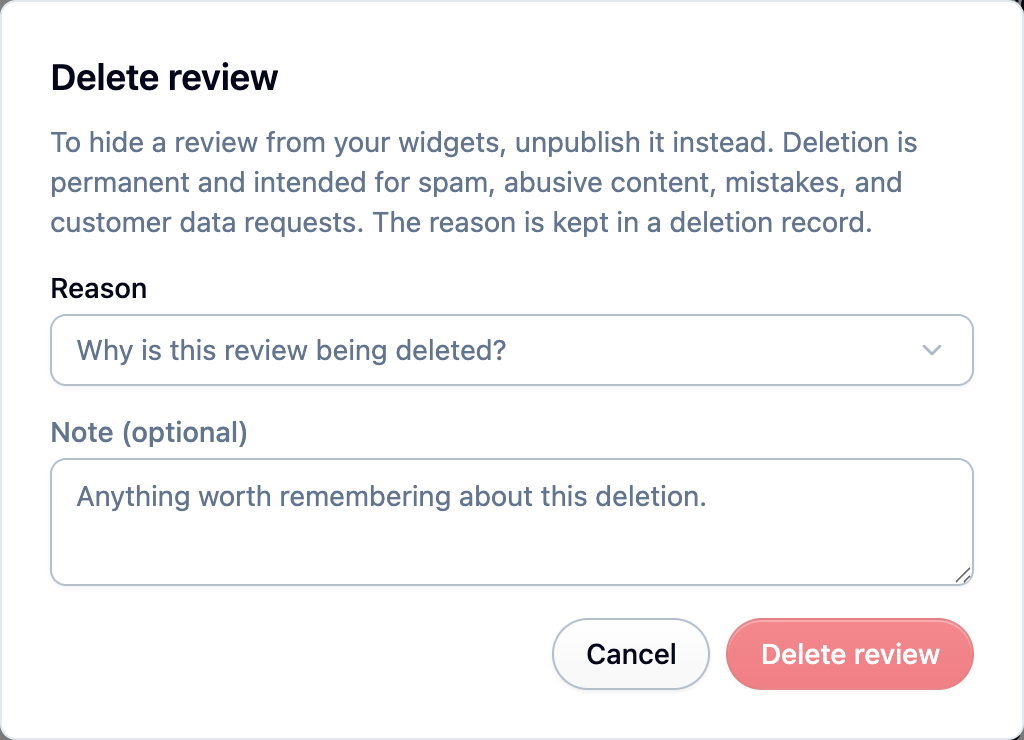
Prefer rejecting to deleting. Reject a review that shouldn't be on your storefront; delete one that shouldn't exist anywhere, or that a customer has asked you to remove.
Hear about reviews as they arrive
Under Settings → Reviews, choose alerts as reviews arrive, a daily summary email, a Slack channel, or a mix. A common setup is an alert for 1 and 2 stars and the daily summary for everything else. See Reviews.
Spot fake reviews
The signals worth reacting to, roughly in order:
- One browser, several customers.
- A review written in seconds.
- Links in the review. Turn on the link flag and let screening catch these.
- Not a verified buyer, on a store where nearly all reviews are.
- A burst of similar reviews on one product in a short window.
- Text flagged as AI-written on a longer review. Read it first: a flag is not proof, and it's likelier on reviews by people whose first language isn't English.
The AI screening check catches the ones the rules can't describe. See AI features.
The browser and connection details behind the first two signals are cleared 90 days after you moderate a review, so use them while the review is recent.
Next steps
- Tune what publishes on its own: Reviews.
- Let shoppers ask questions: Questions and answers.
- See how your ratings are trending: Analytics.