
Members and roles
Invite your team to Cascade and decide who can manage the account. Everyone who can sign in is a member, and every member holds one of two roles.
The person who created the account is its owner. Everyone else starts as a member until an owner says otherwise. There is no longer list of permissions behind these two words: roles decide who administers the account, not which screens a person can open.
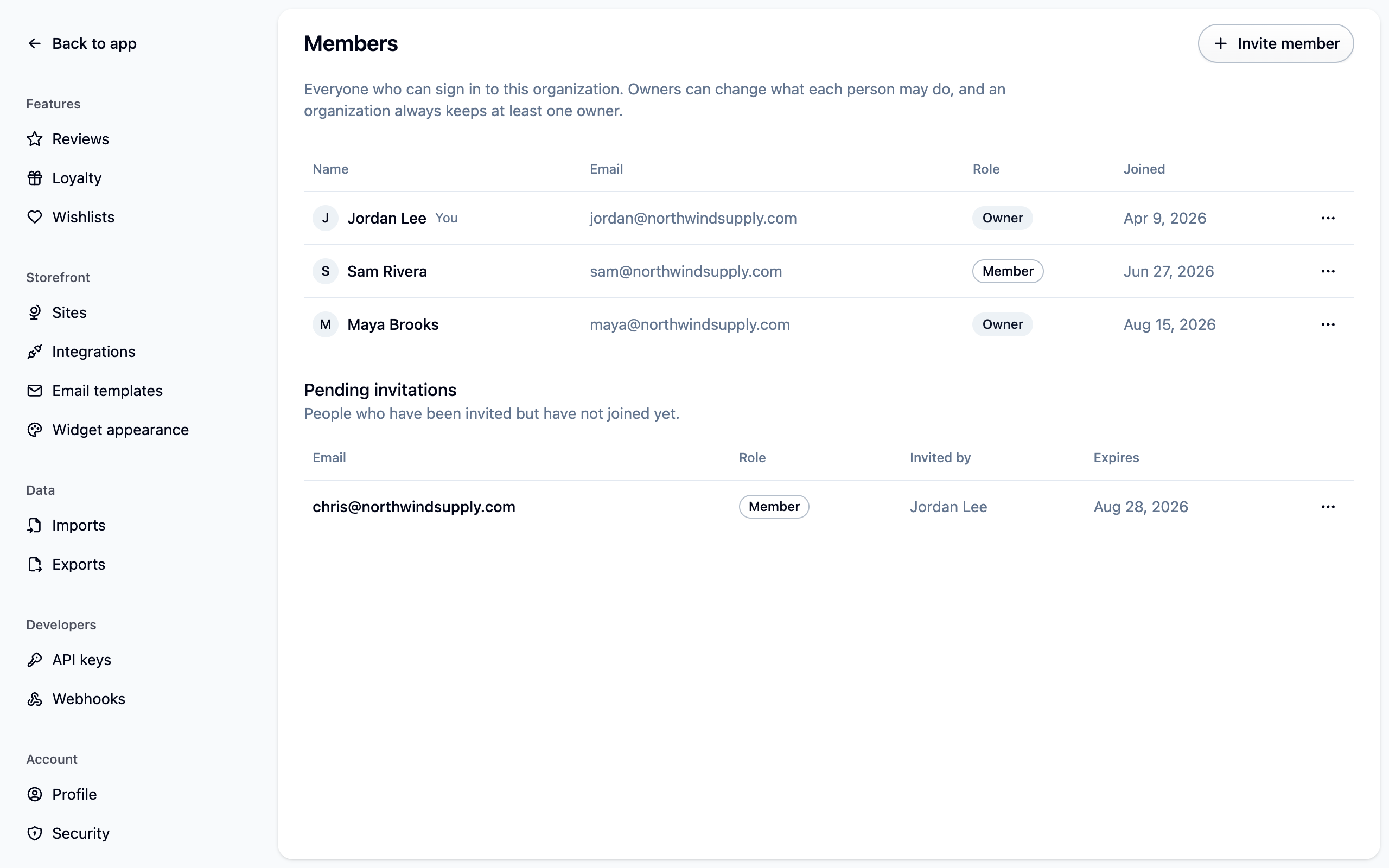
Invite someone
- Open Settings → Members and choose Invite member. You need to be an owner.
- Enter their email address, pick the role they should hold, and send.
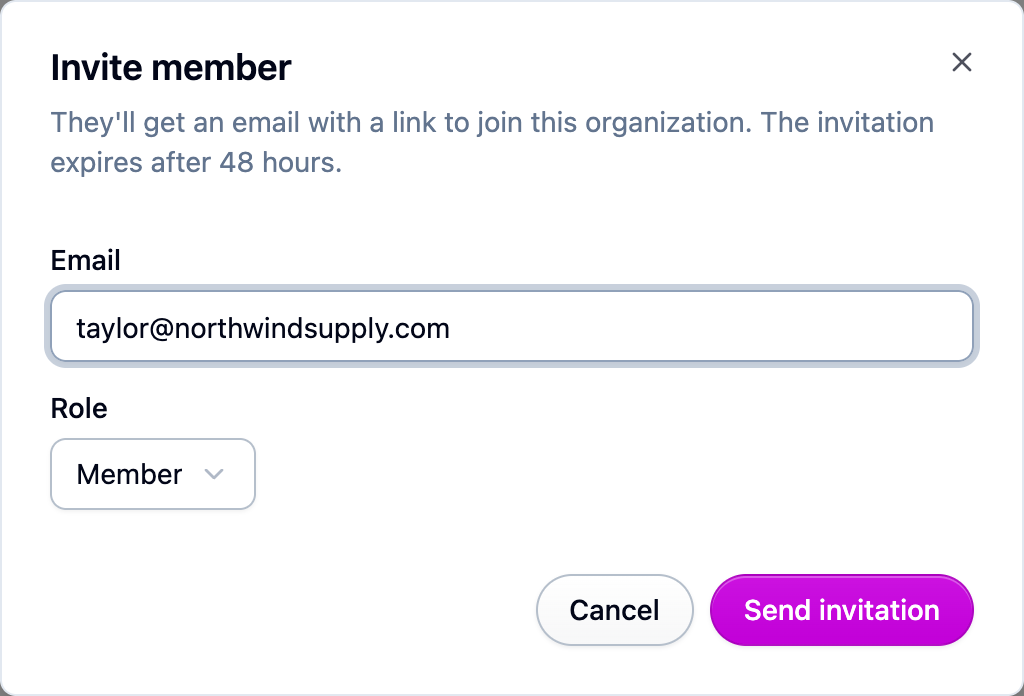 3. They get an email with a link that works for 48 hours. Following it asks them to sign in
(or create an account with the same address), then to accept. Accepting adds them with
the role you picked and opens the dashboard.
3. They get an email with a link that works for 48 hours. Following it asks them to sign in
(or create an account with the same address), then to accept. Accepting adds them with
the role you picked and opens the dashboard.
While an invitation is waiting it appears under Pending invitations on the same page. From the row's menu you can Resend it (which sends a fresh link and cancels the old one) or Cancel it. Inviting the same address again replaces the earlier invitation.
Your plan caps how many people can be on the account and how many invitations can wait at once. If you hit either cap, the message tells you what to remove or cancel first. See Plans and limits.
Change someone's role
- Open Settings → Members.
- Open the menu at the end of their row and choose Change role.
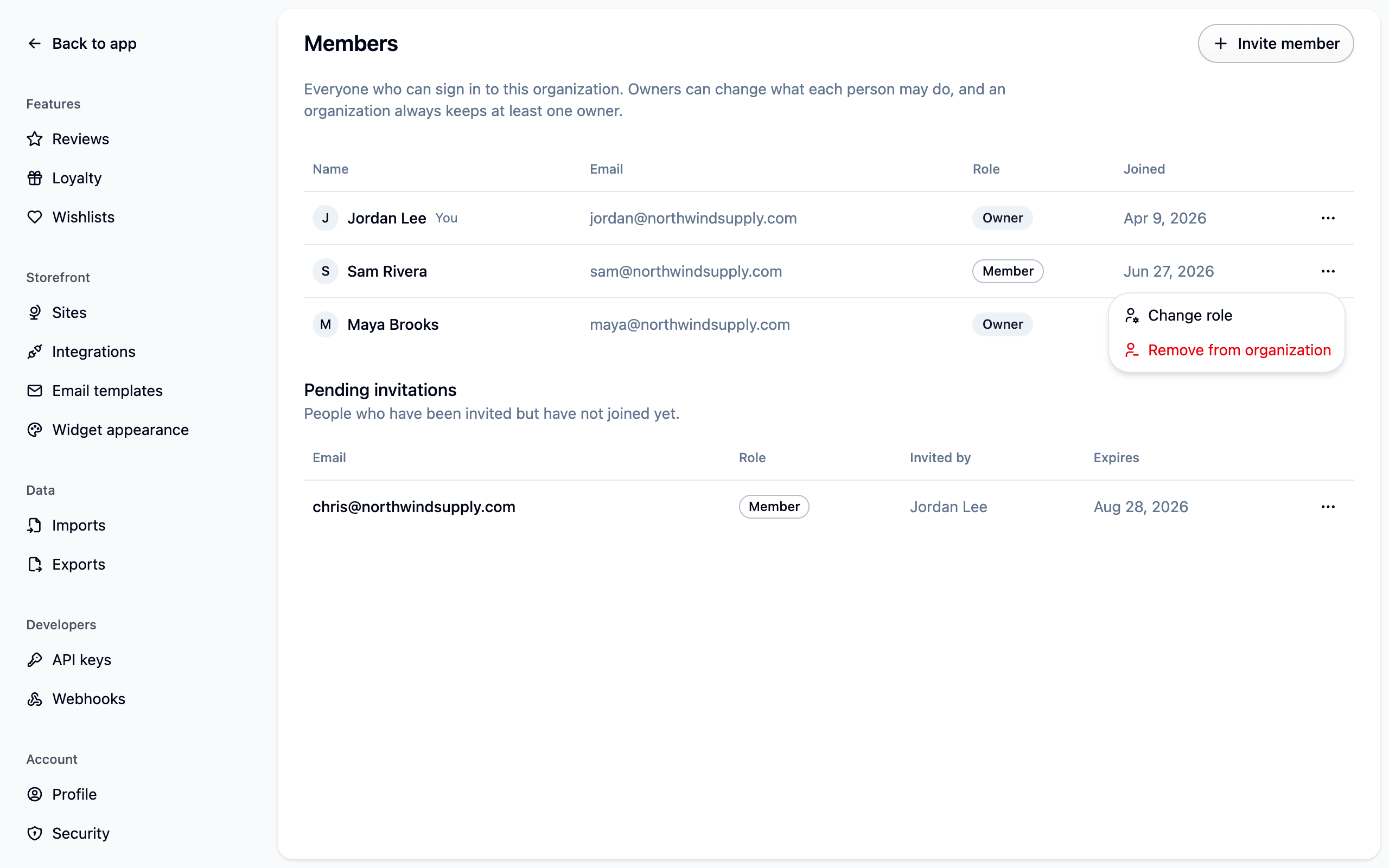 3. Pick the new role and save. It takes effect right away; they don't have to sign out.
Remove someone
- Open Settings → Members.
- Open the menu at the end of their row, choose Remove from organization, and confirm. They lose access immediately.
You can remove yourself as long as another owner remains. Removing people still works while your account is past due or canceled, so you can shrink your team before moving to a smaller plan.
If something isn't working
- You can't change the last owner or remove them. An account always keeps at least one owner. Make someone else an owner first, then change your own role.
- "Ask an owner." Only owners can change the members list. Everyone else can read it.
- The invitation link doesn't work. It expires after 48 hours, and it only works for the address it was sent to. Ask an owner to resend it.
- Someone's name or picture looks wrong. Each person sets their own under Settings → Profile. See Settings.
Next steps
- Signing in, for what your new team member sees.
- Billing, if you need more seats.
- Settings, for everything else your team can change.
For developers
An API key or an OAuth connection (such as an MCP client) is not a person, so it holds no
role. It acts for the whole organization and is limited by its own permissions instead, which
is why the members screen is closed to keys: a key can never promote itself or anyone else.
GET /organization returns the signed-in user's role, and null for that field when the
request was authenticated with a key or an OAuth token. See
Authentication.