
Loyalty rules
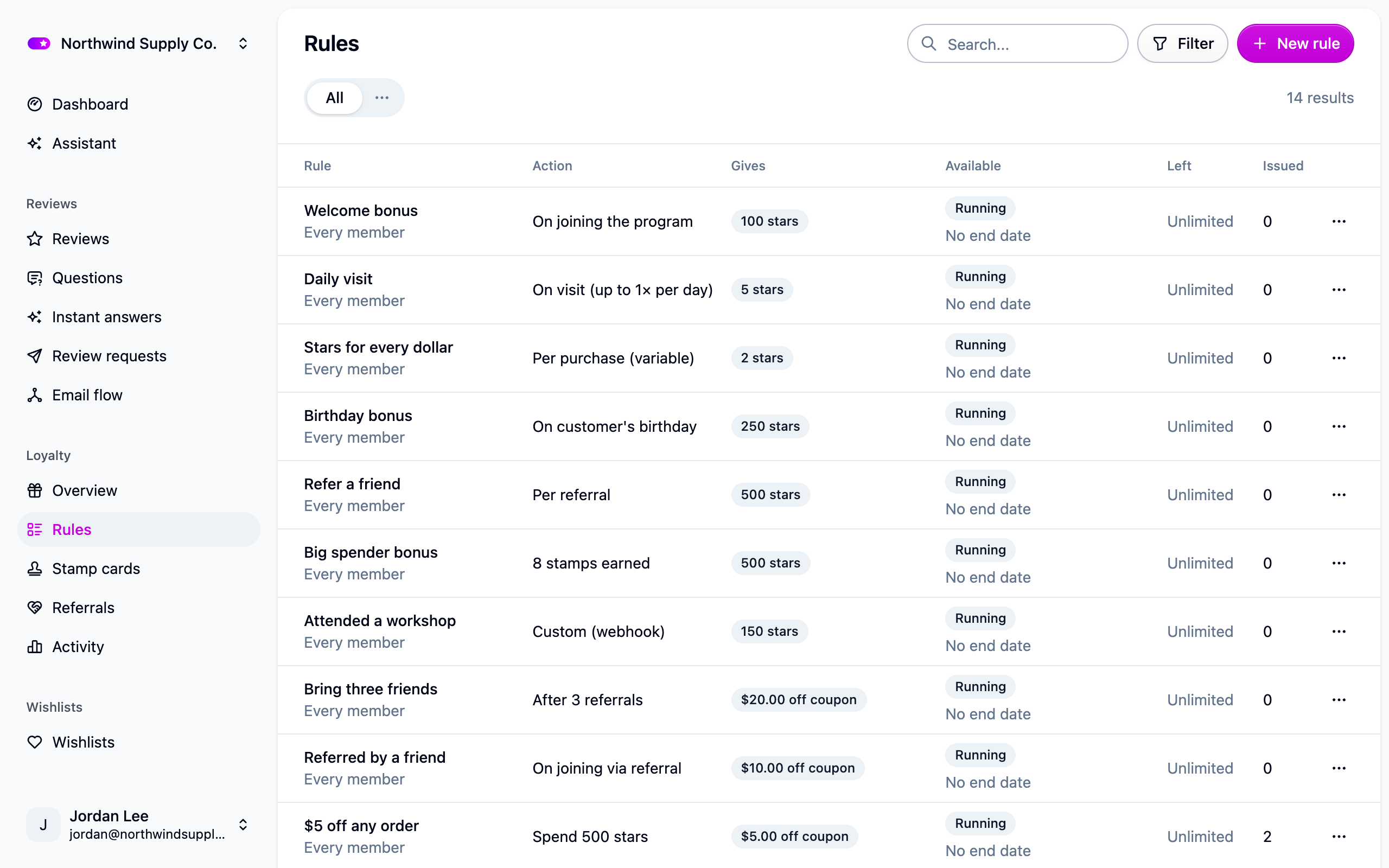
A rule is one sentence: when a customer does this, give them that. Rules fill every part of your program except tiers, and they all live on one page.
Add a rule
- Open Loyalty → Rules and press New rule.
- Give it a name. Members see it, so "Birthday treat" beats "Rule 4".
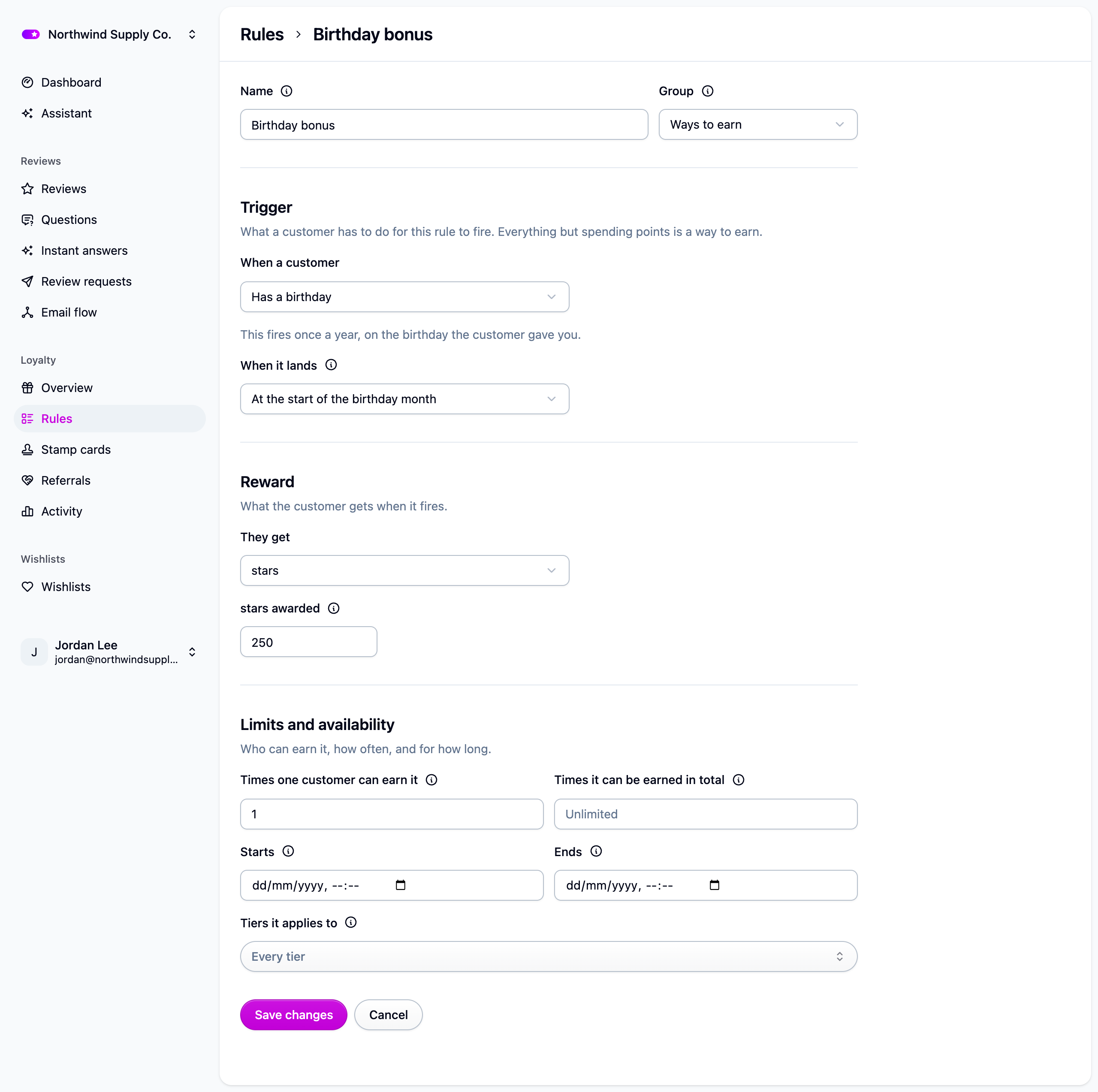
- Pick a Trigger: what the customer does.
- Pick a Reward: what they get.
- Set any limits, then save. On a live program the rule takes effect right away.
Triggers
- Places an order. Can scale with the amount spent and be limited to certain products. It measures the order subtotal (before shipping and tax) unless you switch Measured against to the total.
- Joins the program. Count every sign-up, direct ones only, or referred ones only.
- Visits the store, with a cap on how often it pays per day, week or month.
- Follows on social media or Subscribes to the newsletter.
- Has a birthday, once a year, on the day or at the start of the month. Cascade stores the month and day only, never the year.
- Refers a friend. Count every referral, only the ones made with the member's code, or only the ones that came through a shared wishlist. See Referrals.
- Fills a stamp card. See Stamp cards.
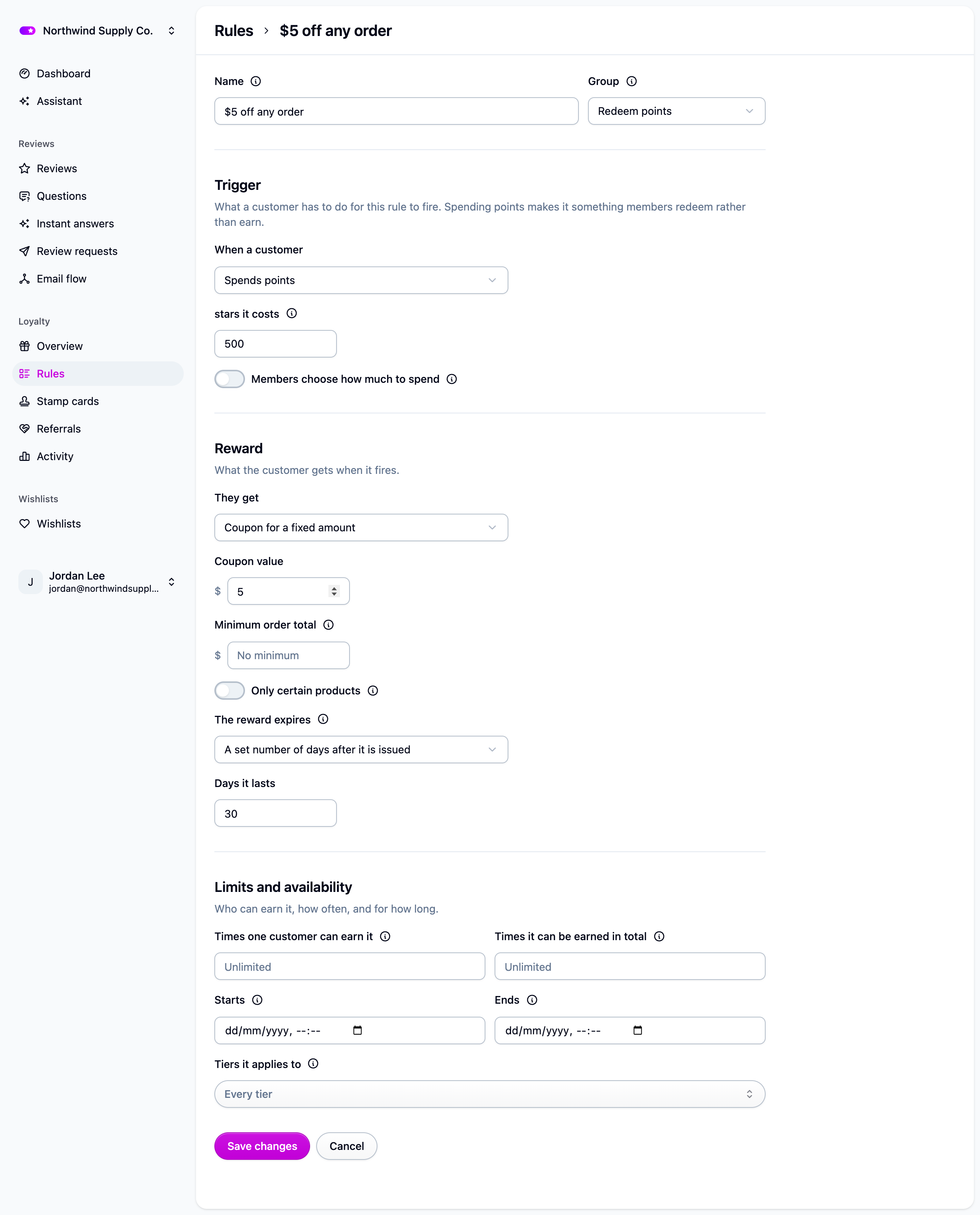
- Spends points. The member chooses to spend points on this reward.
- Does something your own systems report. See Loyalty events API.
Rewards
- Points, in your program's own words. Your program needs points named first.
- Coupon for a fixed amount or for a percentage off, optionally limited to certain products or to orders above a minimum.
- Free shipping, optionally capped at an amount.
- Gift card. Needs Shopify Plus on a connected store.
On a connected Shopify store, Cascade creates the discount code the moment a reward is issued, so it works at checkout with nothing else from you.
Where a rule shows up
Every rule belongs to a Group, which is the section of the widget members find it in. Ways to earn and Redeem points follow from the trigger on their own. Offers is the one you choose: pick it for a limited-time promotion and the rule appears in its own Offers section. To see just your offers, filter the Rules page by group and save it as a quick filter.
Who it applies to
Every rule applies to every member unless you narrow it. The Who it applies to section of the editor is the same filter bar the Members page uses: pick a Tier, a customer Tag or a Customer, or switch to the advanced view (the braces button) to write a filter by hand, with the same fields the Members page can filter on. A rule with a condition is exclusive: members who don't match it never see it or earn it. The Rules page and the program overview say who each rule is for, either the tiers it names or "Members matching a filter".
Limits and availability
- Times one customer can earn it, and Times it can be earned in total. Empty means unlimited.
- Starts and Ends. A rule is live whenever it's inside this window, which is how you schedule a campaign. Deactivate in the row menu simply ends the rule now.
Deleting a rule keeps everything it already handed out and only stops it firing again. If you might want it back, deactivate it instead.
Let members spend points
A rule whose trigger is Spends points is what members see under Redeem points. Set
the price in the "it costs" field, and give a coupon, gift card or free shipping (points
can't buy points). Turn on Members choose how much to spend and they can spend a
multiple of the price on a fixed-amount coupon or gift card, with the reward scaling to match.
If something isn't working
- A rule won't save with a points reward. Name your points first under Settings → Loyalty.
- A rule never fires. Check its Starts and Ends dates and its Who it applies to condition. Rows are badged Running, Scheduled or Not running.
- A product filter is refused. It has to name products or tags that exist in your store.
Next steps
- See what a rule handed out: Loyalty activity.
- Decide when coupons lapse: Loyalty rewards.
- Make a reward exclusive: Loyalty tiers.