
Moving a loyalty program to Cascade
This guide is the order to switch loyalty platforms in, so a customer who had 1,200 points yesterday still has them today and nobody loses a reward they were close to.
What moves and what doesn't
- Moves through your spreadsheet: who's a member (matched by email), points balances, and tier placement.
- Moves with a developer's help: transaction history. See Loyalty history API.
- Doesn't move: stamp card progress, coupon codes your old app issued, and referral relationships. Each needs a decision, covered in step 5.
Balances arrive as one opening entry per member, so their history in Cascade starts clean. Bring the transaction history across only if you use rolling 12-month tiers or want the months before the switch to count as active.
1. Build the program first
Follow Loyalty and get these right before you touch a spreadsheet:
- The points name, since every balance is written in it from then on.
- The tiers, with the same names your old app used. The import matches tiers by name. See Loyalty tiers.
- The earning rules, so members carry on earning the day after you switch. See Loyalty rules.
Decide now whether one old point is one new point. Keeping it one to one is much easier to explain. If you change the ratio, do the arithmetic in the spreadsheet before you import and reprice your rewards in the same sitting.
2. Import your customers
Members are matched to customers by email, and a customer Cascade has never seen is skipped. If your customers aren't in Cascade yet, connect your store or import them first. See Importing orders.
3. Import the balances
- Export your members from your old app.
- Open Loyalty → Activity and choose Import members.
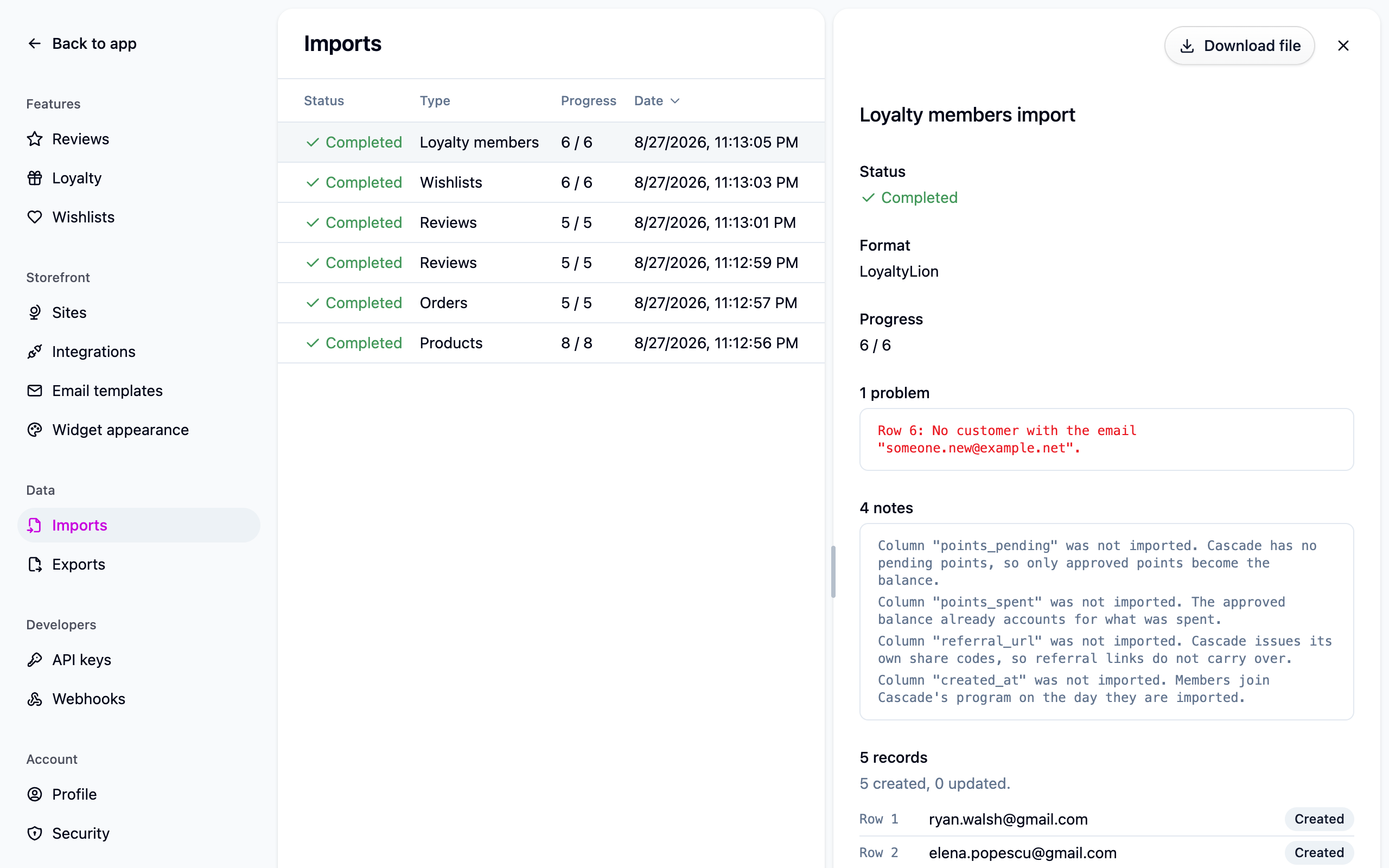
- Pick your old app under Format (LoyaltyLion, Smile.io or Rivo) and upload the file unchanged, or reshape it into Cascade's own two columns, email and points. See Importing loyalty members.
- Try five members first and check their customer pages before you import everybody.
Rows Cascade can't match are skipped and listed under Settings → Imports. Fix them and import the file again; nothing is duplicated.
4. Import the history, if you need it
Skip this unless you use rolling tier thresholds. Otherwise your developer can send the old transactions with their original dates through the Loyalty history API, after the balances. Nothing is counted twice.
5. Handle what didn't come across
- Coupon codes from your old app won't work in Cascade. Either let them run out on the old app's terms, or reissue them by hand from each customer's page (see Loyalty rewards). Whichever you choose, say so in your announcement email.
- Stamp card progress starts fresh. For a long card, either have your developer stamp each card to its old count (see Stamp cards), or credit the difference in points.
- Referrals stay as history on the old app. New ones start when members share their new code.
6. Check the balances
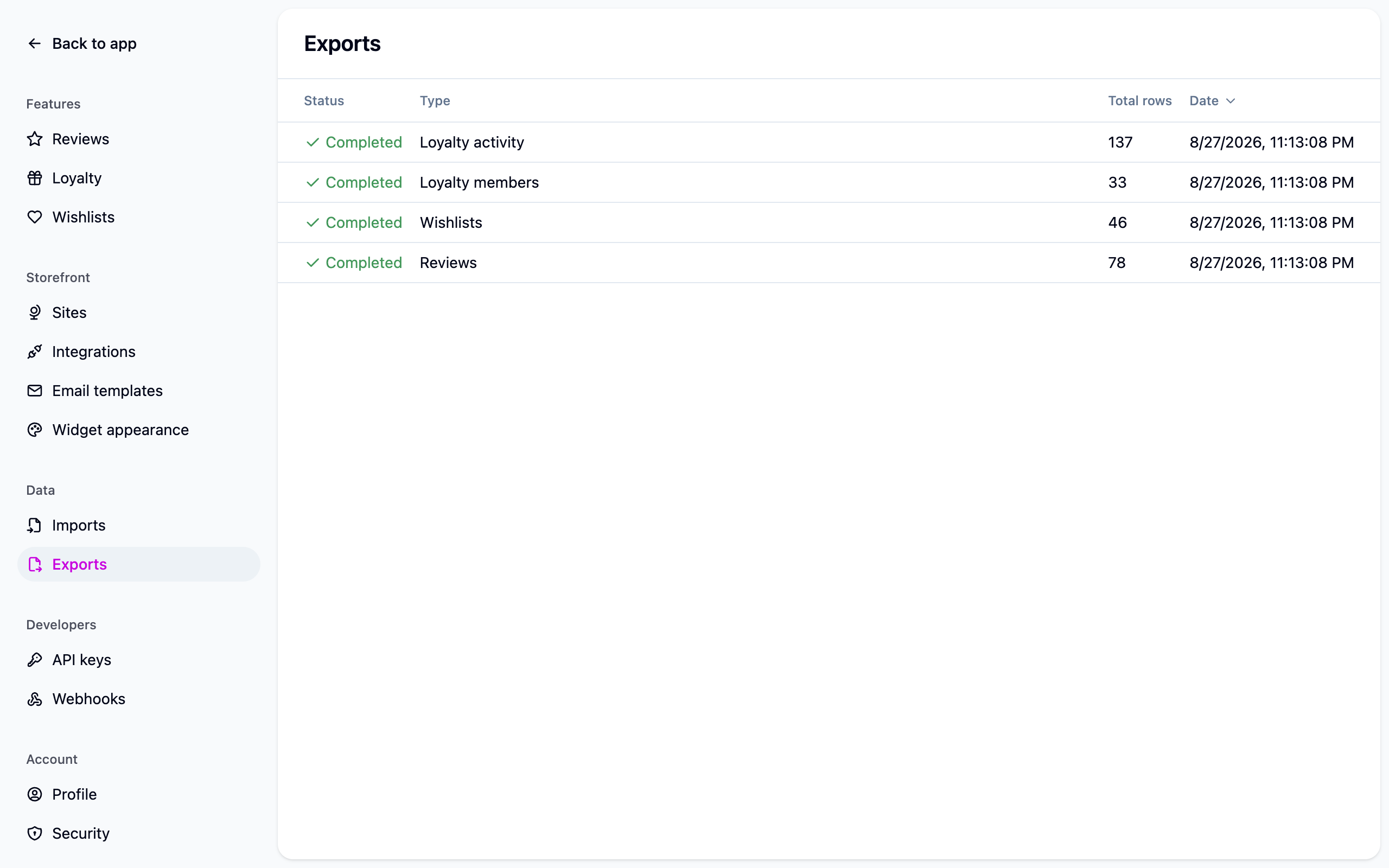
Choose Export members under Loyalty → Activity and compare it against what you uploaded, matched on email. Export activity writes the whole ledger, which is what your finance team wants for the points liability on the day you switch.
7. Turn it on
- Stop earning on the old app.
- Export and import the final balances.
- Put the widget on your storefront. See Storefront widgets.
- Email your members: the balance carried over, the new points name if it changed, and what happened to their old codes.
- Watch Loyalty → Activity for a day.
Consider running the program paused for the first hour with the widget live. Members see their balances and nothing earns or spends until you're satisfied.
Migrating from a named platform
Cascade reads LoyaltyLion, Smile.io and Rivo exports as they come. The columns each format expects, and what to do if Cascade refuses a file, are in Loyalty import formats.
Next steps
- The file itself: Importing loyalty members.
- Re-running an import safely: Importing loyalty members.
- The program you're importing into: Loyalty.