
Importing and exporting wishlists
Bring your customers' saved lists across from another wishlist app with one spreadsheet upload, so nobody loses what they saved when you switch.
Before you start
- Import your products first. Every saved item points at a product Cascade already knows, so a list whose products aren't there yet is skipped. On Shopify the first sync does this for you; otherwise see Importing products.
- Customers are optional. A customer Cascade hasn't seen is created from the email address in the file. Import customers first if you want their names on the new accounts.
- Coming from Swym, Wishlist King, Growave or Wishlist Hero? Connect your Shopify store first. Those exports name products by Shopify ID, and without the connection every list is skipped.
Import a file
-
Export your wishlists from your old app. Make sure it's the wishlist export, not a combined report.
-
Open Wishlists and choose Import from the actions menu.
-
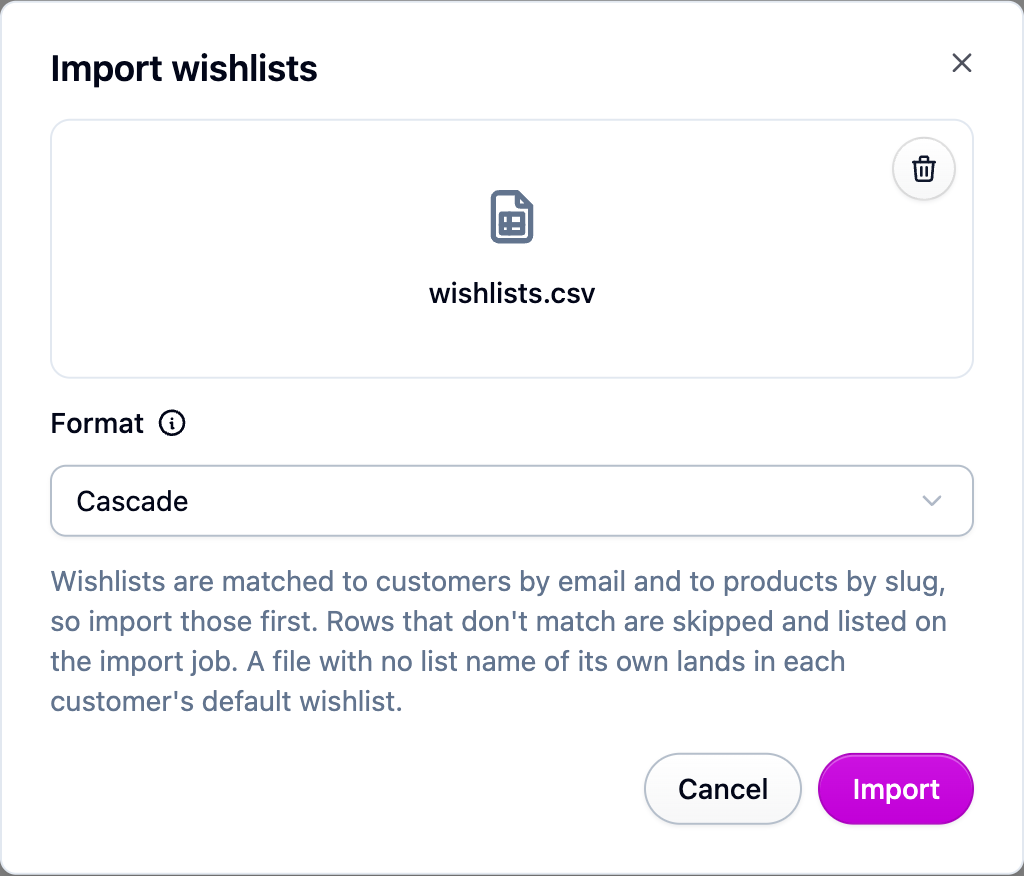
Pick the Format that matches the app you're leaving, or Cascade if you built the file yourself (see the file format).
-
Upload the file. The import runs in the background, so you can leave the page.
-
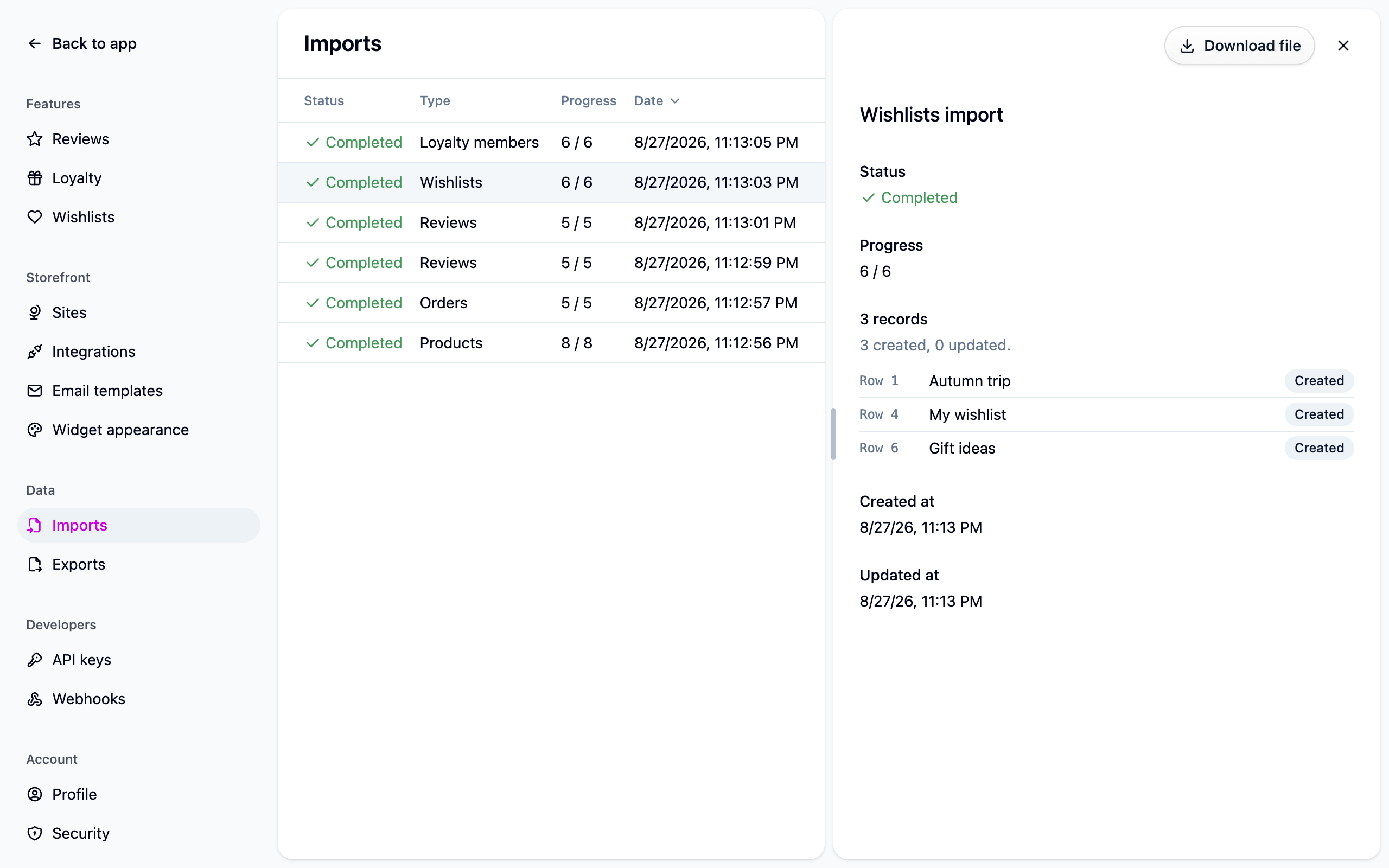
Check the result under Settings → Imports. Any rows that couldn't be placed are listed with their row number and the reason. A competitor import normally finishes with a list of columns Cascade had no use for; that's expected.
Export a file
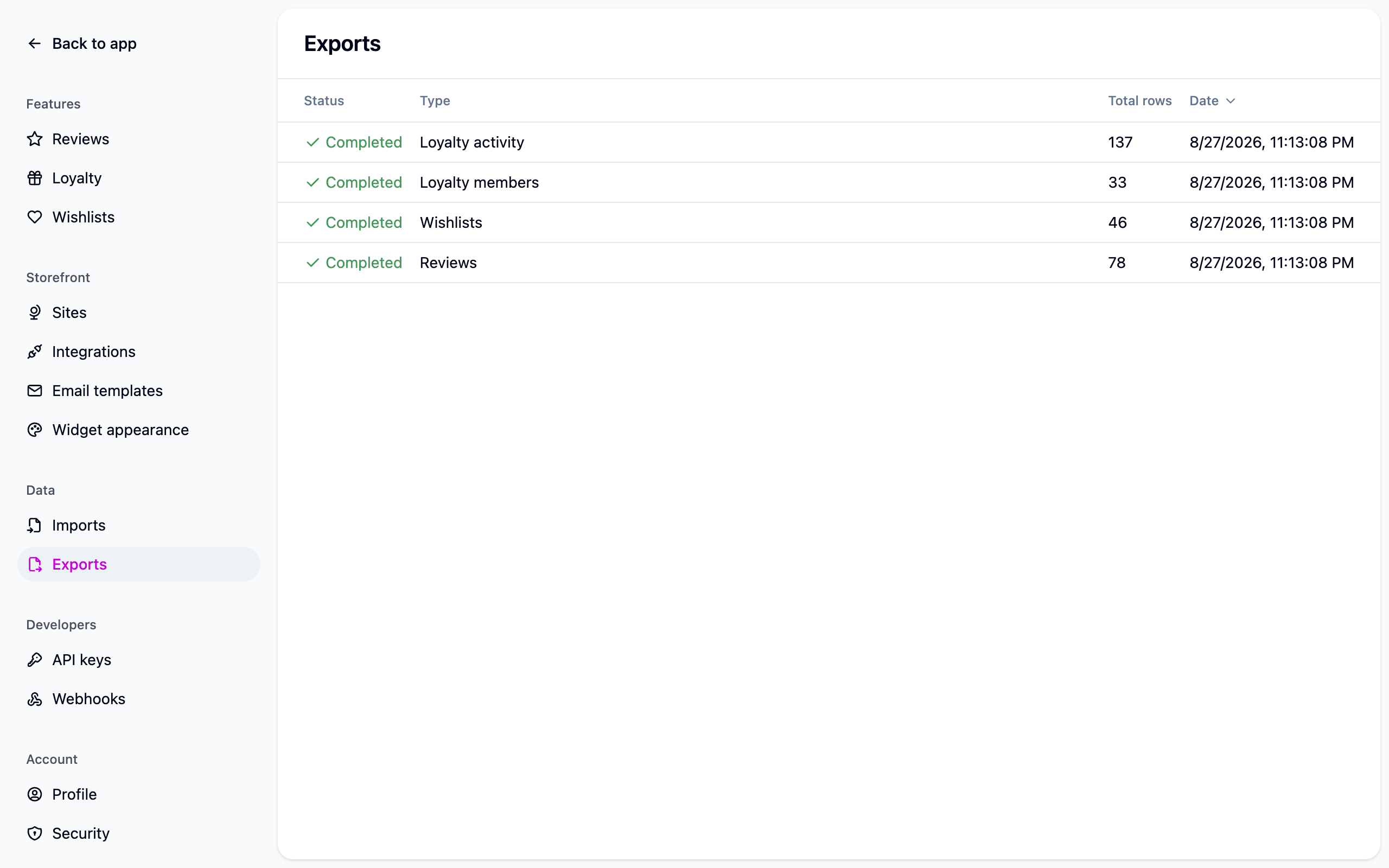
Choose Export on Wishlists and the finished file appears under Settings → Exports. Any filter or search on the screen applies to the file, and an export can be edited and imported straight back in.
Good to know
- One row per saved item. Rows with the same customer email and list name are one list, wherever they sit in the file.
- Importing the same file again updates the lists rather than duplicating them, and the items in the file replace what's on the list. Send the full set every time, not just the rows you changed. Renaming a list in the file creates a new one.
- Most apps keep one unnamed list per customer. Those rows land on the customer's main list, the one the storefront saves to with one click, so a second run is safe and the customer doesn't end up with two lists. Leave Name for a customer's first list under Settings → Wishlists alone while you're migrating.
- One bad row skips its whole list, because importing the rest would leave the list half-filled. Fix the rows and import again.
What doesn't come across
- Share links change. Cascade makes its own link for every list, so a link a customer already sent to a friend stops working. Whether a list was shared does come across.
- Purchased items reset. Every item arrives unbought.
- Guest lists are skipped. A list kept in a browser rather than against a customer has no email address to attach it to. Each one is listed on the import with its row number.
If something isn't working
- "This file does not look like a ... export". The wrong format was picked, or the wrong report downloaded. Nothing was imported; fix it and upload again.
- Every list was skipped for want of a product. Your products aren't in Cascade yet, or your Shopify store isn't connected. Fix that and re-run the same file.
- A column in your export has a different name than Cascade expects. Rename it in a spreadsheet to match the format for your platform, and tell us so we can fix the mapping.
Next steps
- Wishlist import formats for the columns each platform's export needs.
- Wishlists for the settings once the lists are in.
- Imports and exports for how every import in Cascade works.