
Importing reviews
Bring your existing reviews across from Yotpo, Judge.me, Okendo, Stamped or Loox, or from a spreadsheet of your own, so your products don't start at zero stars.
Before you start
- Import your products first. Each review is attached to a product Cascade already holds; a review whose product isn't there is skipped. On Shopify, products sync when you connect the store. Otherwise see Importing products.
- Customers are optional. A reviewer Cascade hasn't seen is created from their email address. Import customers first if you want names and details on them. See Imports and exports.
- Coming from Yotpo, Okendo or Stamped? Their exports identify products by Shopify ID, so connect your Shopify store before you import. See Connecting Shopify.
Import your reviews
-
Export your reviews from your old app as a CSV file. Check it for a "deleted" column, and remove those rows in a spreadsheet: Cascade imports every row in the file.
-
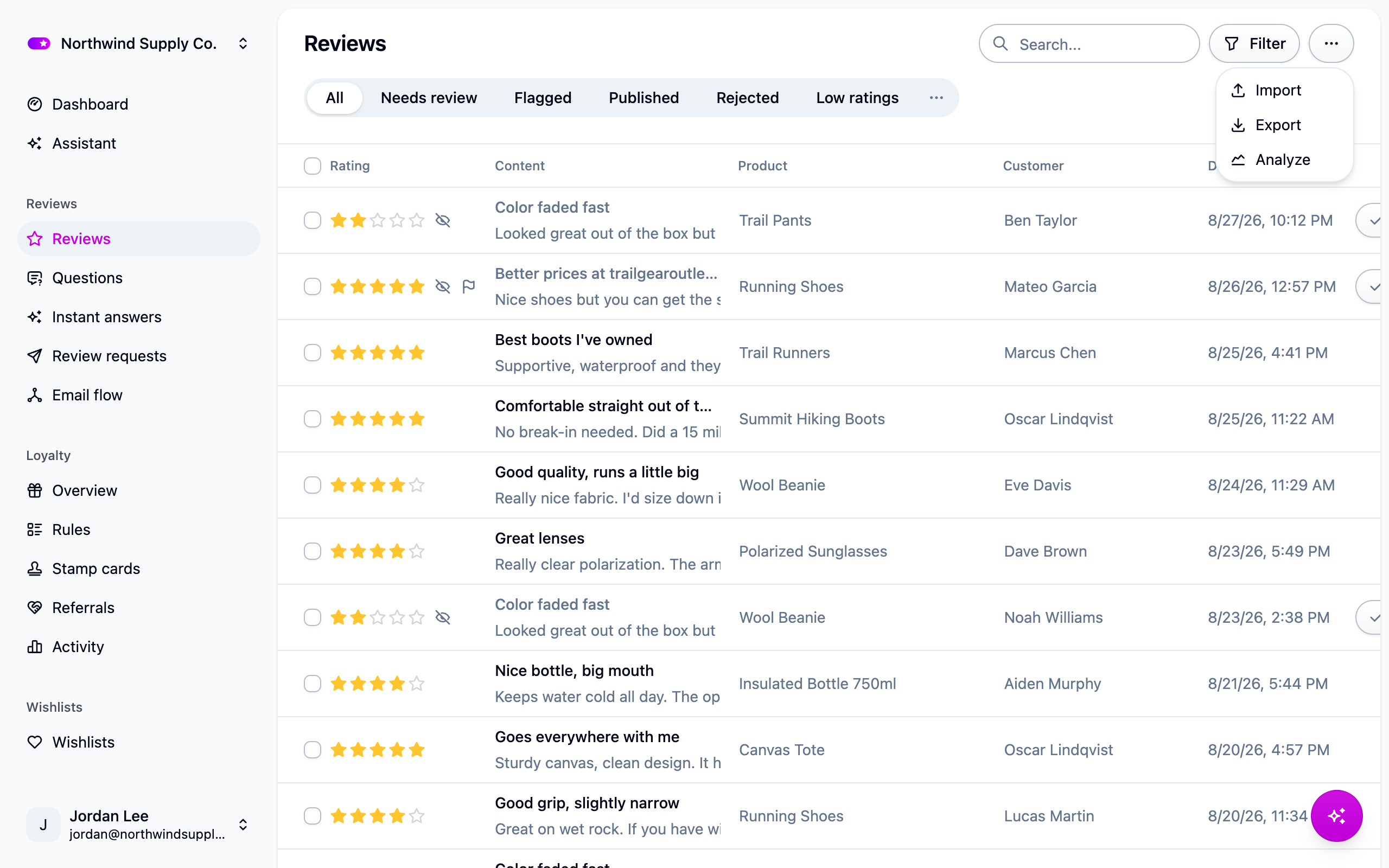
Open Reviews and choose Import from the actions menu.
-
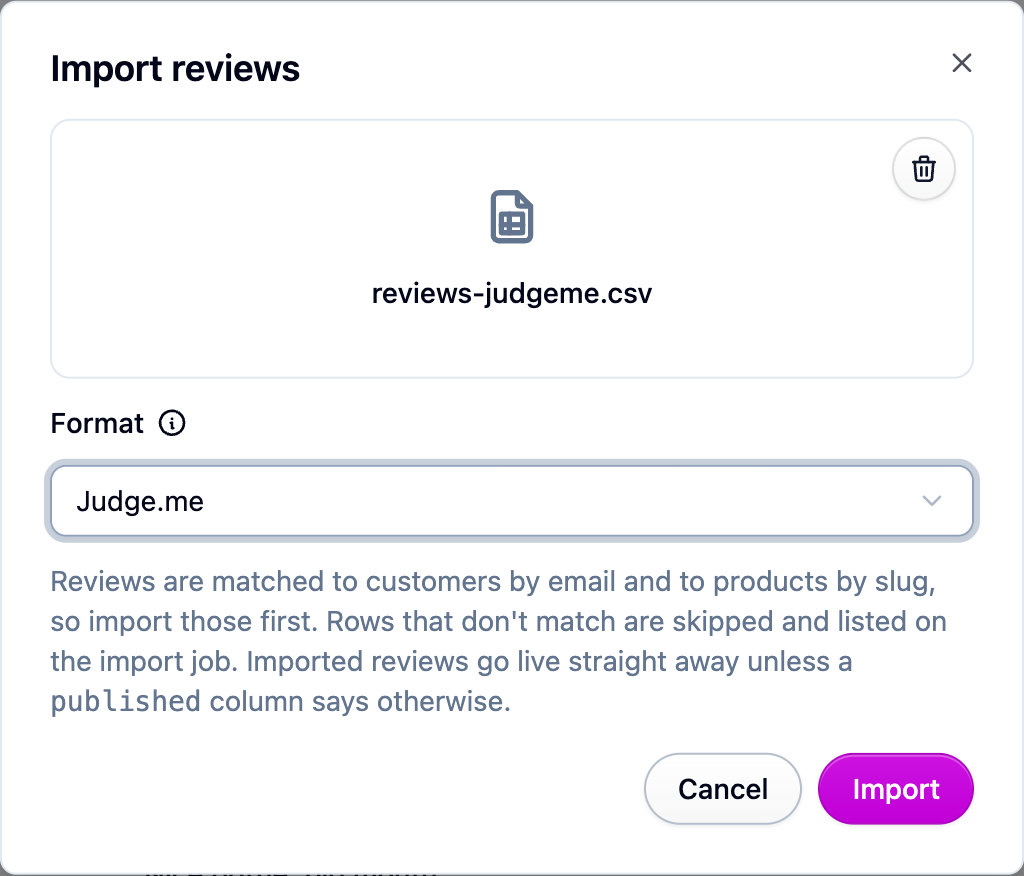
Pick your file and set Format to the app you're leaving. Leave it on Cascade if you made the file yourself, using the columns in Review import columns.
-
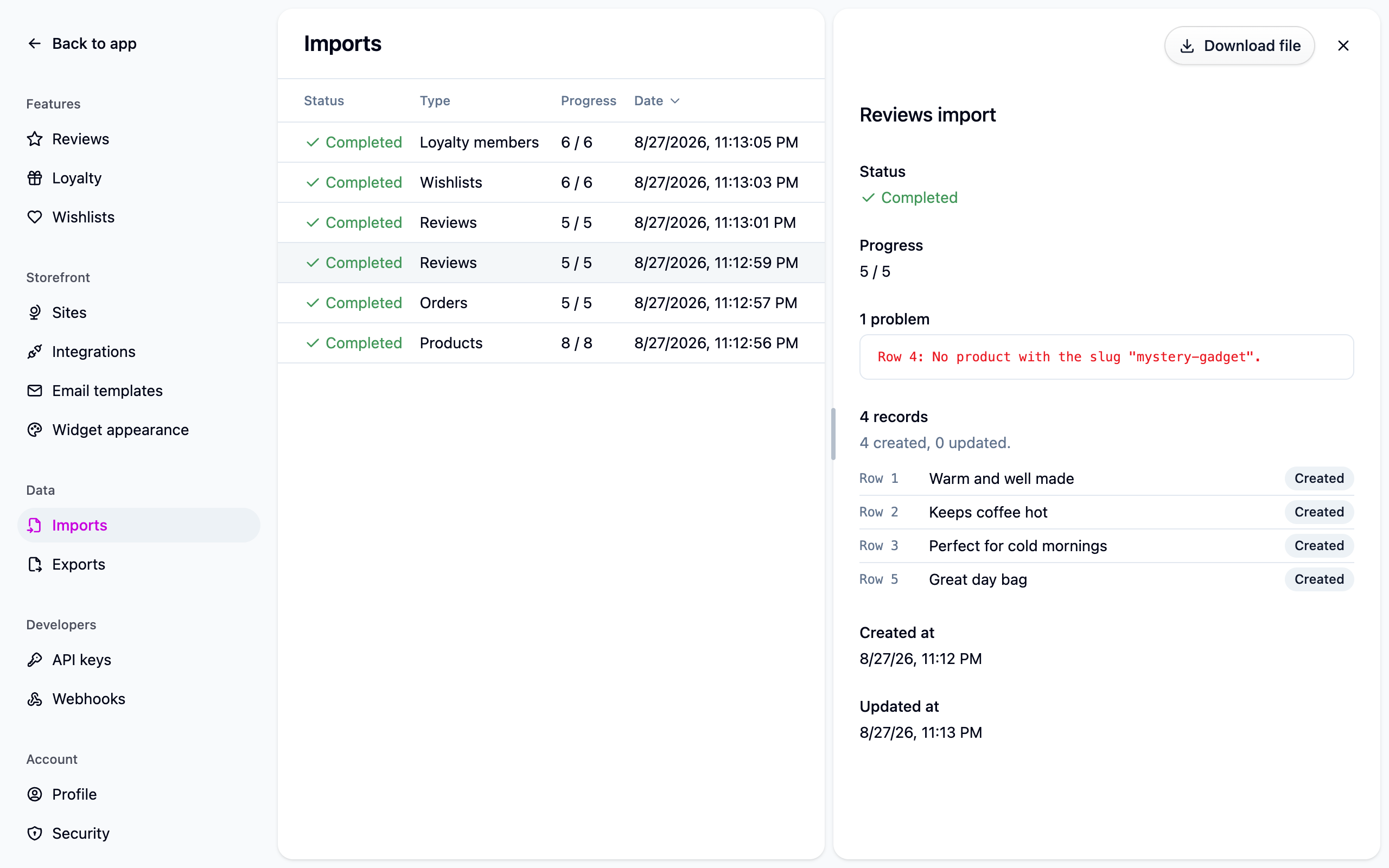
Start the import. It runs in the background, so you can leave the page. Progress and any problems show under Settings → Import jobs.
Each app's export is read as it comes, without renaming columns. See Migrating from another reviews app for what comes across from each one and what doesn't.
What to expect
- Imported reviews skip the queue. They arrive already decided: published unless your file says otherwise, so a few thousand old reviews don't bury the handful that need you. Only reviews your old app still had waiting land in the queue. Rows marked as spam are left out.
- Your replies, photos and videos come across. Photos and videos are copied into Cascade, so they keep working after you close your old account. A photo that can't be fetched is noted and the review is still imported.
- Verified buyer badges are kept, whether your old app exported a flag or the order the review came from.
- Running the import twice is safe. Every named format carries the review's ID from your old app, so importing the same file again updates those reviews instead of duplicating them.
- Nothing is dropped quietly. Columns Cascade has no home for (helpful votes, reviewer location, custom questions from your old app) are listed on the import job with the reason. A finished job with a list of notices is normal.
Export your reviews
Choose Export from the actions menu on Reviews. The finished file appears under Settings → Export jobs. It uses Cascade's own columns, so you can edit it and import it straight back in without duplicating anything.
If something isn't working
- "This file does not look like a ... export." The Format you picked doesn't match the file. Nothing was imported; check the format and upload again.
- Rows were skipped for a missing product. Import your products first, or connect your Shopify store, then import the reviews again.
- Photos are missing from an Okendo import. Okendo often exports media in a second file. See Migrating from another reviews app.
- A handful of rows failed. The import job lists each one with its row number. Fix those rows and import the file again; the rest won't be duplicated.
Next steps
- Check the imported reviews in Reviews.
- Show them on your storefront: Storefront widgets.
- Start collecting new ones: Collecting reviews.