
Importing products
Bring your catalog into Cascade from a spreadsheet when your store isn't on Shopify, or when you'd rather not connect it yet. Import products before anything else: reviews, orders and wishlists all attach to a product.
Import your products
-
Export your products from your current platform as a CSV file, then arrange the columns to match the list under For developers below. Each product is one row, and each of its variants (size, color) is a row of its own.
-
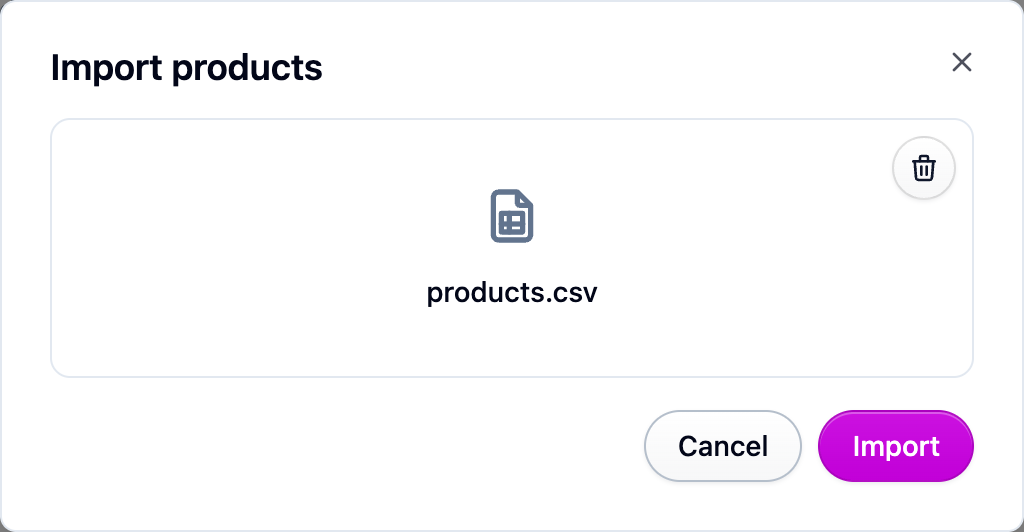
Open Products, choose Import from the actions menu, and pick your file.
-
Start the import. It runs in the background, so you can leave the page.
-
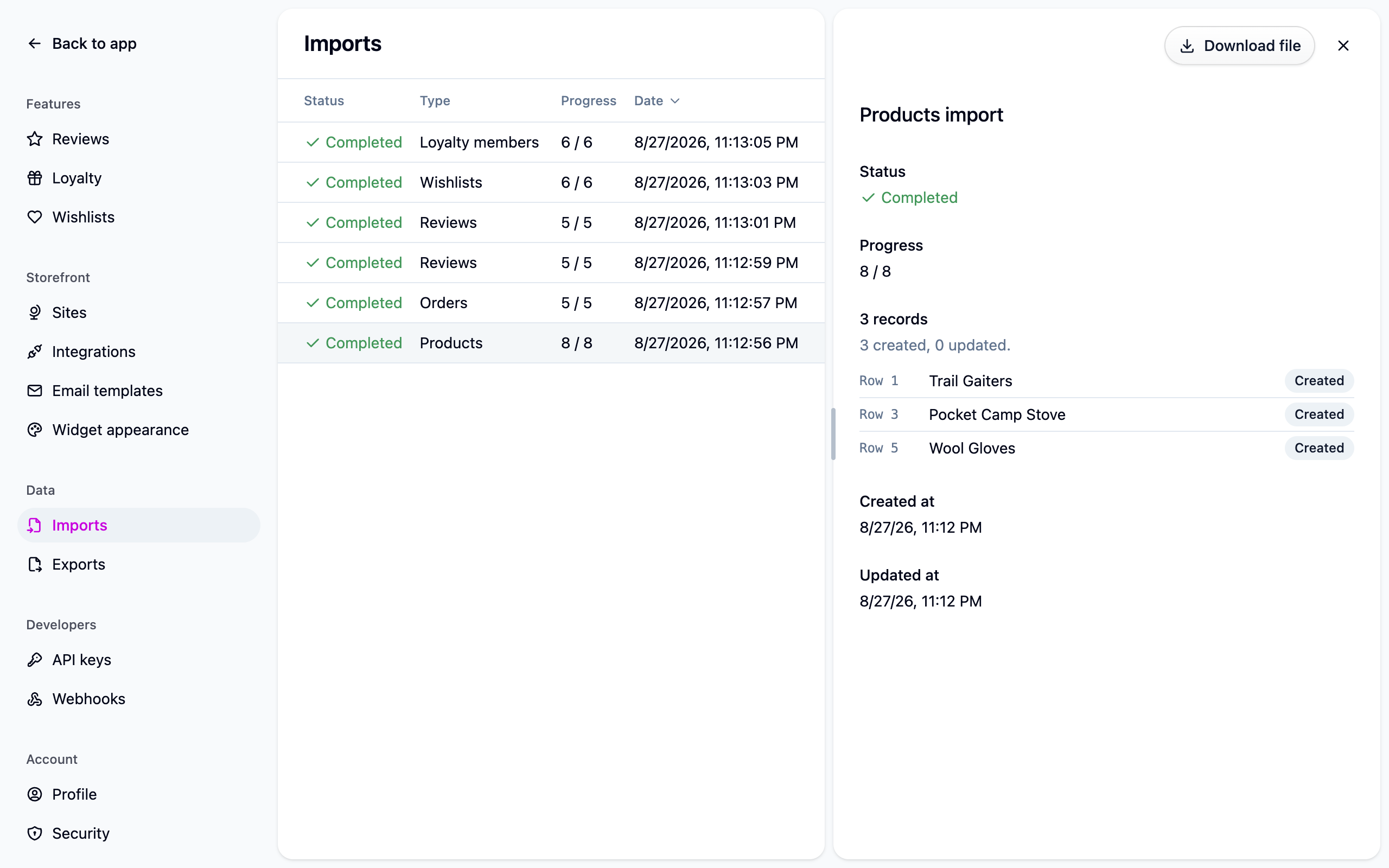
Check Settings → Imports when it finishes. Open the job to see anything that was skipped, with the row number and the reason.
Good to know
- Importing the same file again is safe. Cascade recognizes each product by its URL handle and updates it in place rather than adding a copy, so you can fix a few rows and upload the whole file again.
- Send whole products. A product's variant rows are treated as its full set. A variant that Cascade already has and your file leaves out is removed.
- A bad row never stops the import. Rows Cascade can't place are skipped and listed on the job; everything else lands. Fix the listed rows and import again.
If something isn't working
- Variants were skipped. Their product row is missing from the file. Add it and import again.
- "No site with the slug ..." The
sitescolumn names a store you don't have. Check the spelling under Settings → Sites, or leave the column blank to list the product on every store. - The whole import failed. The file isn't a CSV, its header row wasn't recognized, or it's bigger than your plan allows. See Imports and exports.
Next steps
- Importing orders, once your products are in.
- Importing reviews so products don't start at zero stars.
- Imports and exports for how every import behaves.
For developers
One row per record: a row is either a product or one of its variants, and every variant
row names its product in product, so rows can be in any order. Files in the older format
(variant rows following their product row with no product column) still import: a
variant row with a blank product belongs to the product above it.
Where two rows claim the same product slug and disagree, the first non-empty value in the
file wins and the ignored row is reported. A blank cell means "not specified" and never
overwrites what another row said. A site link the file no longer lists is removed, as is a
stored variant the file omits. The same import is available as
POST /import-jobs.