
Importing loyalty members
Bring members and their points balances into Cascade from a spreadsheet, and export them back out.
Before you start
- Your customers need to be in Cascade already. Members are matched by email address, and an address Cascade has never seen is skipped.
- Your program and its tiers need to exist. The import matches tiers by name. See Loyalty and Loyalty tiers.
The import carries balances only: each member's points arrive as one opening entry, so their history starts clean. Stamp card progress isn't imported.
Import a file
-
Prepare a spreadsheet with an
emailcolumn and apointscolumn. Add atiercolumn to place members in a tier, and aprogramcolumn only if you run several programs. Balances are whole numbers; an empty points cell leaves a balance alone, and 0 sets it to zero. -
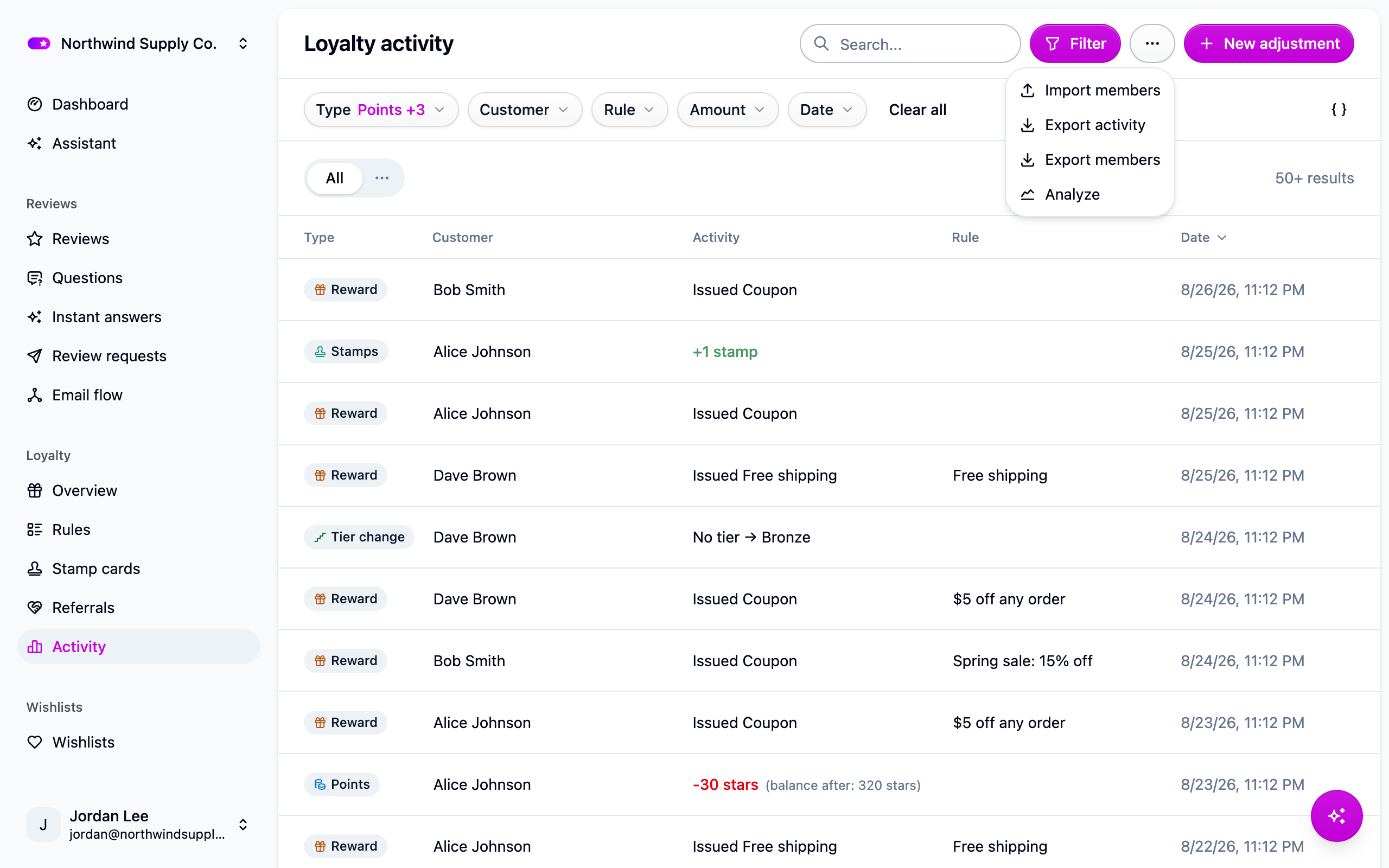
Open Loyalty → Activity and choose Import members from the actions menu.
-
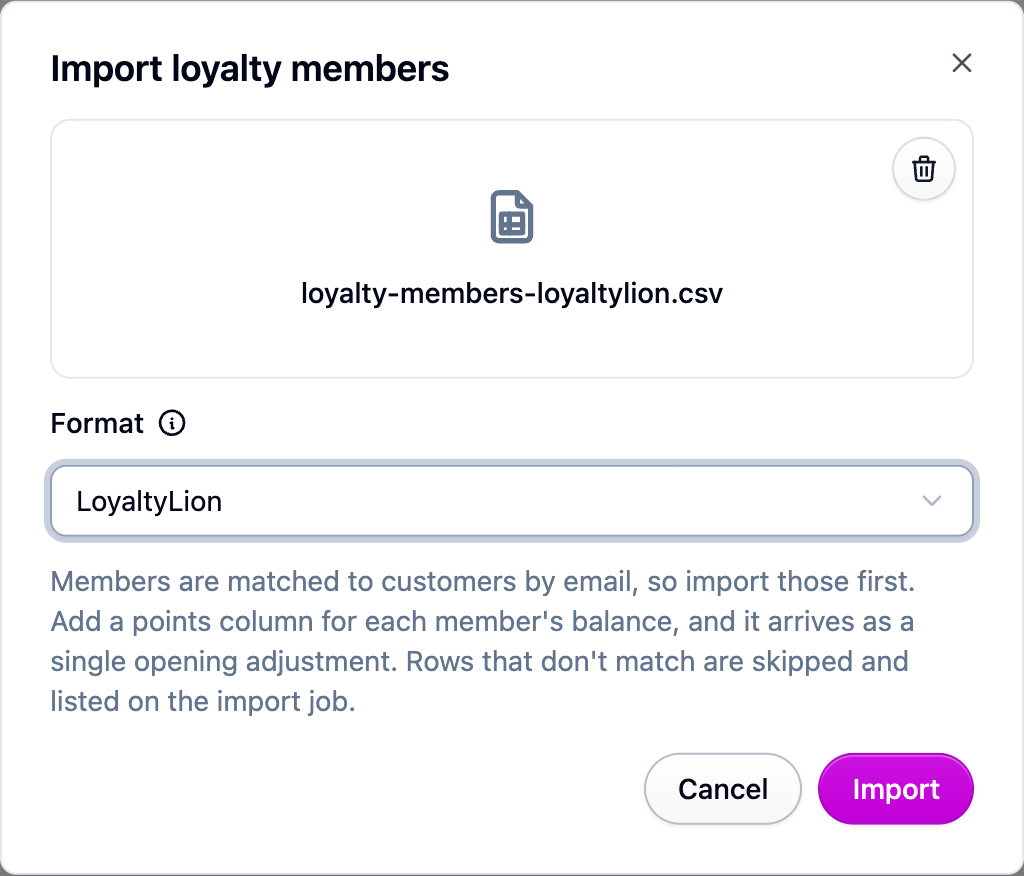
Leave Format on Cascade, or pick LoyaltyLion, Smile.io or Rivo to upload their export unchanged. See Loyalty import formats.
-
Upload the file. The import runs in the background, so you can leave the page.
-
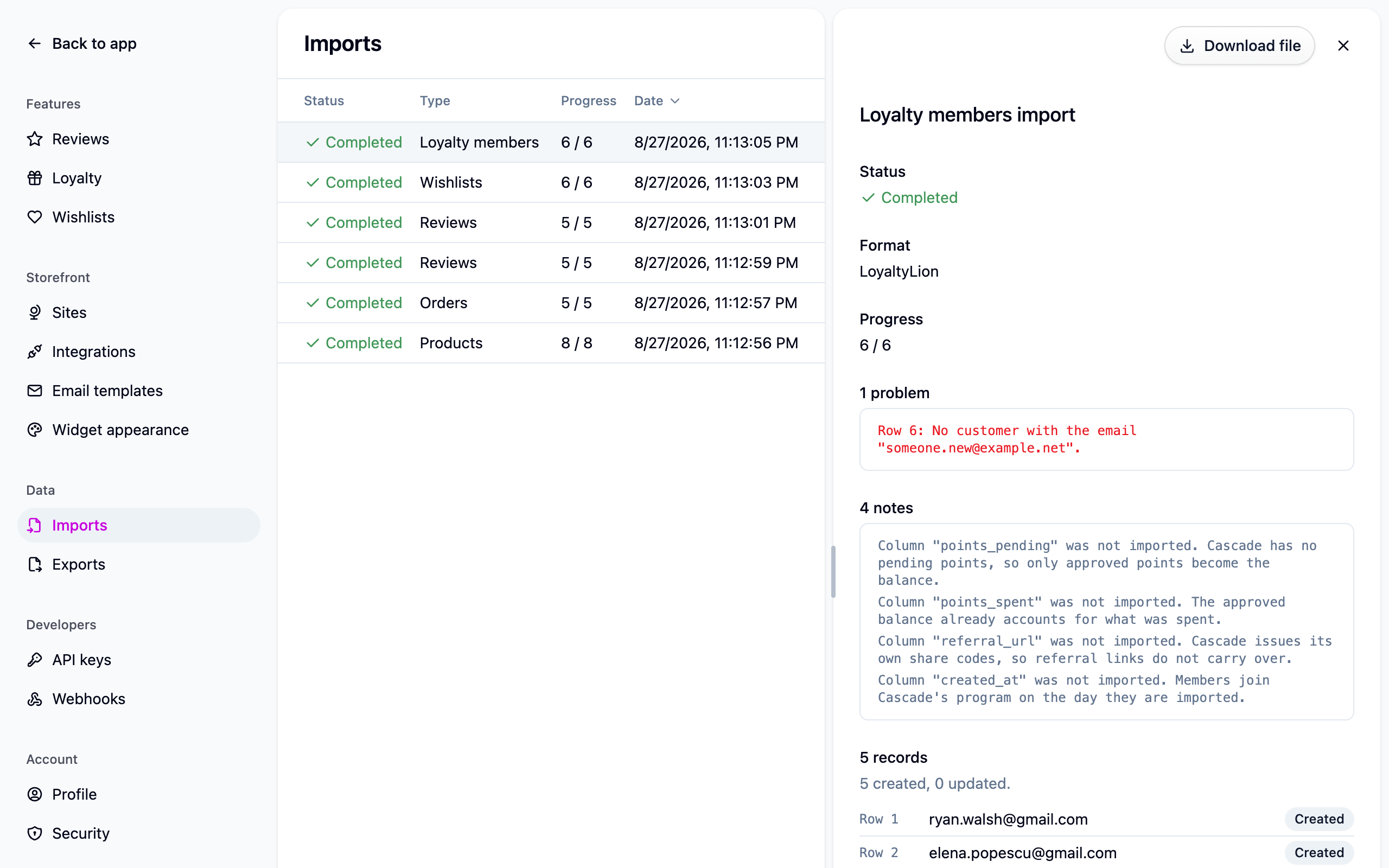
Check the result under Settings → Imports. Rows naming an unknown customer, program or tier are skipped and listed with their row numbers. Fix those rows and import the file again.
Tiers
The tier in the file is applied as it is, rather than recalculated from earning history, so nobody drops to the bottom tier on day one. Future earning can still promote the member, and the periodic tier review never demotes them below what the file said. Leave the column out and each member's opening balance places them instead.
Running it twice
Re-running a file is safe. Each member is reconciled to the file's values:
- Nothing changed means nothing happens.
- If the member hasn't earned or spent since, their opening entry is updated in place.
- If they have, a correcting adjustment moves the balance by the difference, so the activity in between is preserved.
Members already enrolled are never enrolled twice.
Export
From the same actions menu under Loyalty → Activity:
- Export members writes one row per member with their program, tier, join date and points balance. Members who left are included with a leaving date; remove those rows before re-importing unless you want them re-enrolled. An export can be edited and imported straight back in.
- Export activity writes every ledger entry, newest first, covering points, stamps and rewards. It's the file to hand to an accountant reconciling the points liability.
Finished files appear under Settings → Exports.
Next steps
- The whole switch-over in order: Moving a loyalty program to Cascade.
- Bringing transaction history across needs a developer: Loyalty history API.
For developers
Cascade's own columns are email (required), program, tier and points. The members
export adds joinedAt, leftAt and pointsLifetimeEarned, which are ignored on import.
The activity export columns are id, createdAt, type, customer, program, rule,
amount, balanceAfter, details, eventKey and revokeTransactionId. On a re-run that
puts a value back to what the previous file said, the earlier correction is revoked rather
than stacking another one.