
Finding things in a list
Every list screen in Cascade, such as Reviews, Orders and Customers, has the same search box, filter bar, quick filters and sortable columns. This page shows you how to use them.
Search
Type into the search box above the list. It matches the things you would naturally look for: a customer's email, name or phone; an order's number or notes; a review's title, body, customer or product. A review request matches on its order number and customer, and loyalty activity on the member.
Search and filters combine, so you can search for a customer and narrow to one date range at the same time.
Filter
- Open the filter bar above the list and choose a field, such as Date, status or rating.
- Pick a comparison and a value. Add as many filters as you need; a row only shows when it matches all of them.
- To keep a set of filters, save it as a quick filter. It appears beside the search box on that screen so anyone on your team can apply it in one click.
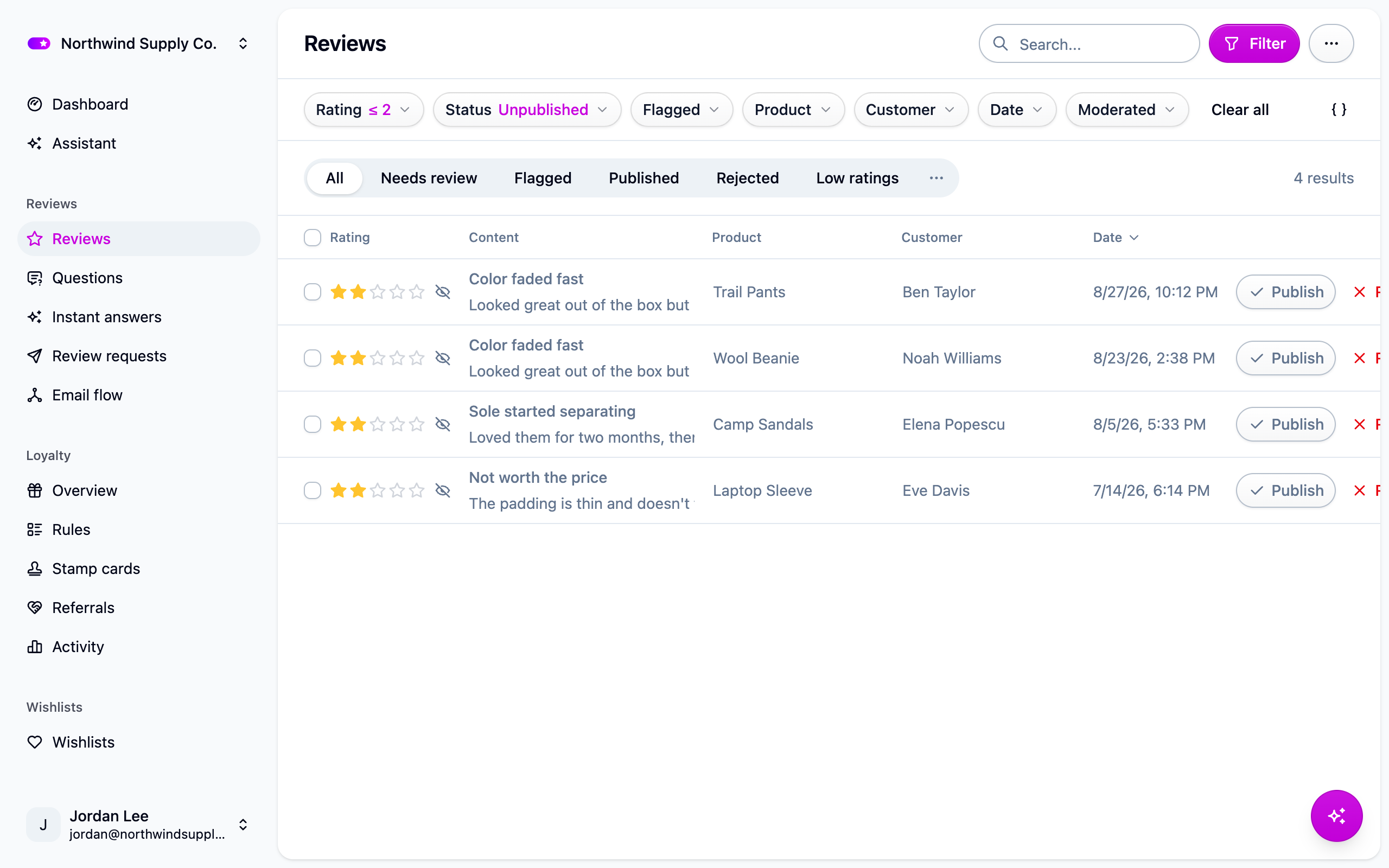
The count beside the quick filters reads "50+ results" until every matching row has been loaded.
Sort
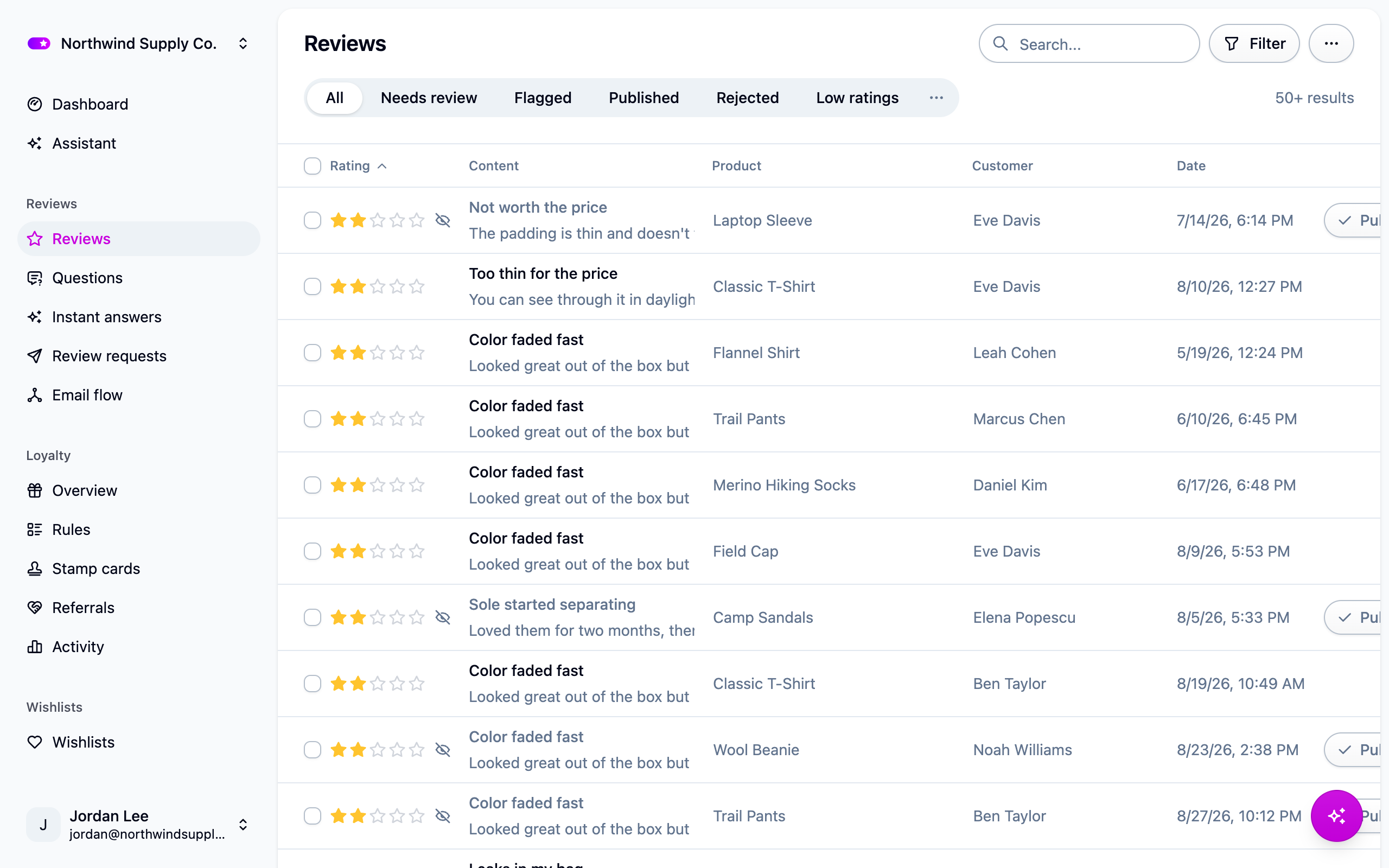
Click a column header to sort by it, and click again to reverse. A chevron marks the column in use. Every list starts on its Date column, newest first (survey flows start alphabetically). Columns you can sort by include rating on reviews, total and order number on orders, the Activity column on loyalty activity, stamps on stamp cards, name on wishlists, and wishlist count on products. Columns that are worked out for each row, such as an order's status or a customer's review count, are not sortable.
Your sort and filters travel in the page address, so you can bookmark a filtered list or send it to a colleague.
Load more
Lists show 50 rows at a time. Load more under the table adds the next 50 below what is already there.
If something isn't working
- "Couldn't load this list" where the table should be: a filter is asking for something the list doesn't understand, usually from an old bookmark. Choose Clear filters or Try again.
- Nothing matches: search is a plain "contains" match, not a ranking, so check for a typo and clear any filters still applied.
Next steps
- Moderating reviews
- Analytics for counts and trends rather than rows.
- Developers: the same filters, search and sort are available on every list endpoint. See For developers below.
For developers
List endpoints accept a filter query parameter: a MongoDB-style JSON document compiled to
a SQL WHERE clause. Pass it URL-encoded on GET requests, or as a plain object in a JSON
body.
Search
Most list endpoints accept search: a plain string matched case-insensitively against the
record's most identifying fields (customer: email, name, phone; order: number, remote ID,
notes, customer; review: title, body, customer, product; survey: its order's number and
customer; loyalty activity: the member's customer). search and filter combine with
AND. Matching is substring containment backed by trigram indexes, not relevance ranking.
Sort
sort takes a field name, prefixed with - to reverse. Each endpoint's reference page lists
the fields it accepts; most default to -createdAt.
Shape
A filter maps field names to a value or an operator object. Multiple keys are combined with
AND. A bare value is shorthand for $eq, and null compares with IS NULL. The
dashboard's Date field is createdAt on the wire.
Operators
Operators and plain keys cannot be mixed in the same object.
Nested JSONB keys
A dot path filters on a key inside a JSONB column. $eq (containment) and $in (any of
the values) are supported:
Associations
A dot path into a related table matches rows with at least one matching associated record. The bare association name with a comparison operator filters on the count:
Logical operators
Paging
A list answers with one page (50 records by default) and a nextCursor. Pass it back as
cursor for the next page; it is null after the last page.
Errors
An unknown field, mixed operators and plain keys, or a value that fails the column's schema
returns a 400 validation error describing the problem. See Errors.