
Email templates
Change the wording and look of the emails Cascade sends your customers on your behalf: review requests, loyalty emails, wishlist alerts and question-answered notices.
The emails you can edit
Your store starts with one template of each type, already branded with your store's name and colors. Edit them to change what goes out; if you delete one, Cascade sends its built-in version instead.
Edit a template
- Open Settings → Email templates. Each card previews what that email currently sends.
- Open the template and change the wording. Customer names, order numbers, points balances and the like are filled in when the email is sent; see Email template fields for the placeholders you can use.
- Check the live preview beside the editor. Use the settings popover to change the sample customer's name and email, or enter a real order number to preview with that order.
- Save.
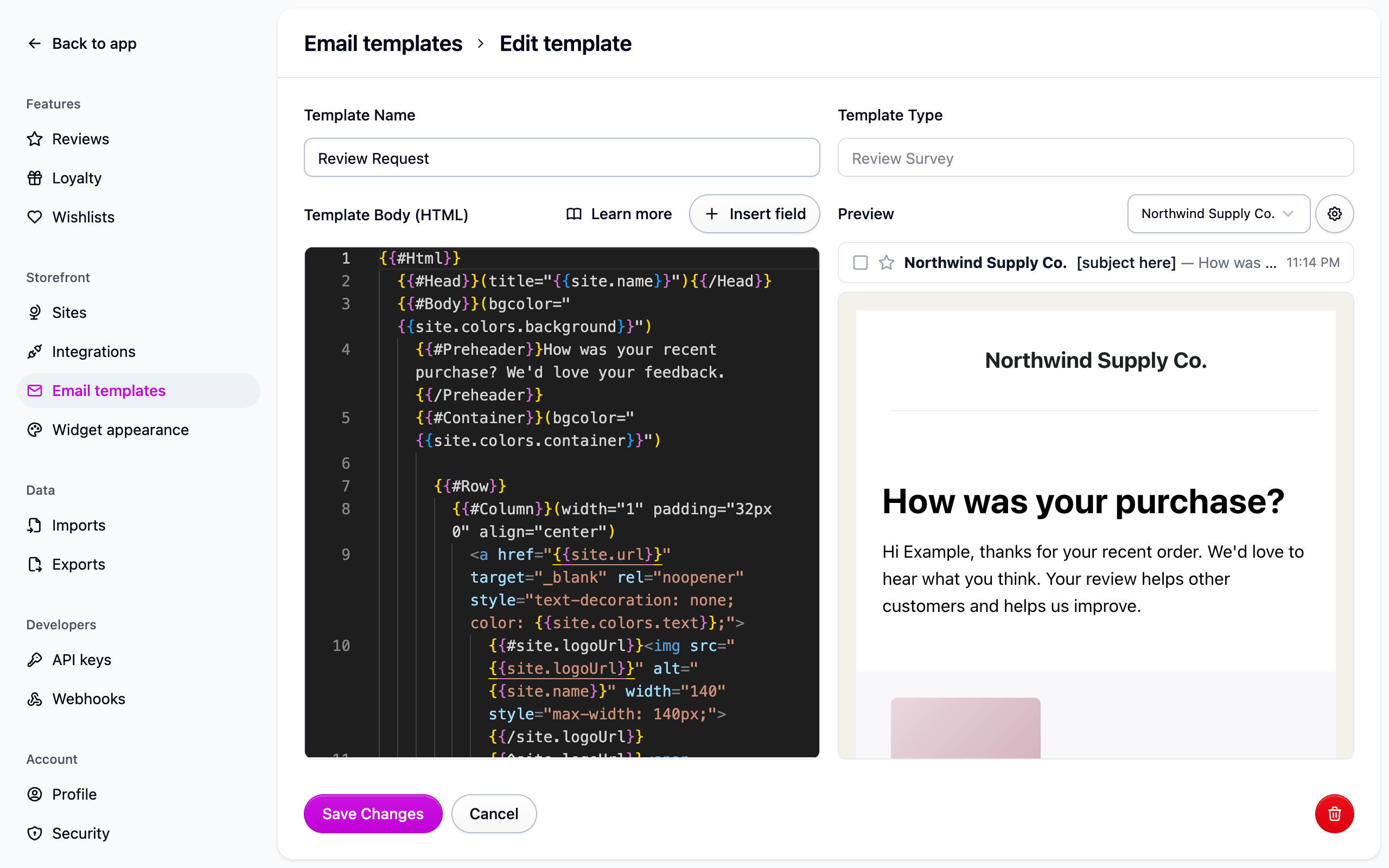
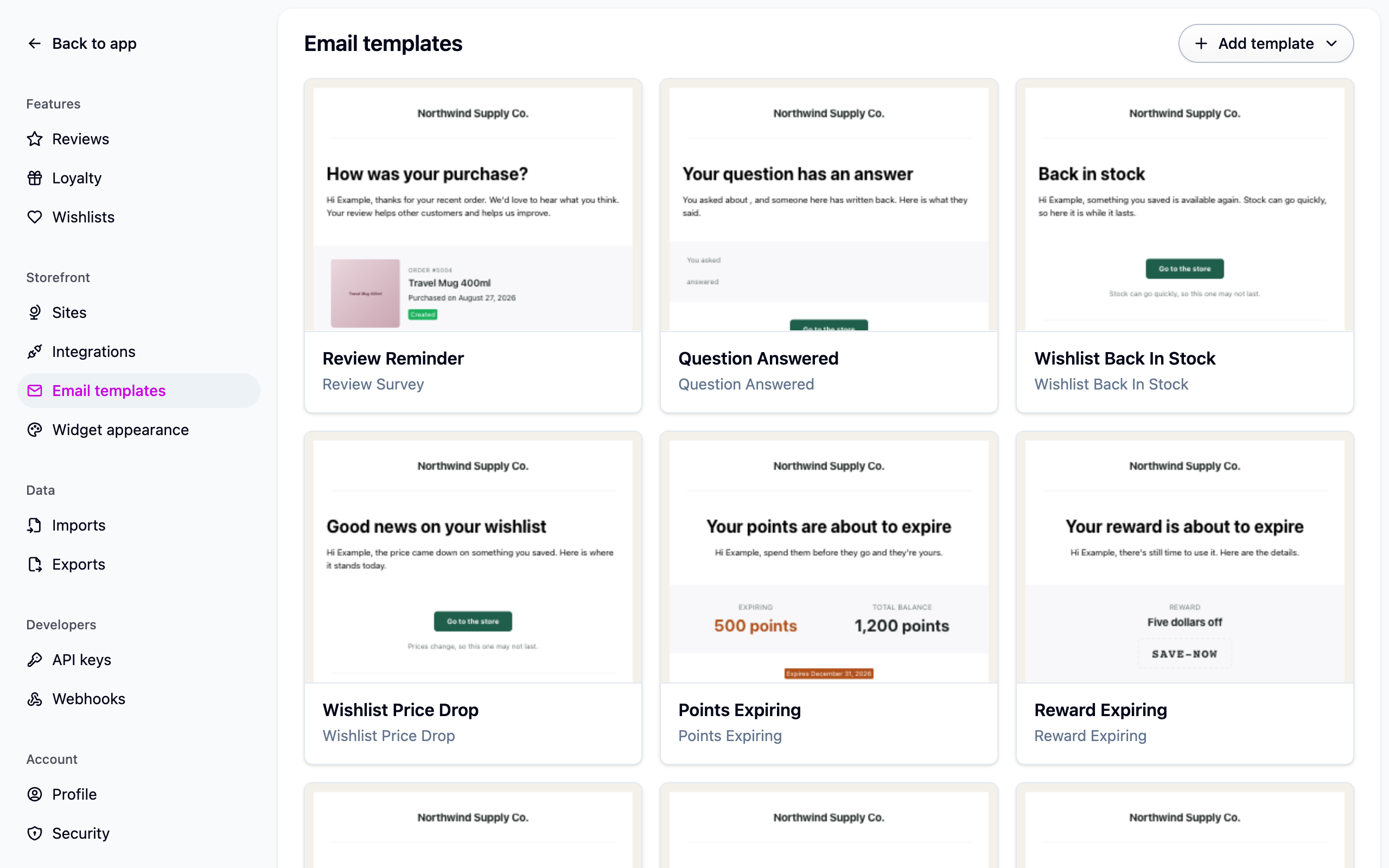
Edit the template you already have rather than adding a second one of the same type. If a type has more than one, the loyalty emails use the oldest.
Turn an email on or off
Each email has its own switch:
- Review survey: which orders get one is set by your survey flows. See Collecting reviews.
- Loyalty emails: under Settings → Loyalty. "Points earned" starts off because it's the one that goes out most often.
- Wishlist alerts: under Settings → Wishlists. Both start off. See Wishlists.
- Question answered: under Settings → Reviews. It goes out once per question, ever. See Questions and answers.
Keep the unsubscribe link
Every template's footer carries a link where the customer can stop receiving marketing email, and opt back in later. Leave it in place: a customer who unsubscribes is skipped by every later marketing send.
Emails Cascade sends you
Separate from all of this are the emails about your account rather than on your store's behalf: the sign-in link, email verification, invitations, billing notices, review alerts and the daily digest. They carry Cascade's branding, can't be edited, and have no unsubscribe link because they're about your account. Each one says at the foot why it reached you. Review alerts and the daily digest can be turned off under Settings → Reviews.
If something isn't working
- My edits aren't going out. Check you edited the oldest template of that type, and that the email's switch is on.
- The preview shows placeholder text. That template leaves the preheader or body as a placeholder; fill them in from the preview's Content settings, or write the copy into the template itself.
- A customer says they didn't get a loyalty email. They may have unsubscribed, or the email's switch is off under Settings → Loyalty.
Next steps
- Email template fields for every placeholder.
- Collecting reviews.
- Loyalty emails.