
Email template fields
Reference for the placeholders and layout blocks you can put in an
email template. Templates use Mustache
syntax: write a field as {{field}} and it is replaced with the real value when the email
is sent. A field the email has nothing to say about is empty, so wrap anything optional in
a section ({{#field}}...{{/field}}) to keep it out of the email.
The editor's Insert field button lists every field on this page and drops it into the template at the cursor.
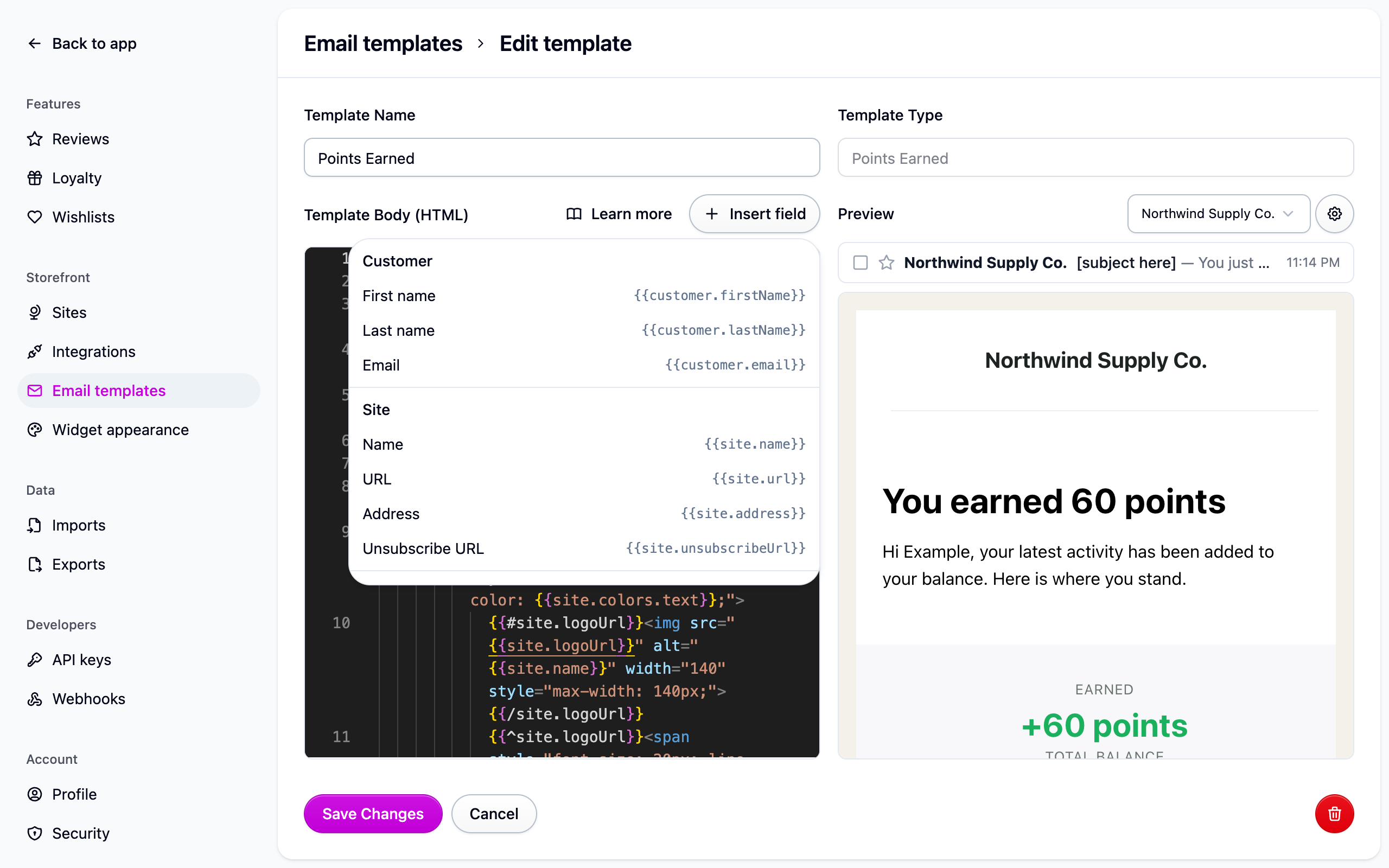
Customer
Site
{{site.unsubscribeUrl}} is a per-customer link where they can stop receiving marketing
email and opt back in. Every default footer renders it inside a {{#site.unsubscribeUrl}}
section so it disappears from previews and from mail with no recipient to unsubscribe.
Leave it in place.
Order
{{order.reviewUrl}} opens the review form for the order's first item and already carries
a query string, so add extra parameters with &. The star links in the default review
survey use {{order.reviewUrl}}&rating=1 to preselect a rating.
{{order.otherItems}} repeats for every item after the first, with {{title}} and
{{reviewUrl}} inside it; {{order.hasOtherItems}} wraps anything that should only appear
when the order has more than one item:
{{order.items}} is the same list with the first item included, with {{title}},
{{imageUrl}} and {{reviewUrl}} inside. The guided reviews setup writes this when you
pick "List every product equally":
Product
These describe the order's first item, the one {{order.reviewUrl}} links to.
Loyalty
- Points amounts arrive already written in your program's own words ("1,200 stars"), so
don't add a unit after them.
{{loyalty.pointsName}}is the plural name on its own, for "Spend your {{loyalty.pointsName}}". {{loyalty.reward.name}}is the name of the rule the reward came from, as the member saw it.{{loyalty.reward.cost}}is what they spent, empty for a reward they didn't pay for.- The expiry fields are filled only on the two expiring emails:
amountis what goes (points only),dayscounts whole days from now,dateis the day in your store's time zone. {{loyalty.dashboardUrl}}and{{loyalty.redeemUrl}}open the loyalty page you set under Settings → Loyalty, or your store's homepage if you set none. Both carry#cascade-rewards, which opens the loyalty widget on arrival. A shopper who isn't signed in sees what the program offers rather than their own balance, so put the member's numbers in the email itself.
Wishlist
One alert covers everything that changed in the same pass, so loop over the items:
{{wishlist.item}} is the first item, for a headline; {{wishlist.itemCount}} lets you
write for one item or several. Prices are read when the email is sent, so an alert never
quotes a price that has already moved again. A product saved without a variant is priced
from its cheapest one.
Question
{{question.answer}} is the answer your store wrote, even if a shopper answered first.
{{question.productUrl}} carries #cascade-questions so it lands on the Q&A, and is
empty for a product with no stored URL.
Layout components
Components are layout blocks written as Mustache sections with parameters in parentheses.
Row wraps content in a full-width table row; Column creates a column within it,
with width controlling relative sizing:
Button renders a styled call-to-action (href, backgroundColor, textColor,
borderRadius in pixels):
Badge renders an inline label (bgcolor), and Callout a highlighted block
(bgcolor, padding as a CSS value):
Preview placeholders
Templates normally hold their own copy. A template that leaves {{preheader}} or
{{{body}}} as placeholders gets a Content section in the preview's settings popover
to fill them in for the preview.