
Billing
This page helps you start a plan, find your invoices and understand what your billing page is telling you. Prices and allowances are on Plans and limits.
Everyone on your team can open Settings → Billing, but only an owner can subscribe, change payment details or cancel. See Members and roles.
Your free trial
Every new account starts on a 14-day free trial the moment you sign up. There is no card to enter and nothing to activate, and the trial has the full Starter allowances.
The trial does not turn into a paid plan on its own, and nothing is charged when it ends. You'll see a banner during the last week, and owners get an email three days before and again on the day.

There is one trial per account. Subscribing again after a cancellation, or after reinstalling the Shopify app, starts a paid plan straight away.
Start a plan
- Open Settings → Billing.
- Pick Starter or Growth, and choose monthly or yearly billing.
- Subscribe. This is the first time Cascade asks for a card.
Enterprise is priced per contract. Pick it on the same page and the Subscribe button becomes Contact us, which starts an email to us. Tell us what you're running and we'll set it up.
If you installed Cascade from the Shopify app store, Shopify bills you instead: pick the plan inside the Cascade app in your Shopify admin and approve the charge Shopify shows you. See Changing or canceling your plan.
What the billing page tells you
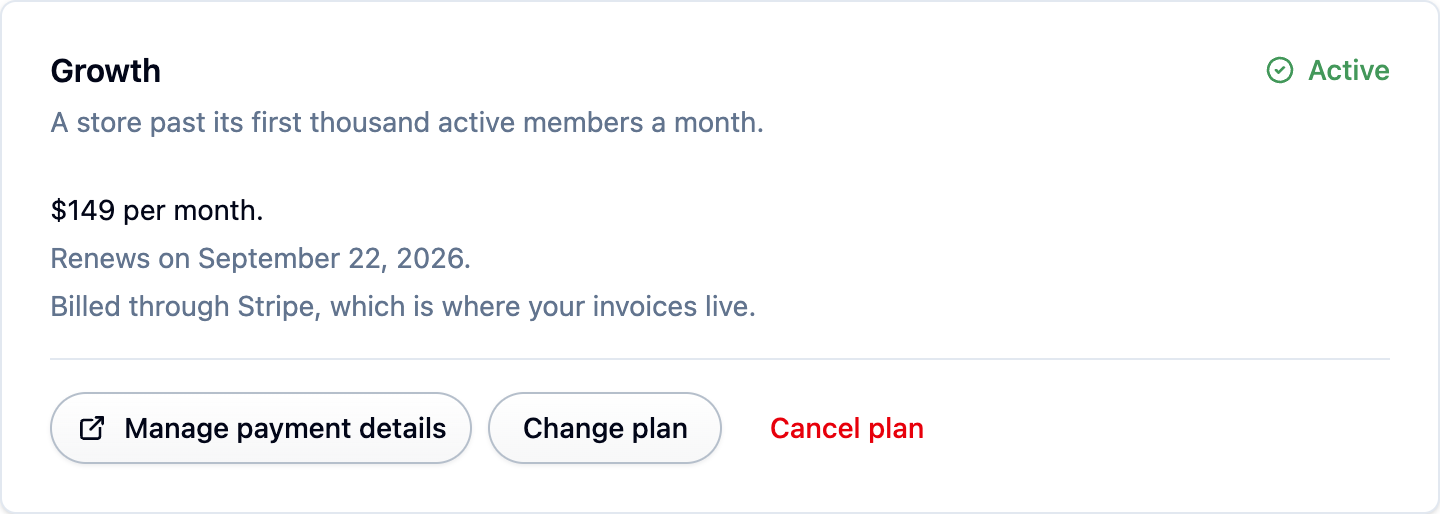
The card at the top names your plan and its state:
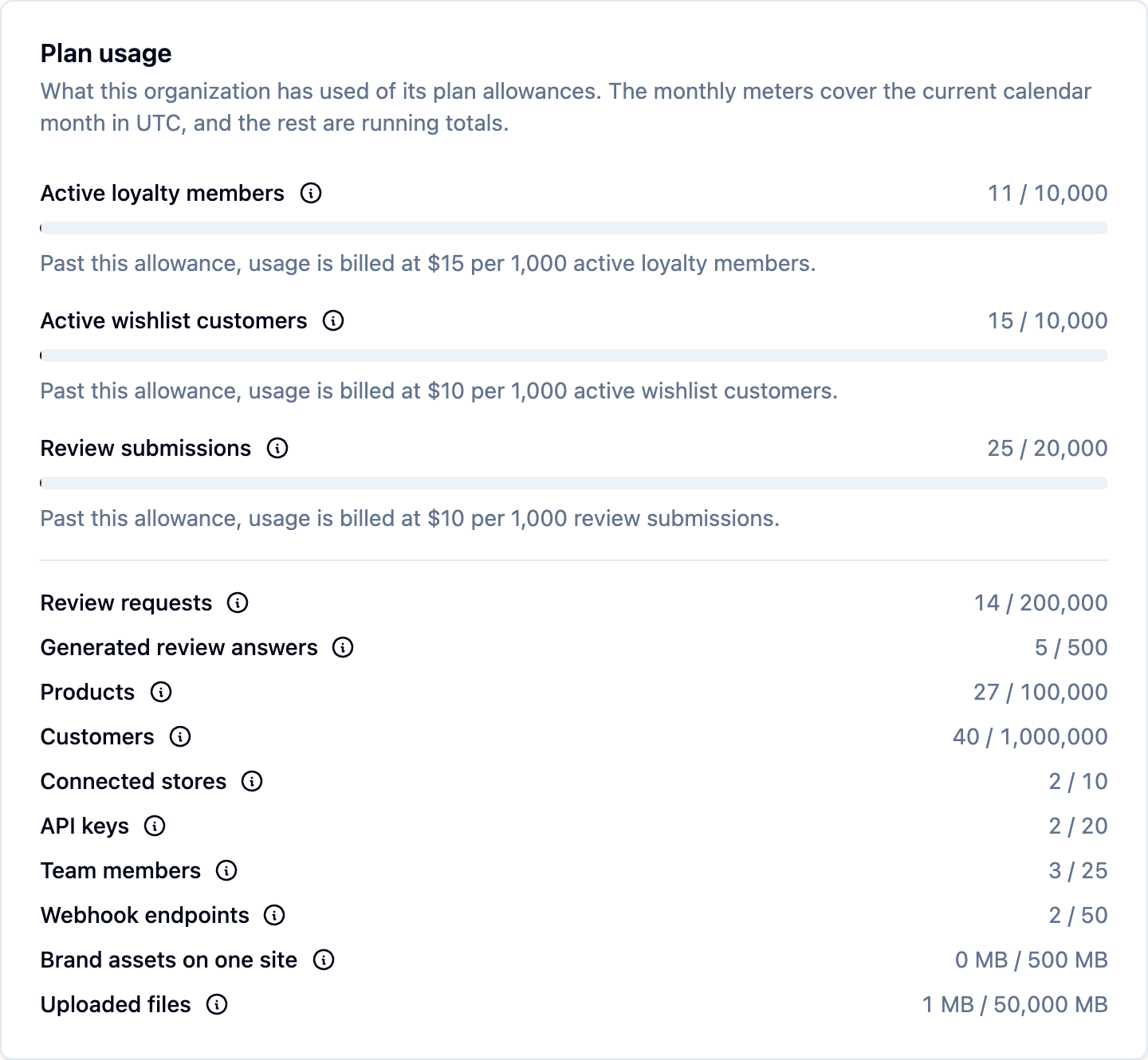
Below it is your usage: a bar for each of the three allowances your plan is priced on, with the running overage total for the month beside each one.
Payment details and invoices
Manage payment details on the billing page opens the account of whoever charges you, which is where your card, billing address and every invoice live. Cascade does not store your card or keep a copy of your invoices.
Who charges you depends on how you arrived: sign up on the website and Cascade bills your card; install from the Shopify app store and the plan goes on your Shopify invoice. The price is the same either way, and you are never billed twice.
If you go over an allowance
Nothing changes the day it happens. With Bill me for usage over an allowance on (the default), everything keeps working and the extra is billed after the month ends. With it off, that one product stops taking new activity after 14 days. Either way you get an email at 80 percent, and nothing is ever deleted. See Going over an allowance.
What happens when your trial ends, or you cancel
Your account goes read only. You can still sign in, read everything and export your data, and your storefront widgets keep working exactly as before. Review requests, loyalty signups and new wishlists carry on too, because those come from your shoppers. What stops is creating, editing or deleting anything in the admin.

Nothing is deleted. Your reviews, loyalty balances, wishlists, products and customers stay where they are, and picking a plan puts everything back at once.
What we email you about
- Nearly at an allowance (80 percent) and Over an allowance go to everyone on the team, because the person who notices is not always the person who pays.
- Payment failed, Trial ending, Trial or plan ended and Plan changed go to owners only.
Each email is sent once per event, and there is no setting to turn them off.
If something isn't working
- The plan says Payment failed: choose Manage payment details and update your card. A plan can't be changed until the payment goes through.
- You can't find an invoice: it lives with whoever bills you, in Stripe or in your Shopify admin under Settings → Billing, not in Cascade.
- The Change plan button is missing: you're either not an owner, Shopify bills you (change the plan there), or we raised an allowance for your account and will move you by hand.