
The assistant
Ask questions about your store in plain language and have changes made for you, with your approval, instead of building a filter and a spreadsheet.
Ask a question
- Open Assistant, or click the launcher in the bottom right of any other screen.
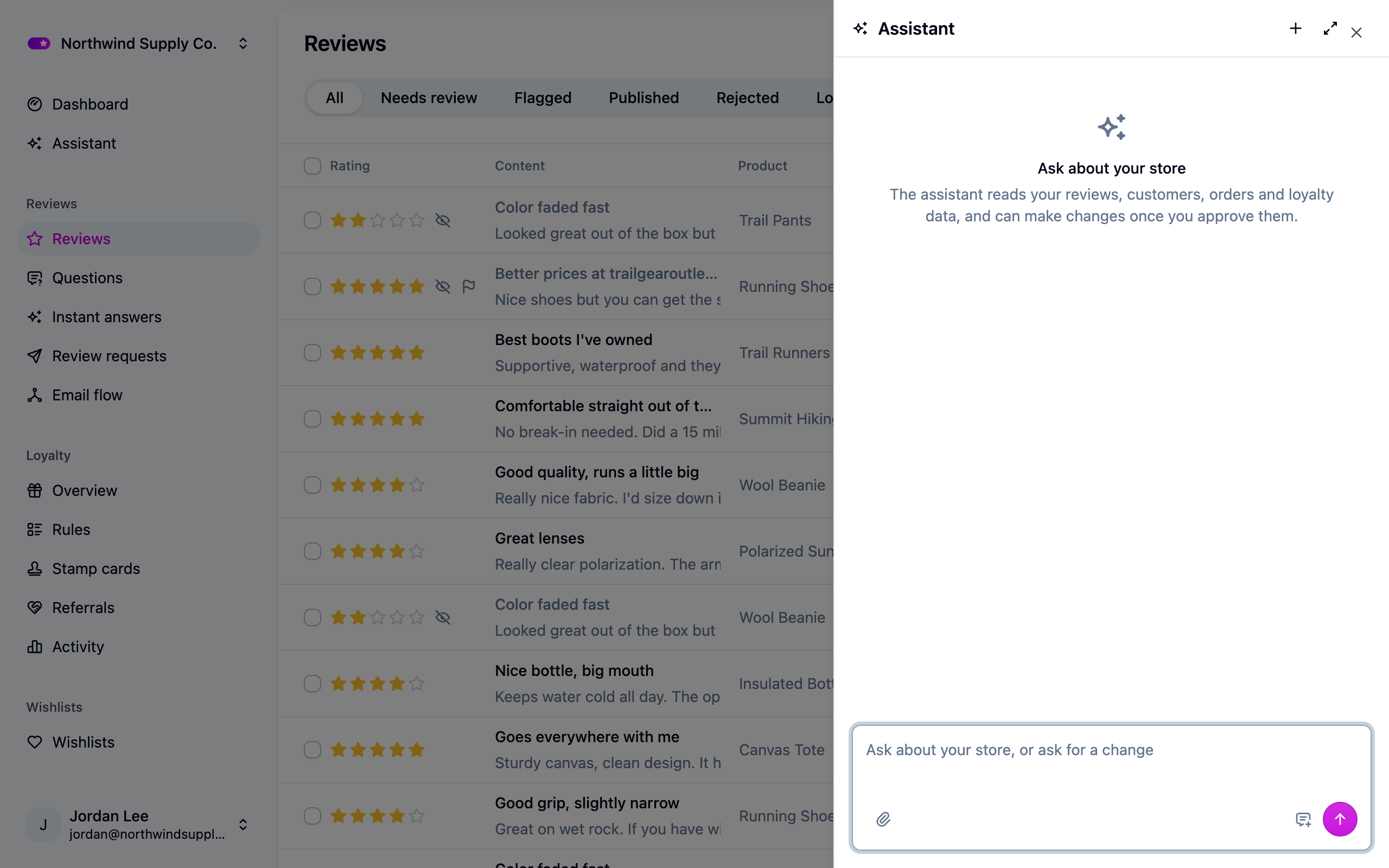 2. Ask what you'd ask a colleague:
- Which products got 1-star reviews this week?
- How many loyalty members are close to the next tier?
- What is my average rating doing month over month?
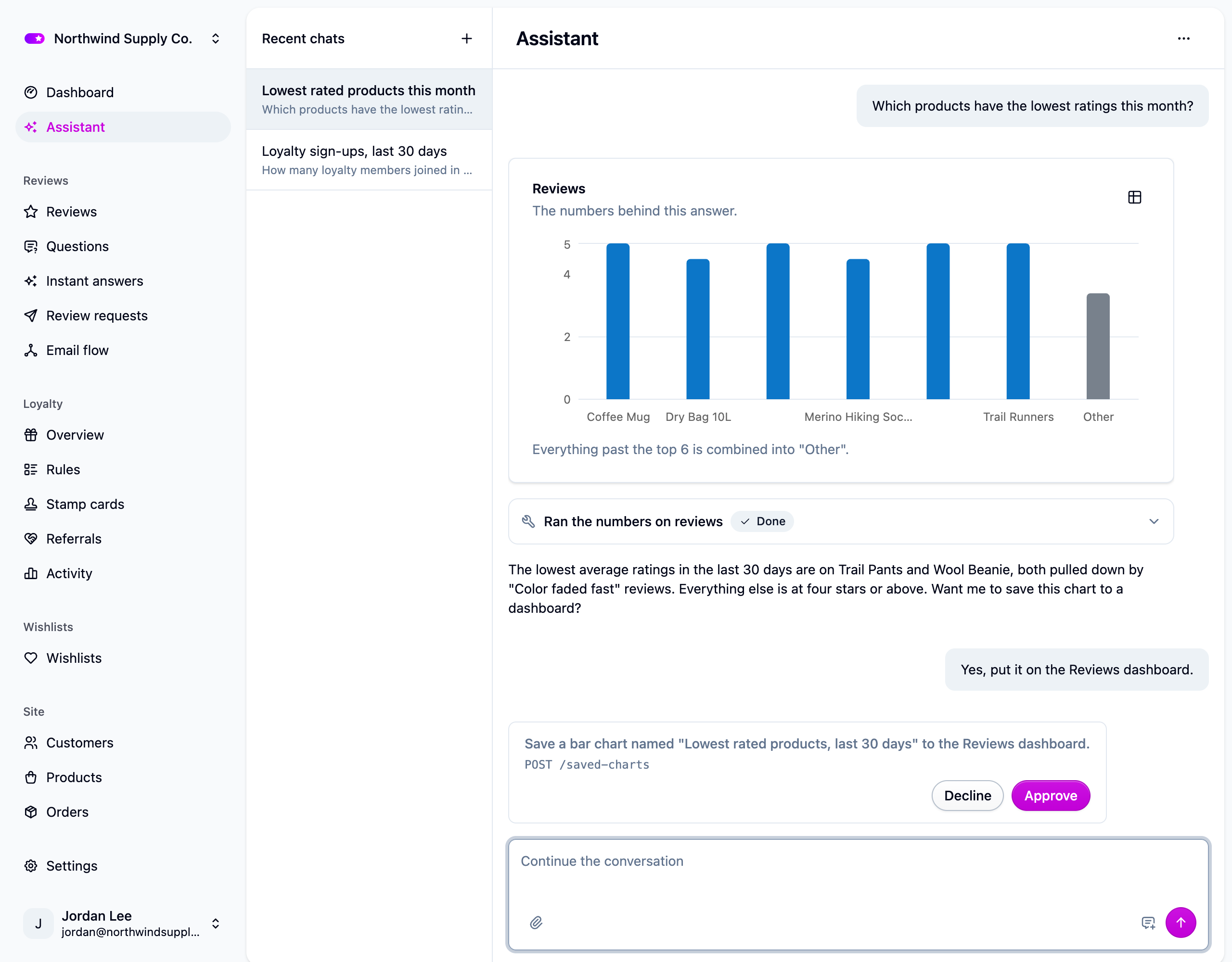
- When the answer is a count, an average or a trend, the assistant draws it as a chart in the chat, in the same style as Analytics.
- Ask it to keep a chart and it offers to save it to one of your dashboards. It can also arrange saved charts into a dashboard, and tell you what you've already saved.
Attach a screenshot or a PDF
Use the paperclip in the composer to attach a screenshot of something that looks wrong, a supplier's spec sheet, or a report you want the numbers read out of. PNG, JPEG, GIF, WebP and PDF work, up to 5 MB per message. Ask us if you need more room; it's part of your plan limits.
Every change waits for you
The assistant can read freely. To change anything it shows you a card saying in plain language what the change does, with approve and reject. Nothing is written until you approve, and a change you approve is recorded as yours.
It sees exactly what you can see and nothing else: it works through your own sign-in, so it can't reach data you couldn't open yourself.
Your chats
Your conversations are yours; other members of your team can't read them. Each chat gets
a short name once your first question has an answer. Everything you can do to a chat,
including deleting it, is in the ... menu at the top. Deleting a chat doesn't undo any
change it made to your store.
Tell us what it should do differently
Beside the send button is a feedback button. When the assistant runs into something it can't do, like editing your storefront theme, the button offers Send feedback?. What you write goes to the Cascade team by email with your name and store so we can follow up. The conversation itself isn't sent.
Using your own AI instead
The assistant is Cascade's own chat. If you'd rather point Claude, ChatGPT or another tool at your store, see the MCP server. It follows the same rule about only reaching what you can reach, and you choose what it can see when you connect it.
Next steps
- Analytics to build charts by hand.
- AI features for summaries, instant answers and screening.
- MCP server.