
Analytics
See how your reviews, orders, customers and loyalty program are doing, on dashboards you can shape to your store.
Your two starting dashboards
Analytics opens your default dashboard. Every store starts with two:
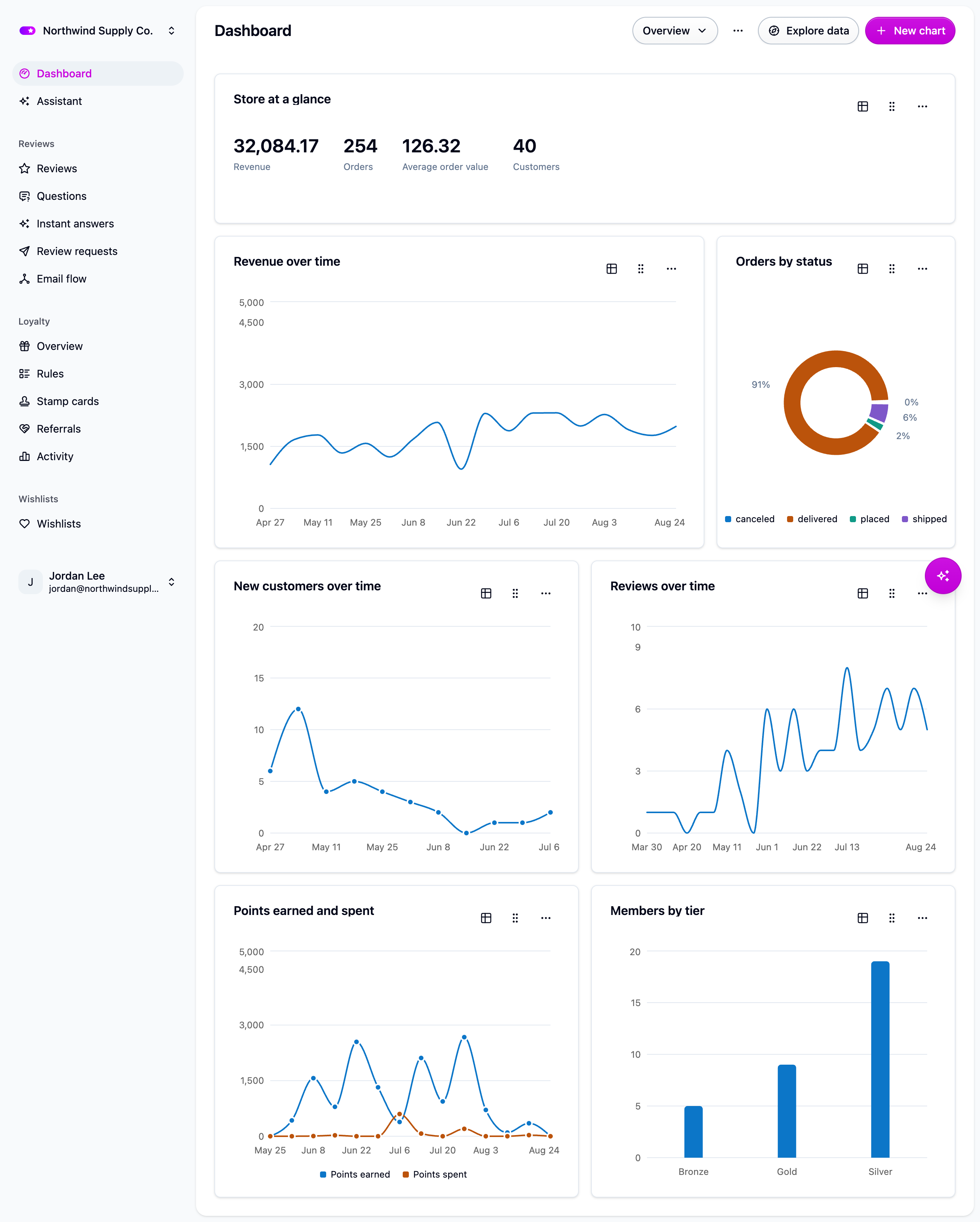
- Overview reads across the whole store: orders, revenue over time, orders by status, new customers, review volume, points earned and spent, and members by tier. It's the one to open first thing in the morning.
- Reviews answers the weekly questions: review volume, whether the average rating is moving, how much of the queue is being held back, and which products are getting reviewed. You can also open it directly at Analytics → Reviews.
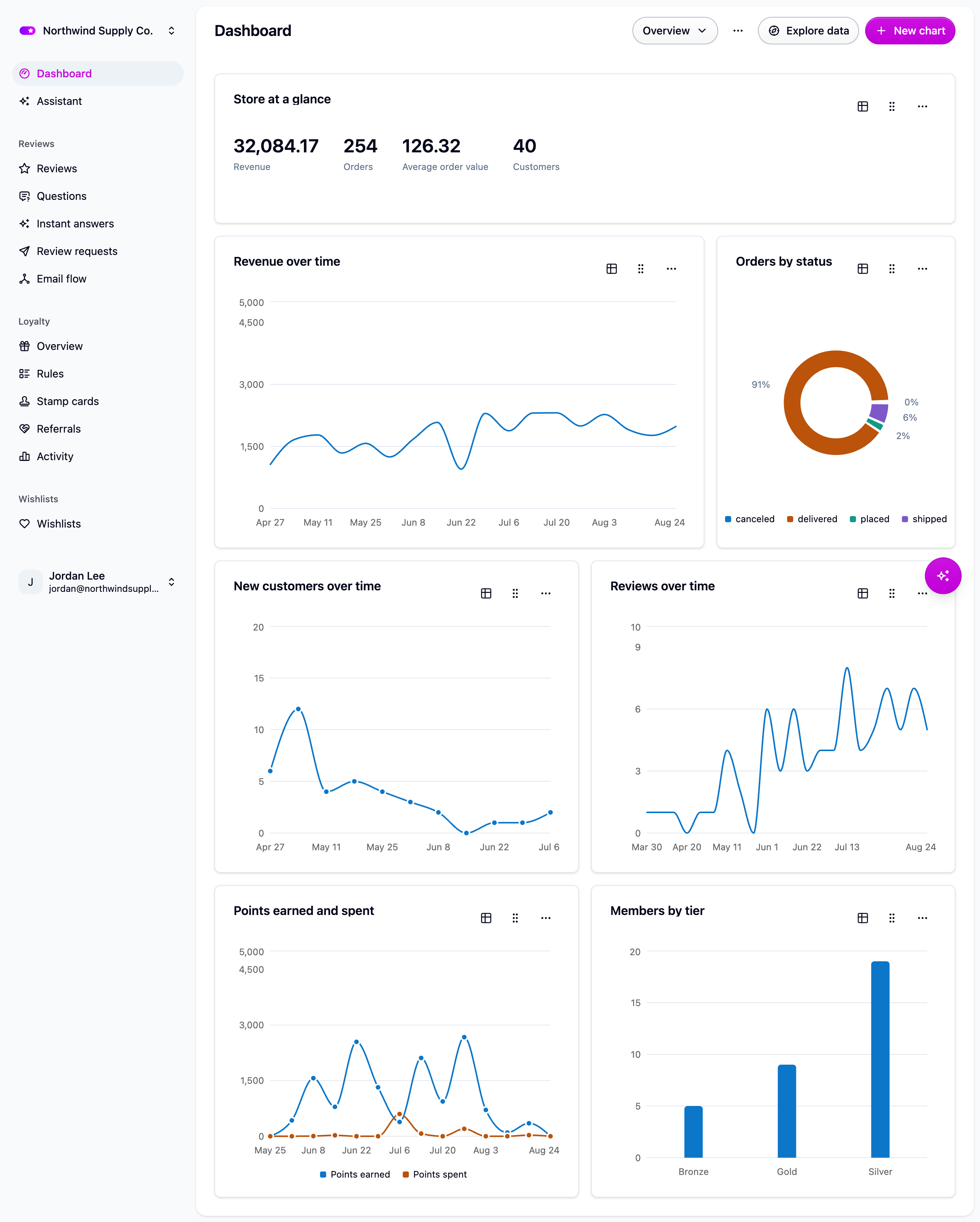
Both are ordinary dashboards. Rename them, rearrange them, edit or add charts, or delete them. See Dashboards.
Ask a question
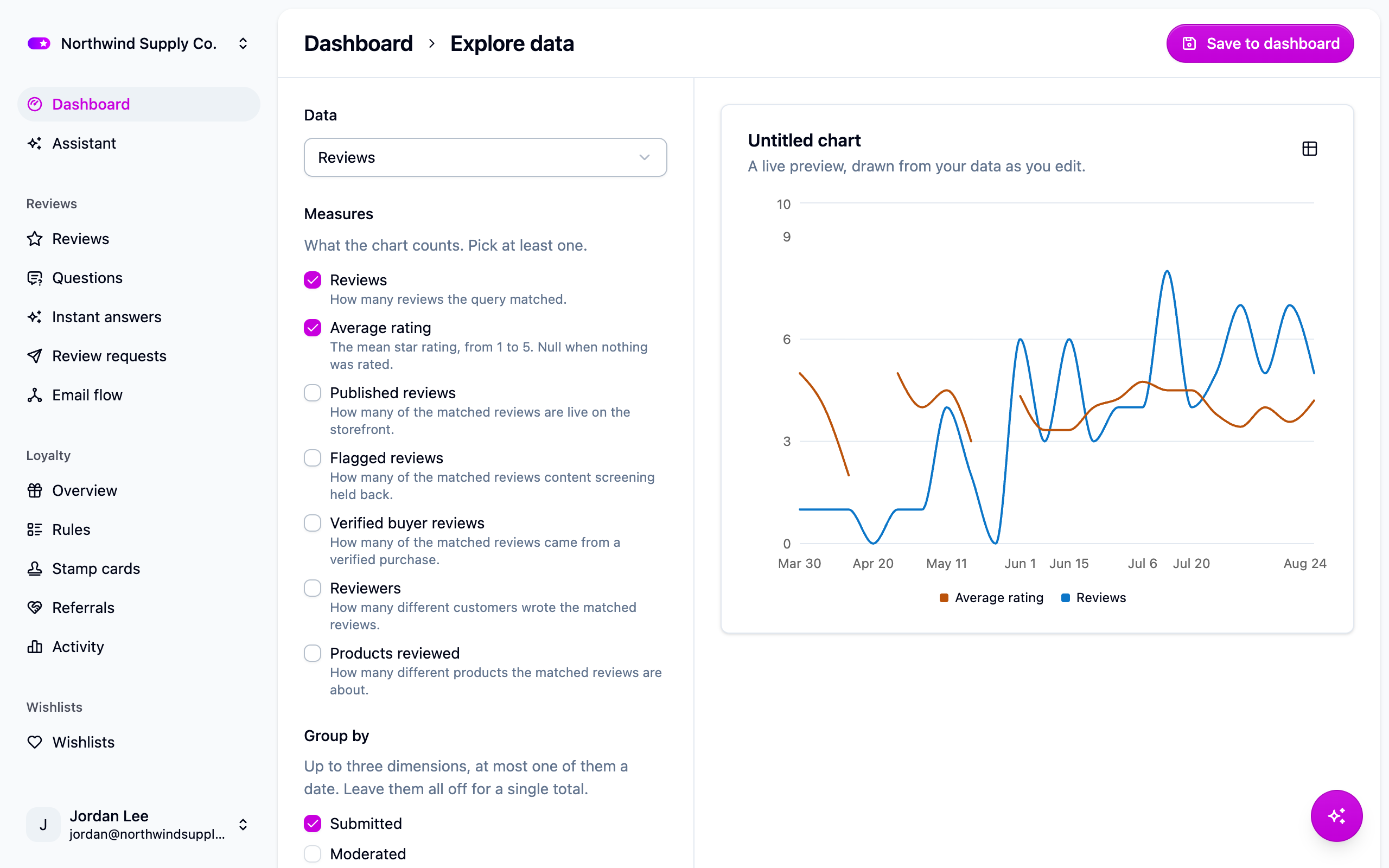
- Open Analytics → Explore, or click Explore data in any dashboard's header.
- Pick what to look at (reviews, orders, customers, products, loyalty members, loyalty activity or rewards), what to measure and what to group by. The chart draws as you build it.
- Narrow it with the same filters the list screens use. See Filtering.
- Share it by copying the page's address. Coming back to the link restores the chart exactly as you left it.
- Keep it with Save to dashboard: give it a name, pick a dashboard (or create one right there), and it lands at the bottom of that dashboard.
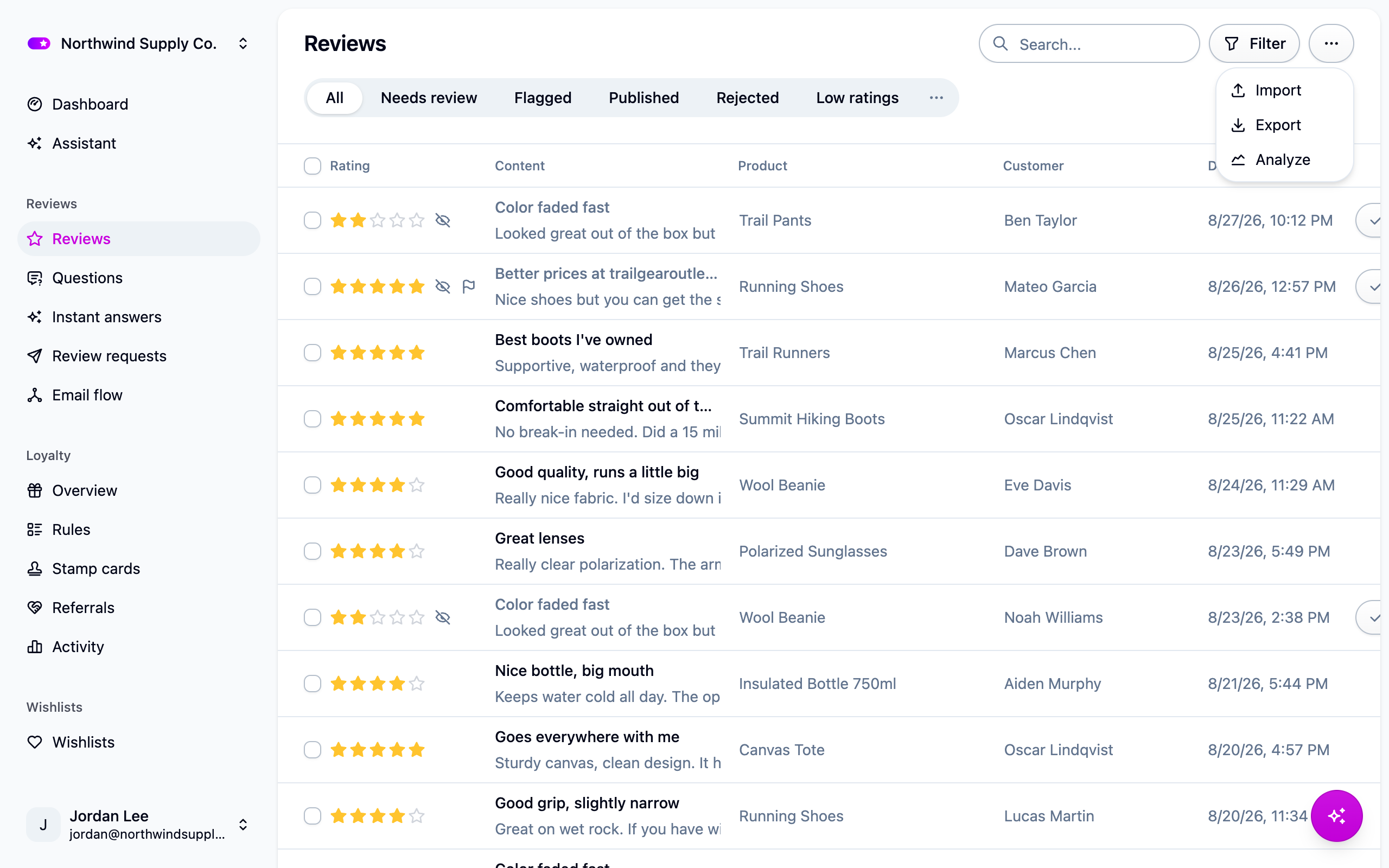
You can also start from a list. The Reviews, Orders, Customers, Products, Loyalty activity and rewards pages each have Analyze in their actions menu. It opens Explore with the list's current filter carried over, charting a count over time, so "what am I looking at, over time?" is one click away.
Or just ask the assistant
Ask the assistant how many, how much, or what the trend is, and it draws the answer in the chat. Ask it to keep the chart and it offers to save it to one of your dashboards, after your approval.
Reading the numbers
- Time zone. Charts count days in your store's time zone, set under Settings → General. Changing it moves every day boundary.
- Currencies. Revenue and average order value add orders in different currencies together as they are, so filter or group by currency if you sell in more than one.
- "Other". A chart grouped by something with many values (products, customers) shows the top ones and combines the rest into "Other", with a note under the chart saying what was combined. An average in that bucket is a true average of everything in it.
- Gaps aren't zeros. A week with no reviews shows as zero on a count but as a gap on an average, because the average of nothing isn't zero.
- Order status is worked out from the order's dates: canceled, delivered, shipped or placed, in that order.
Next steps
- Dashboards: build, arrange and set your default.
- Filtering to narrow any chart.
- The assistant for charts without the clicking.
For developers
POST /analytics/query takes a query document and returns rows; GET /analytics/schema
returns every resource with its current measures and dimensions (count plus per-resource
measures, grouped by hour, day, week, month, quarter or year, or by category). Filters are
the same documents the list endpoints take. Revenue is reported in major currency units.
See the API reference.
The review answers resource is one row per answer to a review question, including
answers on unpublished reviews; filter on published to match the storefront. Its average
step is the mean of matched scale answers, so filter to one scale question first.